
PDF and document tools
Split PDF
Extract pages from a PDF, or split it into several files by range, single pages, or equal parts. Free, and your file is processed in your browser.
- Free, no sign-up
- Files are processed in your browser, not uploaded
- Up to 25 MB per file
Loading Split PDF…
This free Split PDF tool takes pages out of a PDF or breaks it into smaller files. Pick pages by tapping their previews or by typing page numbers, and choose whether you want one new file or several. Your browser does all the work, so your PDF never leaves your device. Splitting a long file first also helps when you summarise documents with AI, because many tools handle shorter files better.
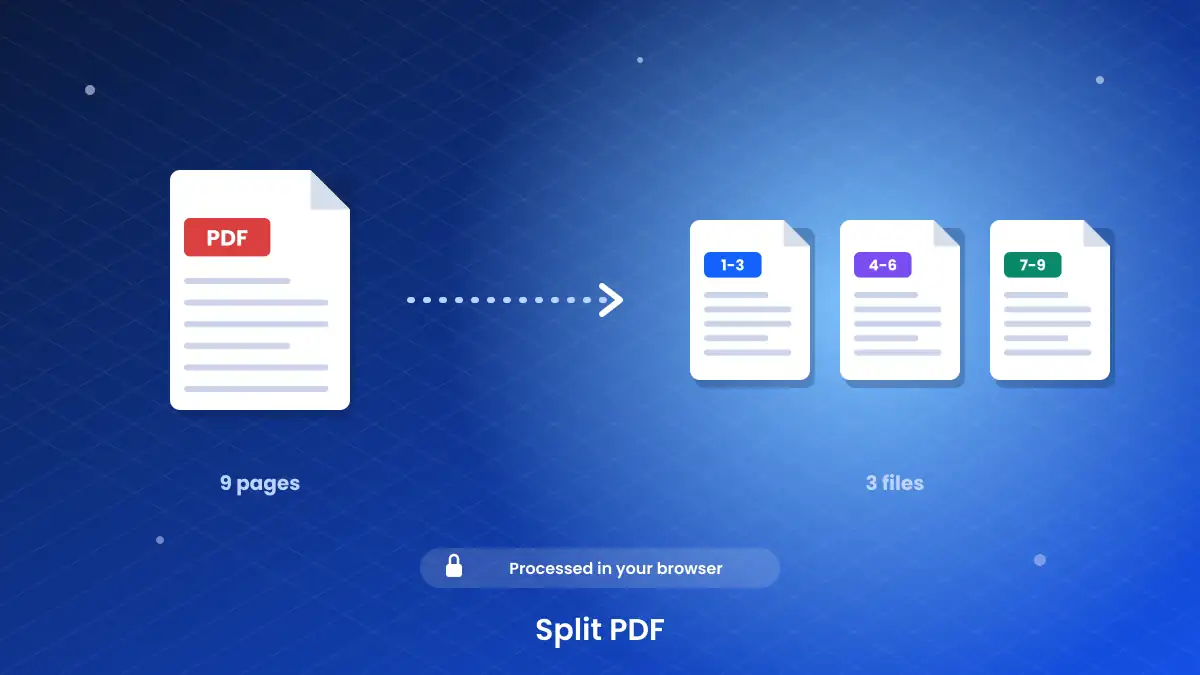
How to split a PDF
- Choose your PDF. First, select a file or drop it onto the box. Every page then appears as a preview.
- Pick a method. Next, choose Extract pages, Split by ranges, Every page, or Every few pages.
- Choose the pages. Tap pages to select them, or type them in the Pages box, for example
1-3, 5, 8-. On a computer, you can also hold Shift and click to select a run of pages. - Check the summary. The panel tells you how many files and pages you will get.
- Split and download. Finally, press Split PDF. One output downloads as a PDF, while several outputs download together in a ZIP file.
Four ways to split PDF files
- Extract pages: all the pages you choose go into one new PDF, in page order.
- Split by ranges: each range you type becomes its own PDF. For example,
1-4, 5-9, 10-gives three files. - Every page: each page becomes a separate one-page PDF.
- Every few pages: the tool cuts the document into parts of the size you set, such as every 5 pages.
How to write page ranges
Separate items with commas. For example, a single number is one page, 2-6 is pages 2 to 6, and 8- means page 8 to the end. If a number is past the last page, or a range runs backwards, the tool tells you before you split.
Split PDF limits and supported files
The tool takes one PDF at a time, up to 25 MB and 100 pages. However, you need to remove any password protection first. In addition, the tool never changes your original file; you always get new files.
Frequently asked questions
Does splitting reduce quality?
No. The tool copies pages as they are, so text and images look the same. It uses the open-source pdf-lib library to do this.
Why is each part almost as large as the original?
Pages that share fonts or images need their own copy of those resources in each new file. As a result, the parts can stay large. To shrink the parts, use Compress PDF.
Can I split PDF pages and put them back in a different order?
Yes. Split the PDF, then add the parts to Merge PDF in the order you want.