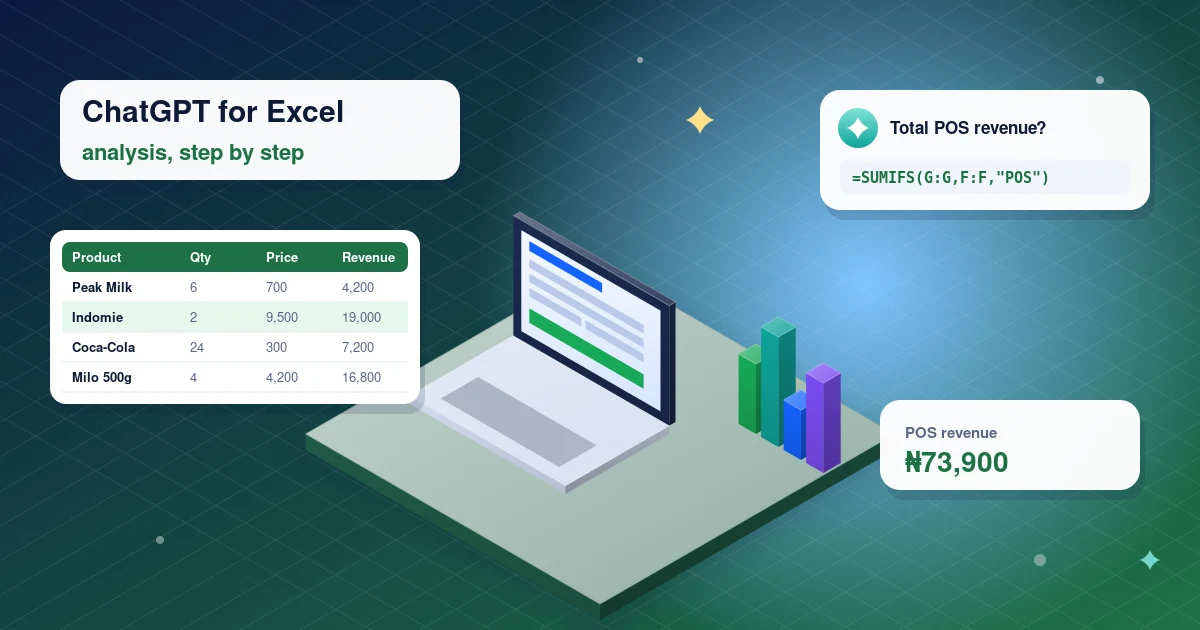
Excel is powerful, but many people get stuck on the formulas, the pivot tables and the question of what the numbers actually mean. ChatGPT for Excel removes much of that friction. It can write a formula from a plain-English question, explain an error, or read your whole spreadsheet and summarise what is going on. This guide shows you how to use ChatGPT for Excel analysis step by step, with a real worked example from a small Nigerian shop, prompts you can copy and the checks that stop wrong answers from reaching your report.
Quick answer: There are two ways to use ChatGPT for Excel. First, describe your columns and ask ChatGPT to write the formula, such as SUMIFS or XLOOKUP, then paste it into Excel. Second, upload the file (XLSX, XLS or CSV) and ask questions about the data; the free plan allows three uploads a day. Either way, remove personal data first and check every result against a formula in your own sheet.
In this guide
- What can ChatGPT for Excel do?
- Before you start: prepare your sheet
- Method 1: Ask ChatGPT for Excel formulas
- Method 2: Upload your file and analyse it
- Worked example: what the shop learned
- Prompts to copy
- How to check ChatGPT’s Excel answers
- ChatGPT or Copilot in Excel?
- Frequently asked questions
- Key takeaways on ChatGPT for Excel
What can ChatGPT for Excel do?
ChatGPT is not built into Excel, but it works well beside it. In practice, it helps in two ways:
- It writes and explains formulas. You describe what you want, and it returns the formula, such as SUMIFS, COUNTIFS or XLOOKUP. It can also explain an error such as #N/A or #VALUE!.
- It analyses an uploaded file. You upload the spreadsheet, and it reads the data, calculates totals, finds trends and draws charts.
According to OpenAI’s file upload guide, ChatGPT accepts XLSX, XLS, CSV and TSV files of up to about 50 MB. Free users can upload three files a day, so the formula method is better for daily work on the free plan.
Before you start: prepare your sheet
Clean data gets better answers. So, spend two minutes on these checks before you use ChatGPT for Excel:
- One header row. Give every column a clear name, such as “Date”, “Product” or “Revenue (₦)”.
- No merged cells or blank rows. These confuse both Excel and ChatGPT.
- Numbers stored as numbers. A price typed as “₦1,200” with the symbol is text, not a number. Instead, put the currency in the header.
- Consistent dates. Use one date format in the whole column.
- No personal data. Remove names, phone numbers, BVNs and account numbers before you upload anything.
In addition, you can stop ChatGPT from using your chats to train its models. Go to Settings, then Data controls, and turn off “Improve the model for everyone”, as OpenAI’s data controls FAQ explains. A Temporary chat is also excluded from training.

Method 1: Ask ChatGPT for Excel formulas
This method never sends your data anywhere, because you only describe the columns. It works on any plan.
- Describe the layout. For example: “My sheet has Date in column A, Product in B, Category in C, Qty in D, Unit price in E, Payment in F and Revenue in G, with data in rows 2 to 13.”
- Ask the question. For example: “Write a formula for the total revenue from POS payments.”
- Paste the formula into an empty cell in Excel.
- Ask why if the result looks wrong, and paste the exact error message.
Here is the sample data we will use, the September sales log of a small provision store:
| Date | Product | Category | Qty | Unit price (₦) | Payment | Revenue (₦) |
|---|---|---|---|---|---|---|
| 1 Sep | Peak Milk tin | Dairy | 6 | 700 | Cash | 4,200 |
| 1 Sep | Indomie carton | Noodles | 2 | 9,500 | Transfer | 19,000 |
| 3 Sep | Coca-Cola 50cl | Drinks | 24 | 300 | POS | 7,200 |
| 5 Sep | Peak Milk tin | Dairy | 10 | 700 | POS | 7,000 |
| 8 Sep | Golden Penny spaghetti | Pasta | 12 | 1,200 | Cash | 14,400 |
| 10 Sep | Indomie carton | Noodles | 3 | 9,500 | POS | 28,500 |
The full sheet has 12 rows, through 29 September. Next, here are the questions the owner asked, the formulas ChatGPT for Excel can write and the results they return:
| Question | Formula | Result |
|---|---|---|
| Total revenue for September? | =SUM(G2:G13) | ₦149,800 |
| Revenue from drinks? | =SUMIFS(G2:G13,C2:C13,”Drinks”) | ₦32,400 |
| How many sales were paid by POS? | =COUNTIFS(F2:F13,”POS”) | 5 |
| Revenue paid by POS? | =SUMIFS(G2:G13,F2:F13,”POS”) | ₦73,900 |
| Average transfer sale? | =AVERAGEIFS(G2:G13,F2:F13,”Transfer”) | ₦13,133 |
| Price of Milo 500g? | =XLOOKUP(“Milo 500g”,B2:B13,E2:E13) | ₦4,200 |
XLOOKUP works in Excel for Microsoft 365 and Excel 2021 or later. On an older version, ask ChatGPT for an INDEX and MATCH version instead.
Method 2: Upload your file and analyse it
When you want insight rather than a single number, upload the file. Here is how to use ChatGPT for Excel analysis this way:
- Open a new chat and click the plus (+) button to attach your XLSX or CSV file.
- Ask for an overview first: “Describe this data: columns, date range, and any blanks or odd values.”
- Ask your questions one by one, such as revenue by category or by payment method.
- Ask for a chart: “Draw a bar chart of revenue by category, highest first.”
- Ask it to show its working: “Show the calculation or code you used.” Then you can repeat the check in Excel.
- Download the result if ChatGPT creates a cleaned file or a chart, and keep your original file untouched.
Worked example: what the shop learned
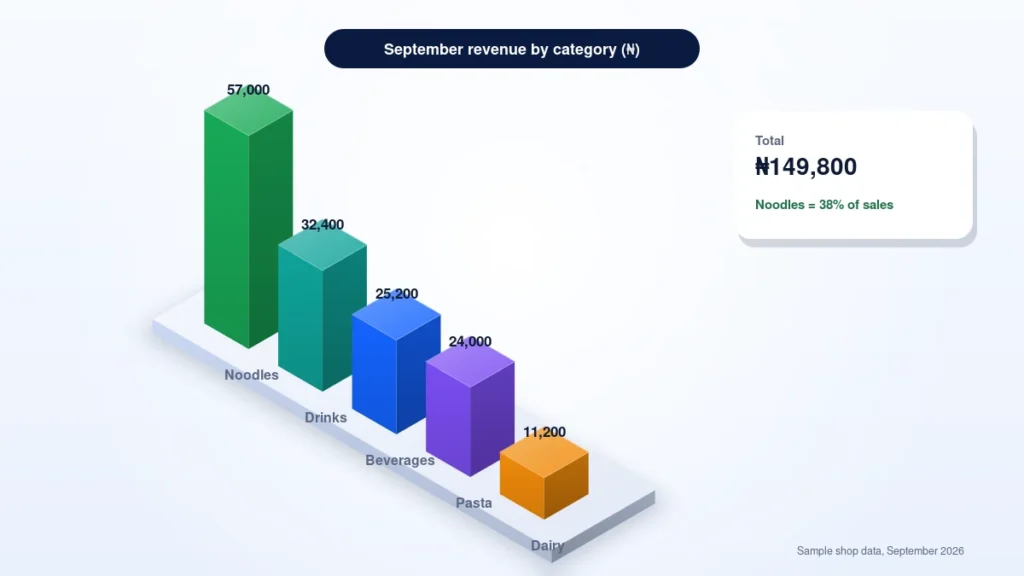
For example, the shop owner uploaded the September sheet and asked three questions. Here is what the data shows, and every figure matches a formula in the sheet:
| Finding | Figure | What the owner did |
|---|---|---|
| Total September revenue | ₦149,800 | First, set a target of ₦165,000 for October, about 10% higher |
| Top category | Noodles, ₦57,000 (38%) | Then she kept more cartons in stock before month-end |
| POS share of revenue | ₦73,900 (49%) | So she started reconciling POS settlements every week |
| Cash sales | ₦36,500 (24%) | Also, she banks cash every Friday to reduce risk |
| Transfers | ₦39,400 (26%) | Finally, she checks each credit alert in the banking app, not on screenshots |
The lesson is simple: ChatGPT for Excel turns a long list of sales into a few clear decisions. Still, the owner checked each figure with SUMIFS before acting on it. To set up a sheet like this for your costs, see how to track business expenses in Excel. For a personal monthly plan, try an AI budget planner.
Prompts to copy
Change the column names to match your sheet:
| Goal | Prompt |
|---|---|
| Write a formula | “Column A is Date, B is Product and G is Revenue. Write a formula for total revenue for Product ‘Milo 500g’ in September 2026.” |
| Fix an error | “This formula returns #N/A: =XLOOKUP(H2,B:B,E:E). What are the likely causes, and how do I fix each one?” |
| Explain a formula | “Explain this formula line by line in simple English: =SUMPRODUCT((B2:B13=”Coca-Cola 50cl”)*D2:D13)” |
| Pivot table | “Give me step-by-step instructions to build a pivot table of revenue by Category and Payment.” |
| Clean data | “In the uploaded file, list rows with blank cells, text in number columns, or dates in a different format.” |
| Summarise | “Summarise September sales in five bullet points for a business owner, with the figures.” |
How to check ChatGPT’s Excel answers
ChatGPT for Excel is fast, but it can still get things wrong. So, watch for these problems:
- Wrong ranges. A formula may point to the wrong column or stop at row 100 when your data runs to row 500. Instead, check every range.
- Made-up numbers. ChatGPT may state a total without calculating it. Always ask it to show the calculation, then confirm it with a formula.
- Text that looks like numbers. Values such as “1,200 ” with a trailing space are text, so totals come out too low.
- Date confusion. It may read 03/09 as 9 March instead of 3 September. Therefore, confirm the date format first.
- Version gaps. Newer functions such as XLOOKUP fail in old versions of Excel.
A good habit is to cross-check one total in two ways, for example with SUM and with a pivot table. If both agree, the rest of the analysis is likely sound.
ChatGPT or Copilot in Excel?
Microsoft also offers Copilot inside Excel, so you may wonder which to use:
| Feature | ChatGPT | Copilot in Excel |
|---|---|---|
| Where it works | In a browser or app, beside Excel | Inside the Excel window |
| Cost | Free plan, with three uploads a day | Needs a paid Microsoft 365 plan, such as Personal or Family |
| Best for | Formulas, explanations and analysis of exported files | Working directly on the open workbook |
In short, ChatGPT is the cheaper place to start. However, if you already pay for Microsoft 365, try Copilot too, because it works on the open file. Once you have your own numbers, our guide to AI for business research shows how to combine them with market facts. For more options, see our list of the best free AI tools for small businesses.
Frequently asked questions
Is ChatGPT for Excel free?
Yes. The free plan writes and explains formulas at no cost, and it allows three file uploads a day. However, heavy file analysis needs a paid plan.
Can ChatGPT open my Excel file directly?
It can read an uploaded copy of an XLSX, XLS or CSV file of up to about 50 MB. It does not change the file on your computer.
Is it safe to upload business data?
Remove personal and sensitive data first, and turn off “Improve the model for everyone” in Data controls. For confidential data, use the formula method, which never uploads the file.
Why does my ChatGPT formula not work?
Usually, the ranges or column letters do not match your sheet, or your Excel version lacks the function. Paste the exact error into ChatGPT and describe your layout again.
Can ChatGPT build charts and pivot tables?
Yes. It can draw charts from an uploaded file and give you step-by-step instructions to build a pivot table in Excel.
Key takeaways on ChatGPT for Excel
- Use ChatGPT for Excel in two ways: ask for formulas, or upload the file for analysis.
- Clean your sheet first, and remove personal data before any upload.
- The free plan allows three uploads a day of files up to about 50 MB.
- Always check results with your own formulas, such as SUM and SUMIFS.
- Also, consider Copilot in Excel if you already pay for Microsoft 365.
Want more ways to work smarter with AI? Read our guide to the best free AI tools for Nigerian students, see how students can use AI to learn mathematics, or browse all our AI and productivity guides.