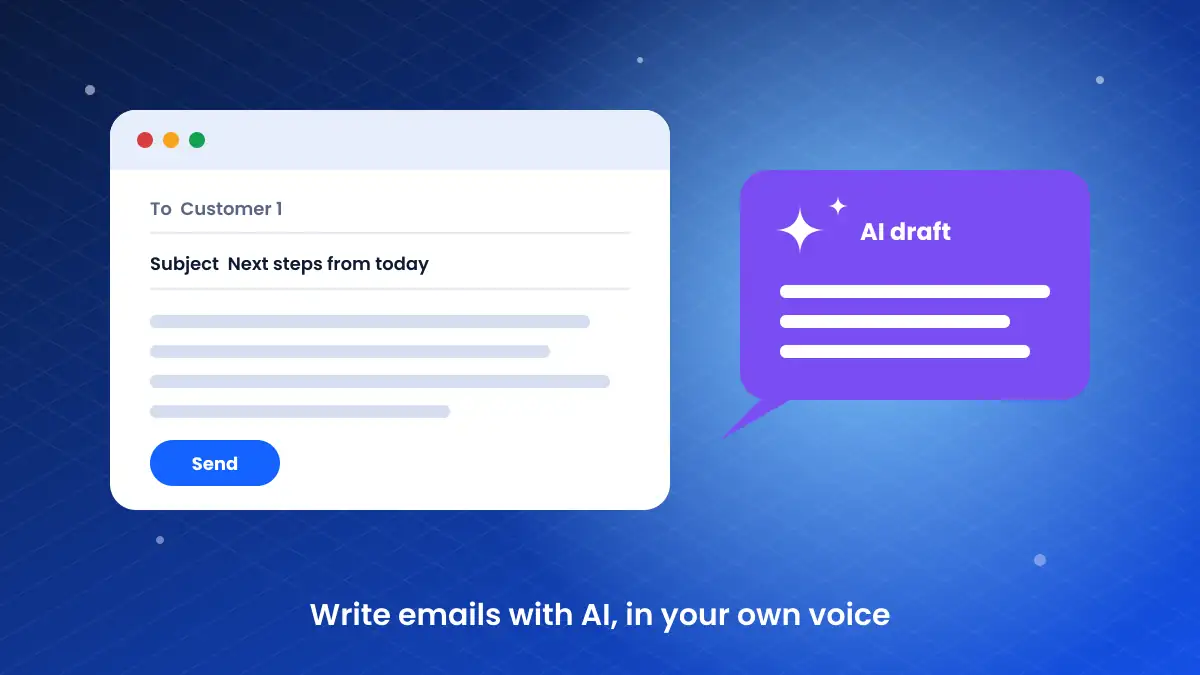
Work emails take up a surprising part of the day. You need the right tone for your manager, a clear message for a customer, and a polite way to say no. Free AI tools can now draft all of these in seconds. This guide shows how to write emails with AI step by step, which free tools to use, and copy-ready prompts for common work situations, so your emails sound like you, only faster.
Quick answer: To write emails with AI, open a free tool such as ChatGPT, Gemini, or Copilot. Tell it who the email is for, what you want, the tone, and the length. Then paste in the key facts, review the draft, and edit it in your own words before you send it. Never paste passwords, customer data, or confidential details into a public AI tool.
In this guide
- Why write emails with AI?
- Free AI tools for writing emails
- How to write emails with AI: step by step
- Copy-ready prompts for common work emails
- How to make AI emails sound like you
- What not to paste into an AI tool
- Check every AI email before you send it
- Using AI for email in a small business
- Frequently asked questions
- Key takeaways on how to write emails with AI
Why write emails with AI?
Above all, AI is good at the parts of email writing that slow people down. For example, it can turn rough notes into clear paragraphs, soften a blunt message, or shorten a long one. It also helps, for instance, when English is not your first language, or when you are not sure how formal to be.
However, AI is a drafting partner, not a replacement for your judgement. You still decide what to say, check the facts, and add the personal touch. In fact, readers notice when a message feels generic, as we explain further down.
Free AI tools for writing emails
Fortunately, you do not need to pay to get started. Here are the main free options:
| Tool | Where it works | Best for |
|---|---|---|
| ChatGPT | Website and app | Drafting any email from your notes |
| Gemini | Website, app, and Gmail | Quick drafts and replies, especially inside Gmail |
| Microsoft Copilot | Website and app | Drafting emails on a free Microsoft account |
| Claude | Website and app | Longer, more careful messages and rewrites |
| Grammarly | Browser extension | Checking tone, grammar, and clarity |
Inside Gmail, Google says its Help Me Write and Suggested Replies features are rolling out to everyone at no cost, according to its January 2026 announcement. Google started with English in the US, so these features may not appear in your account yet.
In Outlook, the built-in Copilot drafting tools need a work licence, Microsoft says in its Copilot in Outlook FAQ. If you do not have one, use the free Copilot website and paste the draft into your email. For a wider comparison, see our guide to the best free AI writing tools.
How to write emails with AI: step by step
Follow these steps to get a useful draft on the first or second try:
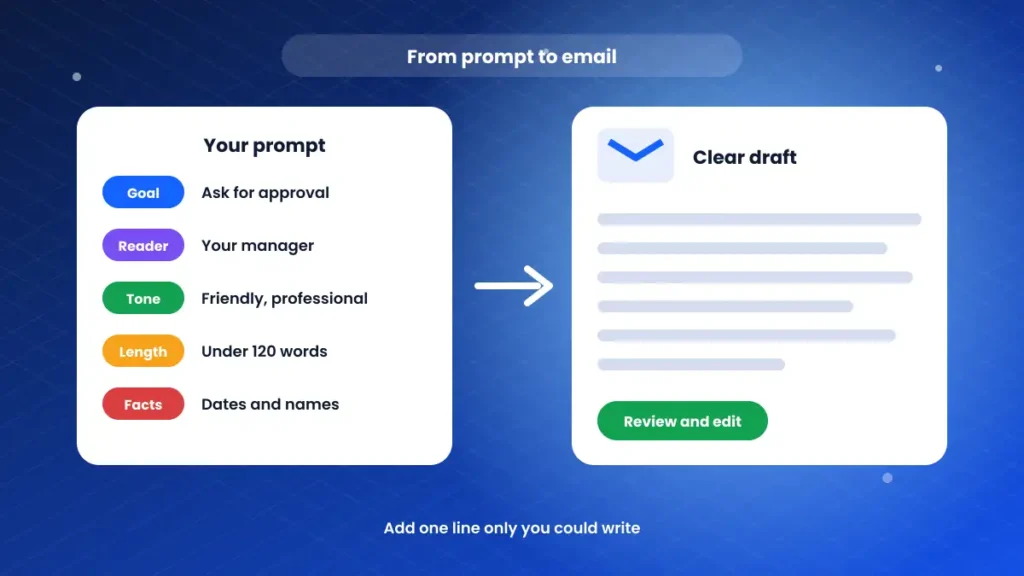
- Decide the goal. First, know what you want the reader to do, such as reply, approve, attend, or pay attention to a change.
- Give the context. Next, tell the AI who the reader is, such as your manager, a new customer, or a supplier, and your relationship with them.
- Set the tone and length. For example, ask for “friendly but professional, under 120 words”.
- Add the facts. Then paste in the key details, such as dates, names, or the decision. Use placeholders for anything sensitive.
- Ask for a subject line. After all, a clear subject helps your email get opened.
- Review and edit. Finally, read the draft out loud, fix anything that is wrong, and add a line only you could write.
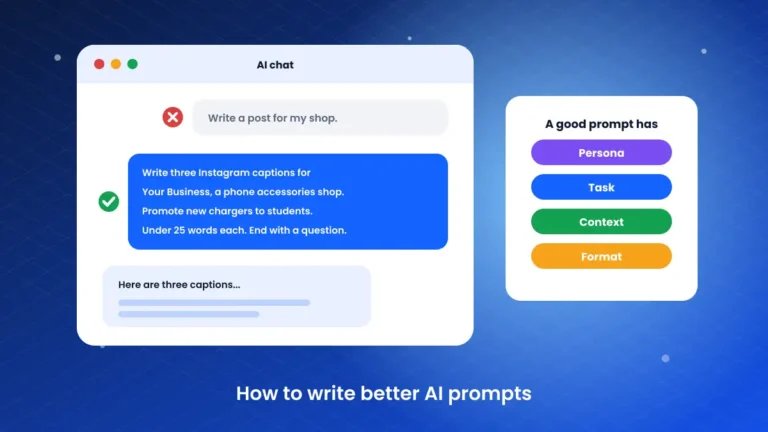
Our guide on how to write better AI prompts explains the prompt formula behind these steps in more detail.
Copy-ready prompts for common work emails
Copy these prompts, and replace the details in square brackets. Each one works in ChatGPT, Gemini, Copilot, or Claude.
Follow up after a meeting
“Write a short follow-up email to [Customer 1] after today’s meeting about [topic]. Thank them, list the three actions we agreed on, with owners and dates, and ask them to confirm. Friendly, professional tone, under 150 words. Add a subject line.”
Ask for a deadline extension
“Write a polite email to my manager asking to move the deadline for [project] from [date] to [new date]. Explain that [reason] in one sentence, and offer a short progress update. Keep it confident, not apologetic, under 120 words.”
Decline a request politely
“Write an email declining [request] from [colleague]. Thank them, say no clearly, give one short reason, and suggest [alternative]. Warm but firm tone, under 100 words.”
Reply to a customer complaint
“Write a reply from [Your Business] to a customer who says [problem]. Apologise once, explain what we will do next and by when, and give a direct contact. Calm, respectful tone, under 150 words. Do not blame the customer.”
Chase a reply
“Write a friendly follow-up to [name], who has not replied to my email from [date] about [topic]. Remind them briefly what I need, make it easy to answer, and keep it under 80 words.”
Rewrite my draft
“Rewrite this email so it is clearer and more polite, but keep my meaning and my voice. Shorten it by about a third. Here is my draft: [paste draft].”
How to make AI emails sound like you
At first, AI drafts often sound stiff or overly cheerful. So use these tips to keep your own voice:
- Share a sample. Paste one or two of your past emails, and ask the AI to match the style.
- Ban filler phrases. For example, add “avoid phrases like ‘I hope this email finds you well’”.
- Ask for plain English. Request short sentences and everyday words.
- Add one personal line. Mention something specific, such as a past conversation or a shared project.
- Cut the ending. AI often adds a long closing paragraph, so delete anything that repeats the message.
This matters, especially for managers. In a survey of 1,100 professionals, only 40% to 52% saw supervisors as sincere when they used high levels of AI help, compared with 83% for low levels, CORDIS reported. So use AI for routine emails, but write personal messages, such as thanks or bad news, mostly yourself.
What not to paste into an AI tool
Free AI tools may store what you type, and some use it to improve their models unless you turn that setting off. Therefore, keep these details out of your prompts:
- Passwords, PINs, OTPs, or account numbers
- Customer names, phone numbers, or addresses, unless your company has approved the tool
- Confidential plans, contracts, salaries, or legal matters
- Anything your employer’s policy says must stay internal
Instead, use placeholders such as “Customer 1” or “amount]”, and fill in the real details yourself in your email app. Also, check your company’s AI policy before you use any tool for work. If you use Gmail, our guide on how to [secure your Gmail account explains how to protect the account itself.
Check every AI email before you send it
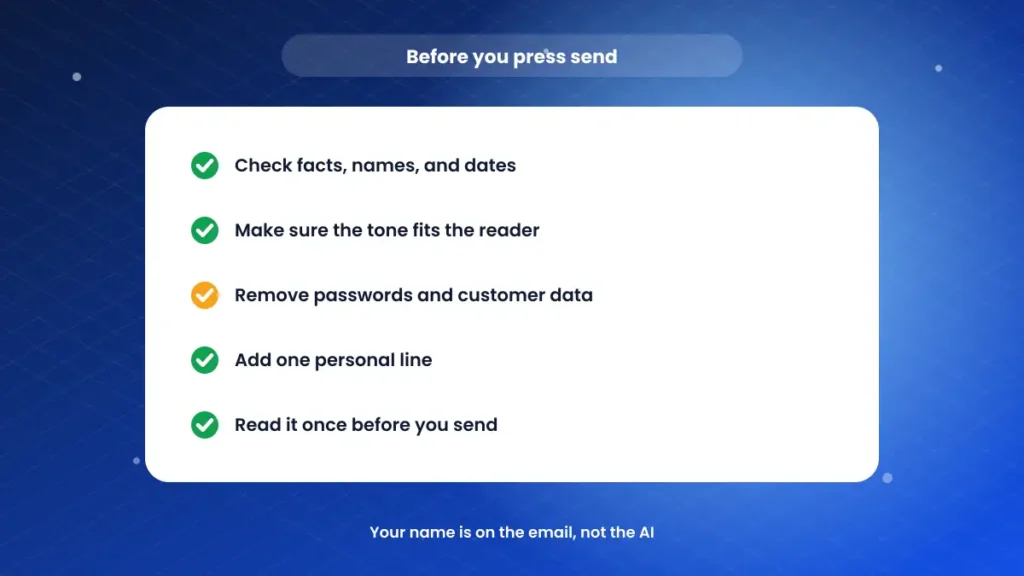
Unfortunately, AI can make confident mistakes. So before you press send, check these points:
- Facts. Are the dates, times, figures, and names correct?
- Promises. Did the AI promise something you cannot deliver, such as a refund or a deadline?
- Tone. Would you say this to the person’s face?
- Length. Can you cut a sentence or two?
- Recipient. Is the email going to the right person, and is the right file attached?
In short, treat the AI draft like a draft from a new colleague: helpful, but your name is on it.
Using AI for email in a small business
For a small business, AI can save hours each week on customer replies, supplier messages, and follow-ups. For example, you can keep a document of your best prompts and reuse them. Likewise, you can ask AI to turn a long customer email into a summary before you reply. Our guide to summarising documents with AI shows how.
If you are setting up a professional address for your business, see how to create a professional business email. For more ideas, browse the best free AI tools for small businesses.
Frequently asked questions
Is it OK to use AI to write work emails?
Yes, for most routine emails, as long as your employer allows it. However, always review the draft, check the facts, and keep sensitive details out of the tool.
Which free AI tool is best for emails?
ChatGPT and Gemini are good all-rounders. If you use Gmail, try its built-in Help Me Write feature when it reaches your account. Grammarly is useful for checking tone and grammar.
Can people tell an email was written by AI?
Sometimes. Generic phrases, long closings, and an overly cheerful tone are common signs. So edit the draft, cut filler, and add a personal detail.
Can AI reply to emails for me automatically?
Some paid tools can, but it is safer to review every reply yourself. An automatic reply can share the wrong information or promise something you cannot deliver.
How long should a work email be?
Usually as short as possible. For most messages, aim for under 150 words, with one clear request.
Key takeaways on how to write emails with AI
- Give the AI the goal, the reader, the tone, the length, and the key facts.
- Use free tools such as ChatGPT, Gemini, Copilot, or Claude, or Gmail’s built-in features where available.
- Edit every draft so it sounds like you, and add one personal line.
- Never paste passwords, customer data, or confidential details into a public AI tool.
- Check facts, promises, and the recipient before you press send.
Want more ways to work faster? Read our guides on how to create presentations with AI and how to create a CV with AI, or browse all our AI and productivity guides.