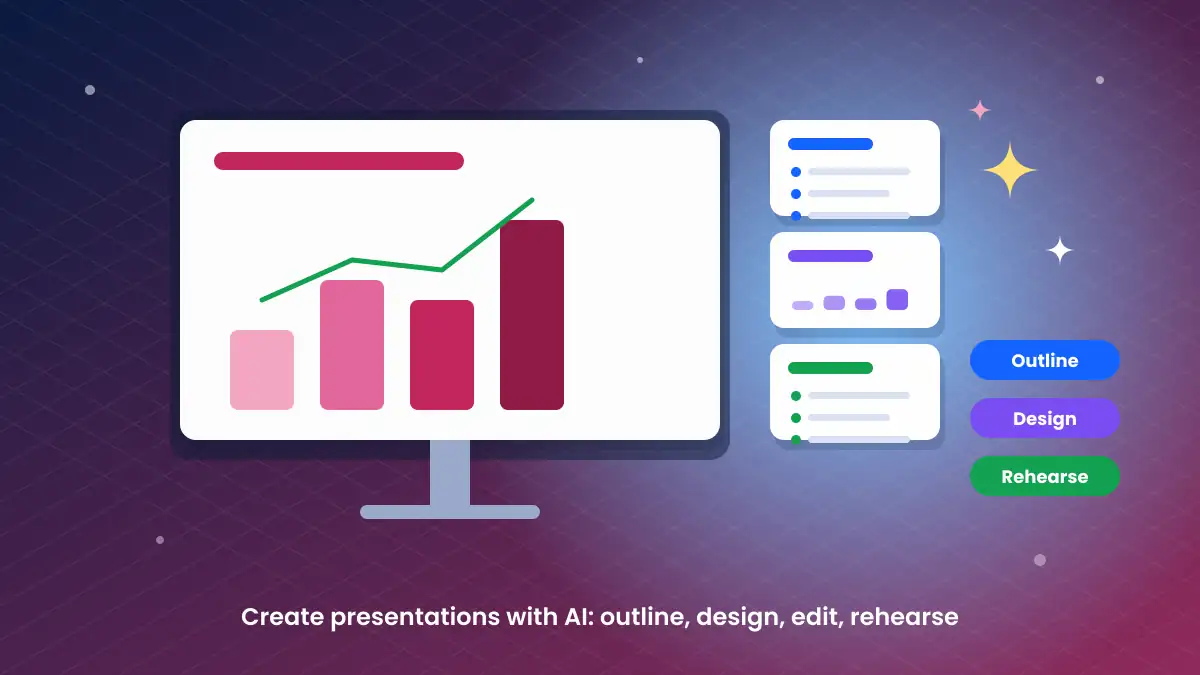
A good presentation takes hours: planning the story, writing the slides, finding images, and making it all look tidy. You can now create presentations with AI in a fraction of that time. This guide shows how to create presentations with AI step by step, which free tools work best, and how to make the result sound like you rather than a robot.
Quick answer: To create presentations with AI, write a clear outline first, then use a tool such as Gamma or Canva to turn it into designed slides, or ask ChatGPT or Claude to write the slide text and speaker notes. Edit every slide, check every fact and number, add your own examples, and rehearse. Free plans are enough for most school and work presentations.
In this guide
- What AI can do for your presentation
- The best free tools to create presentations with AI
- How to create presentations with AI, step by step
- Prompts to create presentations with AI
- Tips for slides that people remember
- Use AI for presentations honestly
- Frequently asked questions
- Key takeaways on how to create presentations with AI
What AI can do for your presentation
AI helps most with the slow, repetitive parts of making slides. For example, it can:
- Plan the story. Turn a topic or a report into an outline with a clear beginning, middle, and end.
- Write the slides. Draft short headlines and bullet points for each slide.
- Design the deck. Apply a layout, colours, and images in one click.
- Write speaker notes. Draft what to say on each slide, so you can rehearse.
- Change the format. Shorten a 20-slide deck to 8 slides, or make it simpler for a new audience.
However, AI does not know your audience, your data, or your opinion. Those parts still come from you.
The best free tools to create presentations with AI
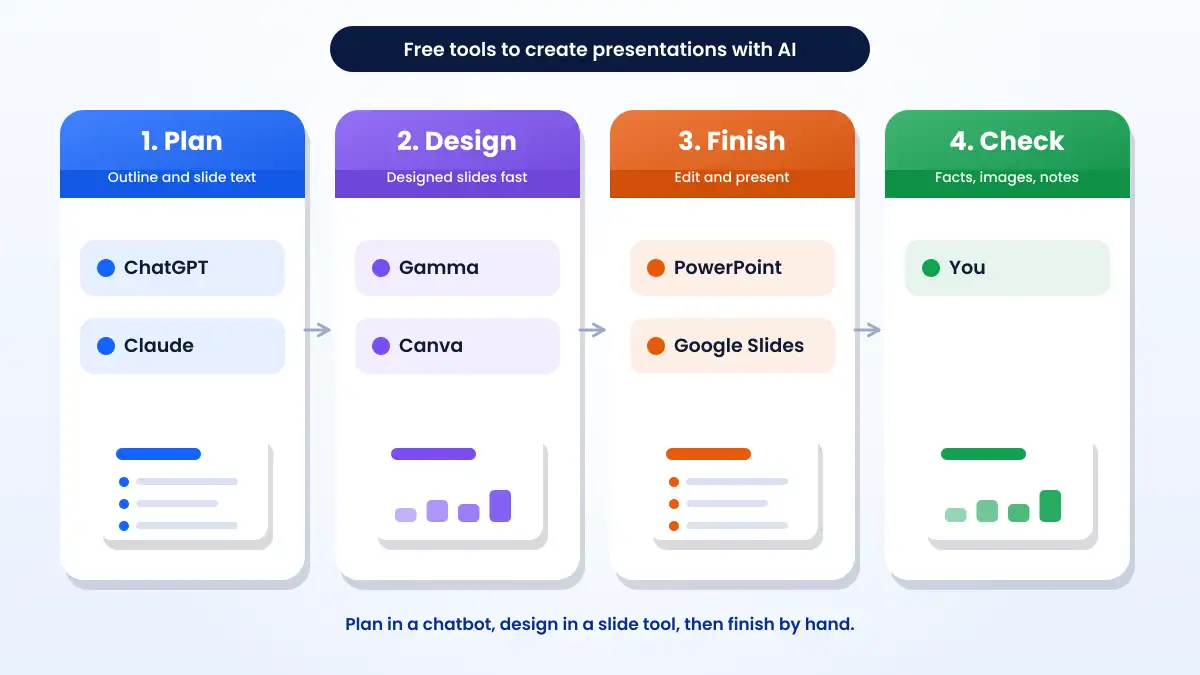
These tools cover most needs. Free limits change often, so check each tool before you rely on it.
| Tool | Best for | Free plan in brief |
|---|---|---|
| Gamma | Full designed decks from a prompt or document | 400 AI credits at sign-up; up to 10 cards per prompt; Gamma badge on exports |
| Canva | Polished designs and templates | Up to 20 AI uses a month, shared across Canva’s AI tools |
| ChatGPT or Claude | Outlines, slide text and speaker notes | Free with an account, within usage limits |
| Google Slides with Gemini | Full decks inside Google Slides | Needs Google AI Pro or a paid Workspace plan |
| PowerPoint with Copilot | Full decks inside PowerPoint | Needs a paid Microsoft 365 plan |
For example, Gamma’s free plan gives 400 credits once, with no monthly refresh, and lets you export to PDF and PowerPoint. Its Plus plan costs $9 a month and removes the Gamma badge. Canva’s free plan includes up to 20 AI uses a month, while Canva Pro costs $144 a year. Google’s tool that builds a full deck inside Google Slides needs Google AI Pro or a business plan, and it supports US English only at launch.
How to create presentations with AI, step by step
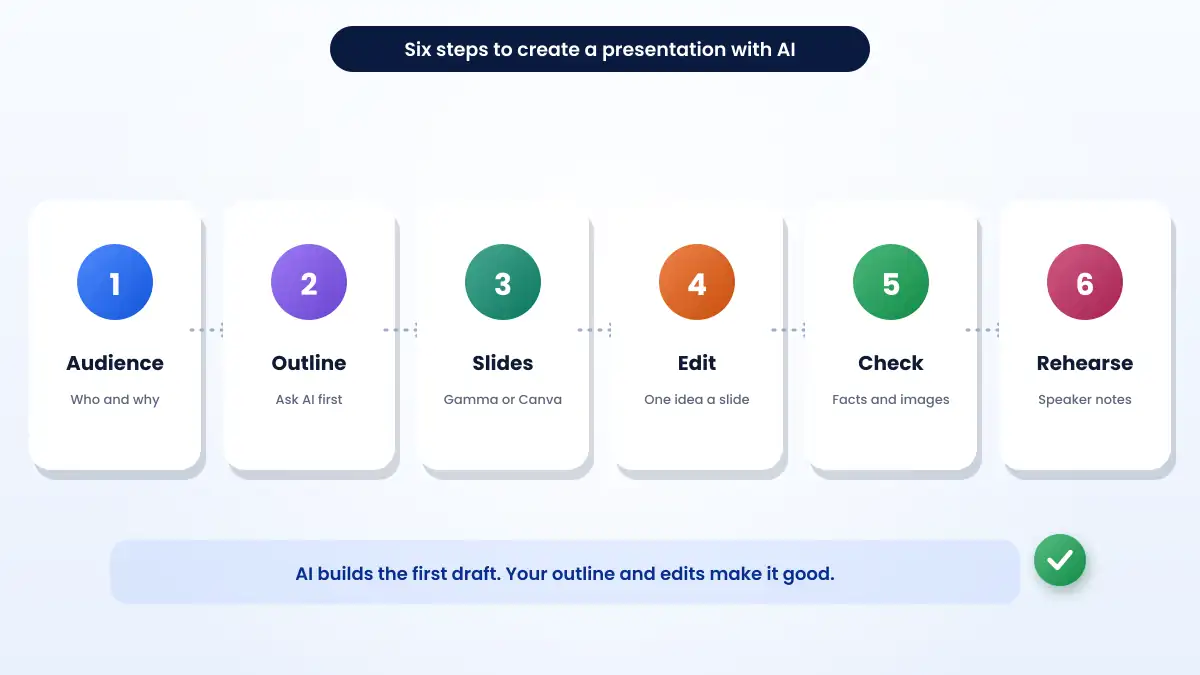
These six steps work for a class presentation, a pitch, or a team update.
Step 1: Know your audience and your goal
Before you open any tool, answer three questions. Who is listening? What should they do or remember afterwards? How long do you have? For example: “Ten-minute talk to SS3 students on careers in tech, so they leave with three practical next steps.”
Step 2: Ask AI for an outline
Next, ask ChatGPT, Claude, or Gemini for an outline, not finished slides. For example: “Create an outline for a 10-minute, 8-slide presentation for SS3 students on careers in tech. Give each slide a short headline and three points. End with three next steps.”
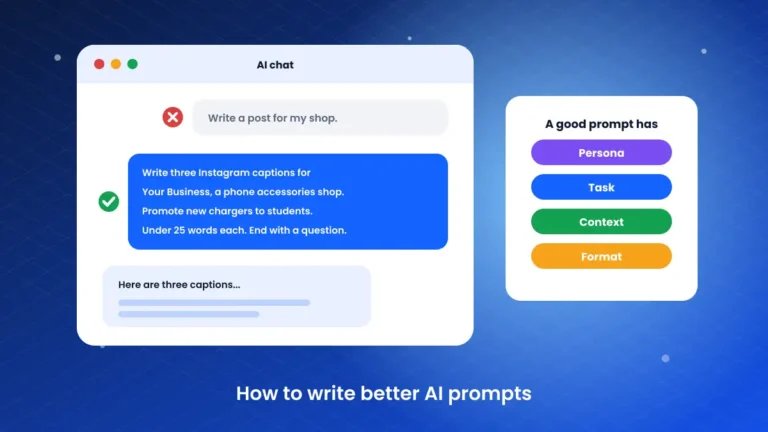
Then fix the outline yourself. Reorder slides, remove weak points, and add the examples only you know. A good outline is the most important part, because the AI builds everything else on it. Our guide on how to write better AI prompts shows how to make requests like this clearer.
Step 3: Turn the outline into slides
Now paste your outline into Gamma or Canva and let it design the deck. Alternatively, upload a report and ask for a summary deck. If you start from a long document, our guide on how to summarise documents with AI shows how to pull out the key points first.
Choose a simple theme with good contrast. Slides that look plain but read clearly beat slides full of effects.
Step 4: Edit every slide
AI-made slides often have too many words. So cut each slide to one idea and no more than about six short lines. Replace generic stock photos with your own photos, charts, or diagrams where you can. Also, change any phrase that does not sound like you.
Step 5: Check facts, numbers and images
AI can invent statistics, quotes, and sources. Therefore, check every number against the source, and remove anything you cannot confirm. Make sure you have the right to use each image, and credit sources on the slide or at the end.
Step 6: Add speaker notes and rehearse
Finally, ask the AI for short speaker notes for each slide, then rewrite them in your own words. Rehearse out loud at least twice, and time yourself. If you need to email the deck as a PDF and the file is large, our free Compress PDF tool can make it smaller in your browser.
Prompts to create presentations with AI
Copy these prompts and change the details in brackets:
| Presentation | Prompt to try |
|---|---|
| Class or school talk | “Outline a [10]-minute talk on [topic] for [class]. 8 slides, one idea per slide, plus 3 quiz questions at the end.” |
| Business pitch | “Create a 10-slide pitch for [business] covering the problem, solution, customers, pricing, competition, and what we are asking for.” |
| Team or project update | “Turn these notes into a 6-slide update: progress, numbers, problems, decisions needed, and next steps.” |
| Training session | “Plan a 30-minute training on [topic] for [audience], with an activity every 10 minutes.” |
| Report summary | “Turn this report into 7 slides for busy managers, with one key number per slide and the source page.” |
| Speaker notes | “Write short speaker notes for each slide below, about 60 words each, in a friendly tone.” |
Tips for slides that people remember
AI can make slides quickly, but good presentations still follow a few old rules:
- One idea per slide. If a slide needs two headlines, split it.
- Big text, few words. People should read the slide in a few seconds, then listen to you.
- Show, do not list. Use a chart, photo, or diagram instead of a long bullet list where possible.
- Use local examples. Naira prices, Nigerian companies, and familiar places keep the audience with you.
- End with an action. Tell people exactly what to do next.
Use AI for presentations honestly
At school, follow your teacher’s or lecturer’s rules on AI, and say when you used it. At work, keep confidential figures and customer data out of public AI tools. Also, remember that the audience trusts you, not the tool, so you are responsible for every claim on your slides. For more on using AI at school, see our guide to the best free AI tools for Nigerian students.
Frequently asked questions
What is the best free AI tool to create presentations?
Gamma is the quickest way to get a fully designed deck from a prompt. Canva is better if you want polished templates and more control over the design.
Can ChatGPT make a PowerPoint presentation?
ChatGPT can write the outline, slide text, and speaker notes, which you can paste into PowerPoint, Google Slides, or Gamma. Check what your plan allows if you want it to create the file itself.
Is it okay to use AI for a school presentation?
It depends on your school’s rules. Many teachers allow AI for planning and design, but they expect the ideas and the delivery to be yours.
Can I edit a presentation made with AI?
Yes. Gamma, Canva, Google Slides, and PowerPoint all let you edit every slide, and Gamma can export to PowerPoint and PDF.
How many slides should a presentation have?
A common guide is about one slide per minute of talking. So a 10-minute talk usually needs 8 to 12 slides.
Key takeaways on how to create presentations with AI
- Start with your audience and goal, then ask AI for an outline before any slides.
- Use Gamma or Canva to design the deck, and ChatGPT or Claude for text and speaker notes.
- Edit every slide, check every number and image, and add your own examples.
- Rehearse with speaker notes in your own words, and follow your school’s or employer’s rules.
Want more? Read our guides to AI tools for teachers, AI for business research, or browse all our AI and productivity guides.