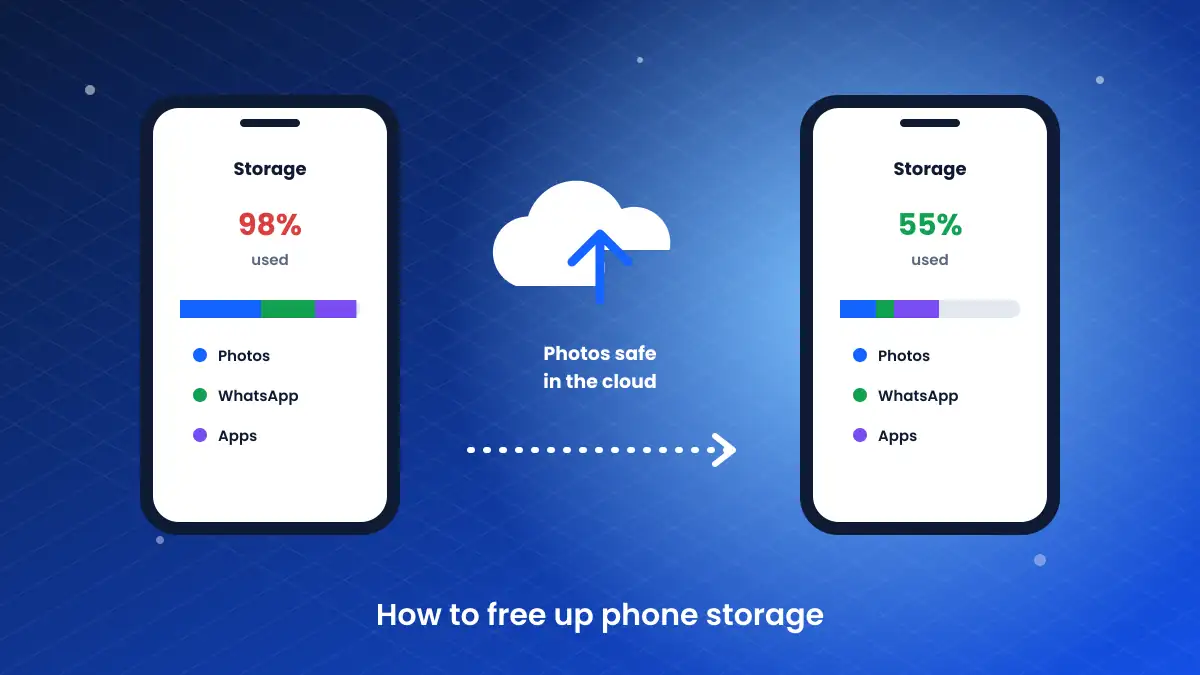
A “storage almost full” warning usually appears at the worst time, such as when you need to update an app or record a video. Fortunately, you rarely need to delete precious photos to fix it. This guide shows how to free up phone storage on Android and iPhone, step by step, while keeping your photos safe in a backup.
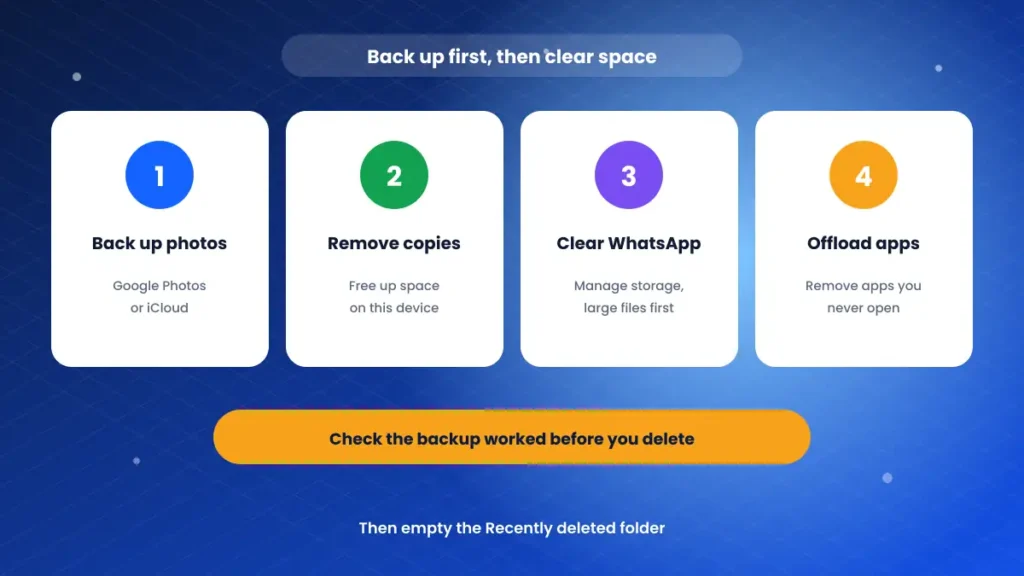
Quick answer: To free up phone storage without losing photos, first back up your photos to a cloud service such as Google Photos or iCloud. Then remove the phone copies of photos that are already backed up, clear large WhatsApp media, delete or offload apps you do not use, and remove old downloads and offline videos. On Android, the Files by Google app finds junk, duplicates, and large files for you. On iPhone, open Settings, then General, then iPhone Storage.
In this guide
- Why your phone storage fills up
- Step 1: Check what is using your storage
- Step 2: Back up your photos before you delete anything
- Step 3: Free up phone storage used by photos
- Step 4: Clear WhatsApp media
- Step 5: Remove or offload apps you do not use
- Step 6: Clear junk files, caches, and old downloads
- How much space each step can save
- Keep your phone storage under control
- Frequently asked questions
- Key takeaways on how to free up phone storage
Why your phone storage fills up
In most cases, a few things take up most of the space:
- Photos and videos. A short video can take more space than hundreds of photos.
- WhatsApp media. Group chats can save every photo, video, and voice note automatically.
- Apps and their data. Social media and streaming apps keep large caches and offline downloads.
- Downloads. For example, PDFs, installers, and forwarded files often stay in the Downloads folder.
- System files. The operating system and its updates need space too, and you cannot remove them.
So, before you delete anything, check what is actually filling your phone.
Step 1: Check what is using your storage
First, look at the breakdown on your phone:
- Android: Open Settings, then tap Storage. The exact wording varies by phone maker, but you will see space used by apps, images, videos, and other files.
- iPhone: Open Settings, tap General, then tap iPhone Storage. According to Apple, this screen shows recommendations and a list of apps with the space each one uses.
Make a note of the two or three biggest items. As a result, you can focus on the changes that free the most space.
Step 2: Back up your photos before you delete anything
This is the most important step. If your photos are not backed up, removing them from your phone deletes them for good.
Turn on backup in Google Photos or iCloud Photos, and wait until it finishes, ideally on Wi-Fi. Then open the cloud app or website, and check that your recent photos and videos are there. Our guide on how to back up your phone explains each option, including free storage limits.
In addition, consider a second copy on a computer for photos you cannot replace. Our guide on how to transfer files from your phone to a computer shows how.
Step 3: Free up phone storage used by photos
Once your photos are safely backed up, you can remove the copies on your phone:
- Google Photos: Tap your profile picture, then tap “Free up space on this device”. Google says this deletes only items that are backed up, and that items less than 30 days old may stay on your device. However, you can no longer see those photos offline or in your phone’s built-in gallery.
- iCloud Photos: Turn on “Optimize iPhone Storage” in the Photos settings. Your iPhone then keeps smaller versions on the device, and the full versions stay in iCloud.
After that, empty the “Recently deleted” or “Trash” folder in your gallery app, because deleted items still take up space until it is emptied. Finally, delete screenshots, blurry shots, and duplicates you no longer need.
Step 4: Clear WhatsApp media
For many people, WhatsApp is the biggest hidden space user. To clear it:
- Open Manage Storage. In WhatsApp, go to Settings, then Storage and data, then Manage storage.
- Review large files. WhatsApp groups items larger than 5 MB and files forwarded many times, according to MacRumors. Delete what you do not need.
- Check busy chats. Then open the chats list on the same screen, and clear old media from groups.
- Turn off automatic downloads. Finally, in Storage and data, set media auto-download to Wi-Fi only or to no media, so files only download when you open them.
Before you clear WhatsApp media, save any important documents or photos elsewhere. Also, our guide on how to secure your WhatsApp account covers the settings that keep your chats private.
Step 5: Remove or offload apps you do not use
Next, look at your apps. Many phones have apps that you have not opened for months.
- Android: Open Files by Google, tap Clean, and look for the “Delete unused apps” card. Google’s help page explains how to give the app usage access, so it can find apps you rarely open.
- iPhone: In iPhone Storage, tap an app, then choose Offload App. Apple says offloading frees the space used by the app but keeps its documents and data. Later, you can reinstall it from the App Store and carry on.
In addition, check large apps for offline content. Streaming, music, and map apps often store downloads that you can delete inside the app.
Step 6: Clear junk files, caches, and old downloads
Now tidy up the smaller files that add up over time:
- Junk and duplicates on Android. In Files by Google, the Clean tab suggests junk files, duplicate files, and large files to delete.
- App caches on Android. Open Settings, then Apps, choose an app, tap Storage, then tap Clear cache. Clearing the cache does not delete your account, although the app may load more slowly the next time.
- Caches on iPhone. Apple says your iPhone removes cached files automatically when it needs space, so you cannot clear them manually.
- Old downloads. Open your Downloads folder, and delete files you have already used, such as old PDFs and installers.
- Messages. Similarly, old text message threads with photos and videos can take space, so delete the ones you do not need.
How much space each step can save
The space you recover depends on how you use your phone. Still, this table shows where the biggest gains usually come from:
| Step | Typical gain | Risk to your data |
|---|---|---|
| Remove phone copies of backed-up photos | Large | Low, if the backup is complete |
| Clear WhatsApp media | Large for active group users | Medium, unless you save important files first |
| Offload or delete unused apps | Medium | Low |
| Delete offline downloads in streaming apps | Medium | None, as you can download them again |
| Clear junk files and old downloads | Small to medium | Low |
Keep your phone storage under control
Once you have cleared space, a few habits stop the problem from coming back:
- Keep cloud backup on, so you can remove phone copies at any time.
- Set WhatsApp downloads to Wi-Fi only, or turn them off for busy groups.
- Review storage once a month, for example on the first day of the month.
- Stream instead of downloading when you have a good connection.
- Leave some free space. A phone with almost no free space may struggle to install updates.
Frequently asked questions
Will freeing up space delete my photos?
Not if you back them up first and use the “free up space” option in your cloud app. That option only removes phone copies of items that are already backed up.
Why is my storage still full after deleting photos?
Deleted photos usually move to a “Recently deleted” or “Trash” folder first. Empty that folder to release the space.
Is it safe to clear an app’s cache?
Yes. Clearing the cache on Android removes temporary files, not your account. The app may simply take longer to load the next time.
What is the difference between offloading and deleting an app?
On iPhone, offloading removes the app but keeps its documents and data, so you can carry on after you reinstall it. Deleting removes the app and its data.
Should I buy more cloud storage or a new phone?
Try the steps in this guide first. If your photos and videos still exceed your free cloud storage, a small paid cloud plan is usually cheaper than a new phone.
Key takeaways on how to free up phone storage
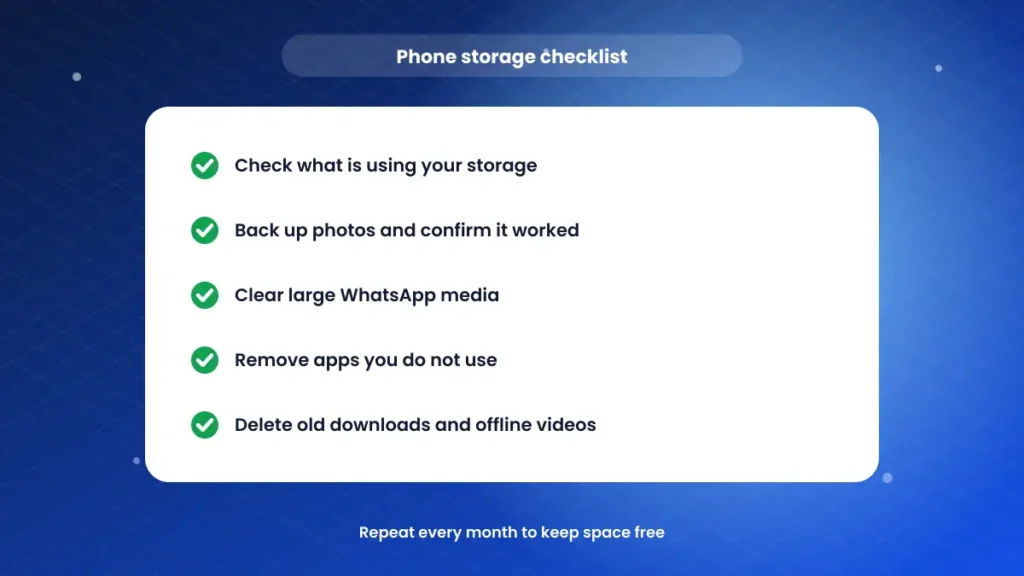
- Check what is using your storage before you delete anything.
- Back up your photos and videos, and confirm the backup worked.
- Remove phone copies of backed-up photos, then empty the Recently deleted folder.
- Clear large WhatsApp media, and set downloads to Wi-Fi only.
- Offload or delete unused apps, and clear old downloads and offline videos.
Want more phone tips? Read our guides on how to scan documents with your phone and what cloud computing is, or browse all our tech tutorials.