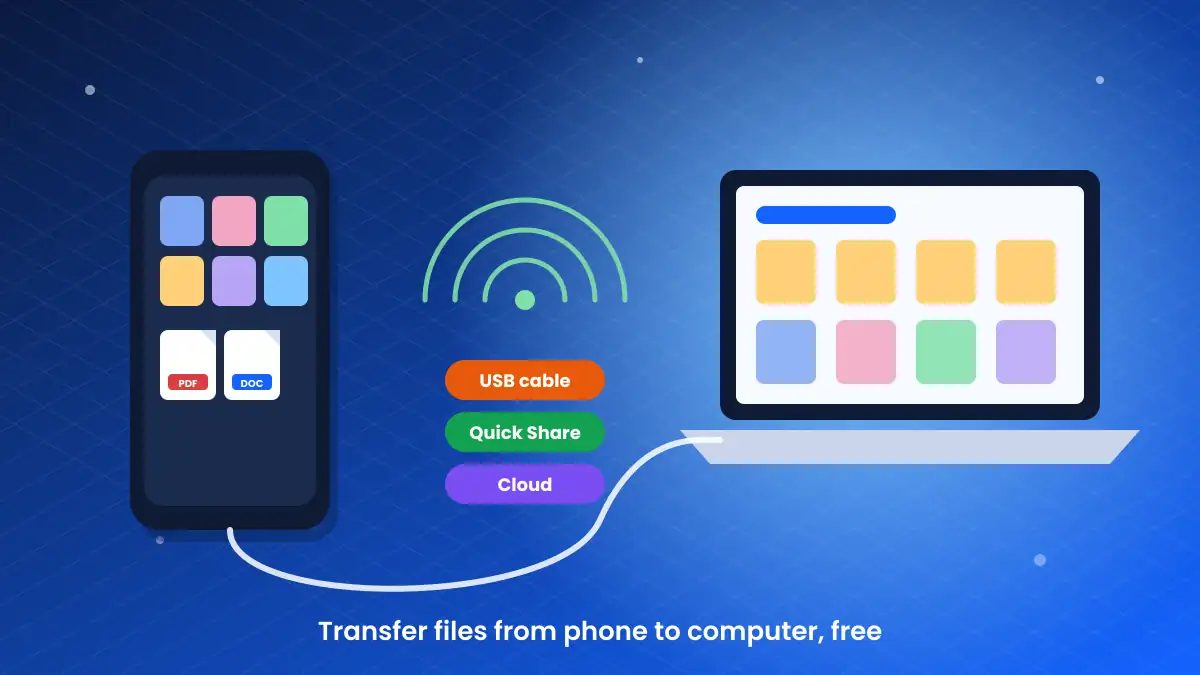
Your phone is full of photos, videos, and documents, and you need them on your laptop. Maybe you want to print a file, edit a video, or simply free up space. This guide shows five free ways to transfer files from phone to computer, for Android and iPhone, with or without a cable, and how to choose the right one.
Quick answer: The fastest free way to transfer files from phone to computer is a USB cable. On Android, plug in, choose File transfer on the phone, then open the phone in File Explorer. On iPhone, use the Photos app on a Mac or the Apple Devices app on Windows. Without a cable, use Quick Share (Android to Windows), AirDrop (iPhone to Mac), or a cloud service such as Google Drive.
In this guide
- Which method should you use?
- Method 1: Transfer files from an Android phone to a computer by cable
- Method 2: Transfer files from an iPhone to a computer
- Method 3: Use Quick Share from Android to Windows
- Method 4: Use cloud storage
- Method 5: Send it to yourself on WhatsApp, Telegram, or email
- Tips to transfer files from phone to computer smoothly
- Stay safe on shared computers
- Frequently asked questions
- Key takeaways on how to transfer files from phone to computer
Which method should you use?
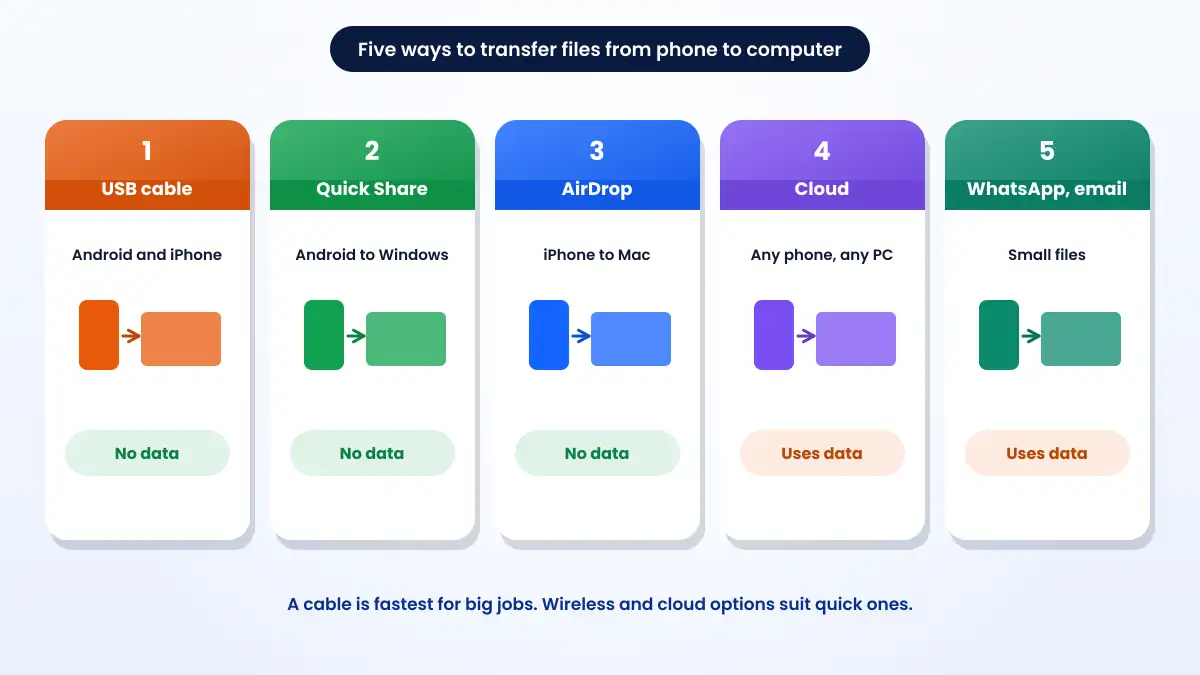
There is no single best way to transfer files from phone to computer. The right choice depends on your phone, your computer, and how much you are moving. This table sums up the options:
| Method | Works with | Needs internet or data? | Best for |
|---|---|---|---|
| USB cable | Android and iPhone, Windows and Mac | No | Large videos and whole photo folders |
| Quick Share | Android to Windows | No (uses Wi-Fi and Bluetooth nearby) | Quick wireless transfers |
| AirDrop | iPhone to Mac | No | Wireless transfers between Apple devices |
| Cloud storage | Any phone, any computer | Yes | Files you also want backed up |
| WhatsApp, Telegram or email | Any phone, any computer | Yes | One or two small files |
In short, use a cable for big jobs, a wireless option for quick ones, and the cloud when you also want a backup.
Method 1: Transfer files from an Android phone to a computer by cable
A cable is free, works without internet, and handles large files well. On a Windows computer, it usually takes less than a minute to set up:
- Unlock your phone and connect it to the computer with a data-capable USB cable (some cheap cables only charge).
- On the phone, tap the USB notification and choose File transfer (sometimes called Transfer files or MTP).
- On the computer, open File Explorer and select your phone under This PC.
- Open the DCIM folder for photos and videos, or Download and Documents for other files.
- Copy the files you need, and paste them into a folder on your computer.
If the phone does not appear, try another cable or USB port, and check that the phone is unlocked. On a Mac, Android phones need extra software for USB transfers, so a cloud service is often simpler.
Method 2: Transfer files from an iPhone to a computer
iPhones work a little differently. According to Apple’s guide to transferring photos, you have these options:
- To a Mac with a cable: Connect the iPhone, open the Photos app, unlock the phone, tap Trust, then click Import All New Items or choose specific photos.
- To a Mac without a cable: Use AirDrop to send photos and files wirelessly.
- To a Windows PC: Install the Apple Devices app from the Microsoft Store, connect the iPhone with a cable, and tap Trust. Then import your photos with the Microsoft Photos app.
Apple also suggests a tip for Windows users. If your photos will not open, go to Settings > Camera > Formats on the iPhone and choose Most Compatible, so new photos save as JPEG.
Method 3: Use Quick Share from Android to Windows
Quick Share sends files wirelessly from an Android phone to a nearby Windows computer, with no cable and no mobile data. Google’s Quick Share for Windows page lists these requirements:
- A 64-bit Windows 10 computer or later, with Wi-Fi and Bluetooth turned on.
- An Android phone running Android 6 or later, which already includes Quick Share.
- Both devices within about 5 metres of each other.
To use it, install Quick Share on the computer. Then select the files on your phone, tap Share > Quick Share, and choose your computer. Samsung computers use Samsung’s own Quick Share app instead.
Method 4: Use cloud storage
Cloud storage works with any phone and any computer. Upload files from your phone to Google Drive, OneDrive, or iCloud, then open the same account on your computer and download them. As a bonus, your files are also backed up. For a full copy of your phone, see our guide on how to back up your phone. To learn how this works, read our guide to what cloud computing is.
However, cloud transfers use your internet data twice, once to upload and once to download. That can get expensive for large videos on mobile data, so wait until you are on Wi-Fi. Also, free storage is limited, so check how much space you have left before you start.
Method 5: Send it to yourself on WhatsApp, Telegram, or email
For one or two small files, the quickest route is often to send them to yourself. For example, open WhatsApp Web on your computer and send the file to your own chat, or email it to yourself.
Be careful with photos, though. Messaging apps often compress photos and videos to save data, so the copy on your computer may be lower quality. To keep the original, send the photo as a document or file instead of as a normal picture.
Tips to transfer files from phone to computer smoothly
A few habits save time and protect your files when you transfer files from phone to computer:
- Use a data cable and a good port. Many slow or failed transfers come from charge-only cables or loose ports.
- Keep the phone unlocked. Most phones stop the transfer when the screen locks.
- Move big files by cable. Large videos are faster and cheaper by cable than through the cloud.
- Organise as you go. Create folders on your computer by date or topic, so you can find files later.
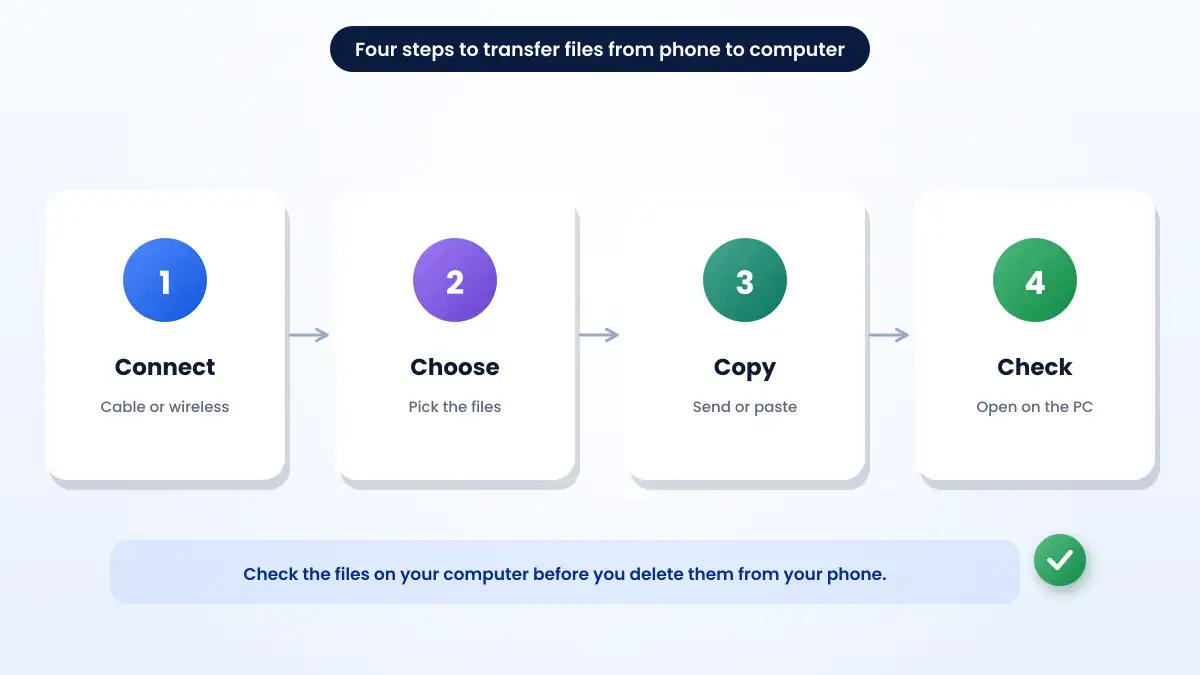
- Check before you delete. Open a few files on the computer before you remove them from your phone.
If you are moving documents to print or upload, our guide on how to scan documents with your phone helps you get clean PDFs first. Then our Merge PDF tool can combine them into one file.
Stay safe on shared computers
Take extra care on a shared computer, such as at a business centre or cyber café. Only tap Trust or Allow on computers you own or know well. When you finish, delete the files you copied, sign out of any cloud or WhatsApp Web session, and disconnect your phone safely.
Also, never leave copies of ID cards, bank statements, or certificates on someone else’s computer. For more on protecting your accounts, see our guide on how to secure your Gmail account.
Frequently asked questions
How do I transfer files from phone to computer without a cable?
Use Quick Share from Android to Windows, AirDrop from iPhone to Mac, or a cloud service such as Google Drive for any phone and computer.
Why is my phone not showing up on my computer?
The most common causes are a charge-only cable, a locked phone, or the wrong USB mode. Unlock the phone, choose File transfer, and try another cable or port.
Can I transfer files from iPhone to a Windows PC?
Yes. Install the Apple Devices app on Windows, connect the iPhone with a cable, tap Trust, then import photos with the Microsoft Photos app.
Does WhatsApp reduce photo quality?
Normal photo sends are usually compressed. To keep the full quality, send the photo as a document instead.
What is the fastest way to move large videos?
A USB cable is usually the fastest and does not use any data. Cloud uploads of large videos can be slow and expensive on mobile data.
Key takeaways on how to transfer files from phone to computer
- Use a USB cable for large files, because it is fast and uses no data.
- Use Quick Share or AirDrop for quick wireless transfers between nearby devices.
- Use cloud storage when you also want a backup, ideally on Wi-Fi.
- Send photos as documents in messaging apps to keep their full quality.
Want more practical guides? Browse all our tech tutorials, or try our free PDF tools.