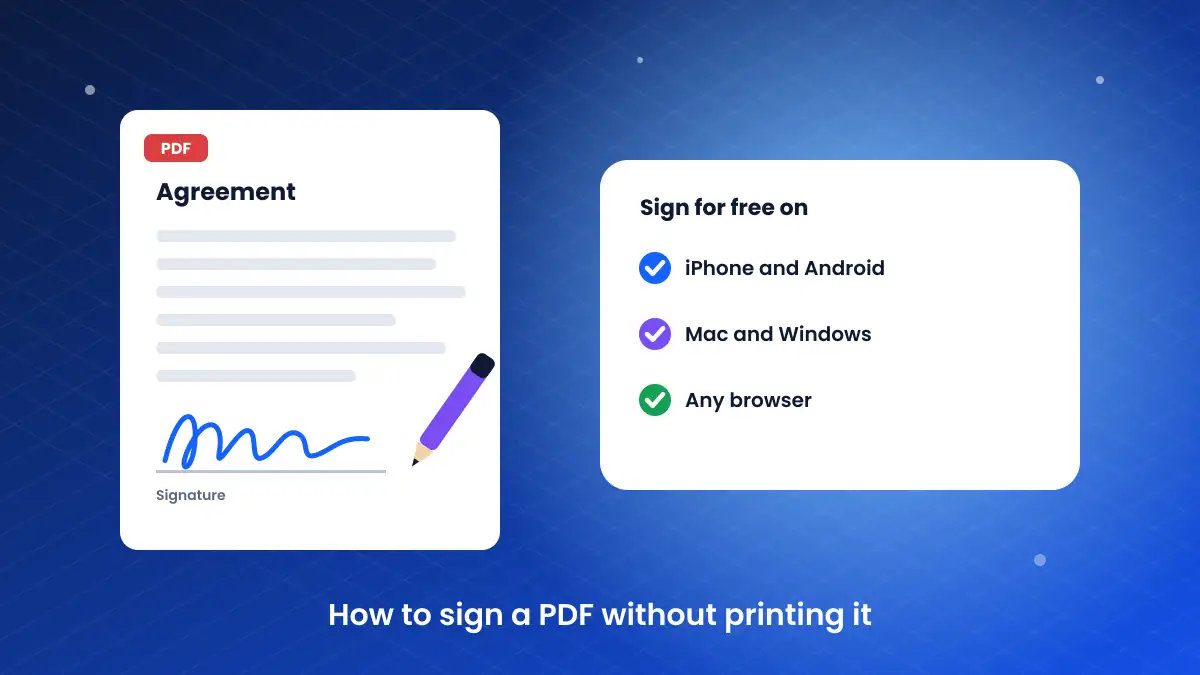
Someone sends you a contract, an offer letter, or a form, and asks you to “sign and send it back”. You do not need to print it, sign it with a pen, and scan it again. Instead, you can sign a PDF for free in a few minutes, using tools already on your phone or computer. This guide shows how to sign a PDF on iPhone, Android, Mac, Windows, and online, and explains when an electronic signature is valid in Nigeria.
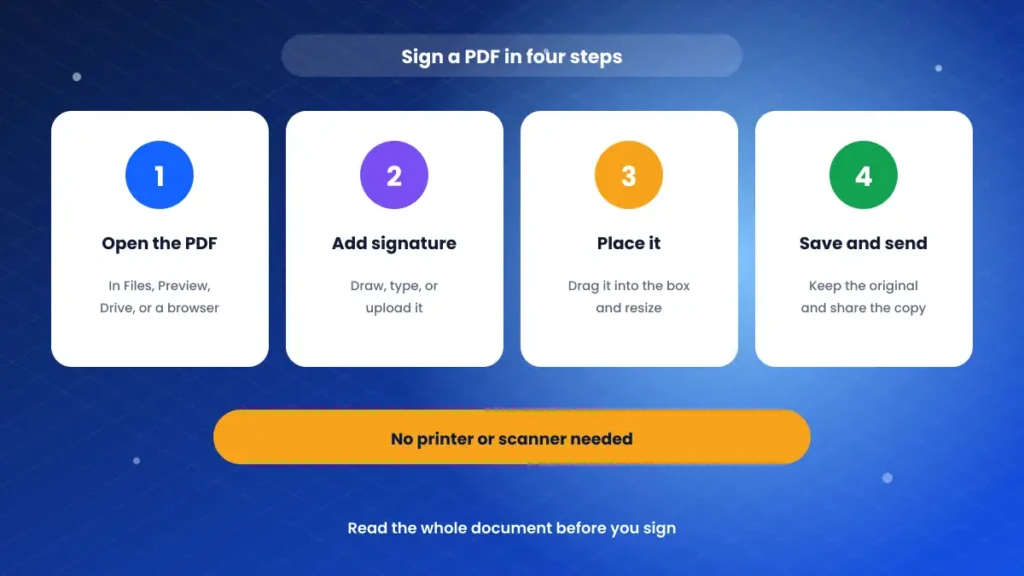
Quick answer: To sign a PDF for free, open it in a tool that supports signatures. On iPhone, use Markup in the Files app. Mac users can use Preview. On Android or Windows, use Adobe’s free online Fill and Sign tool, or a free PDF app. Draw or type your signature, place it on the page, then save and send the signed copy. Keep a copy of the original too.
In this guide
- What does it mean to sign a PDF electronically?
- How to sign a PDF on iPhone
- How to sign a PDF on Android
- How to sign a PDF on Mac
- How to sign a PDF on Windows
- How to sign a PDF online for free
- Is an electronic signature valid in Nigeria?
- Tips to sign a PDF safely
- Frequently asked questions
- Key takeaways on how to sign a PDF
What does it mean to sign a PDF electronically?
An electronic signature is any mark you add to a digital document to show that you agree to it. For example, it can be a drawn signature, a typed name in a signature font, or a photo of your handwritten signature.
This guide covers simple electronic signatures, which are free and suit most everyday documents. In contrast, a digital signature uses a certificate to prove who signed and that nobody changed the file afterwards. Businesses often use paid e-signature services for that.
How to sign a PDF on iPhone
The Files app has a free Markup tool with a signature option. According to an Android Authority guide, follow these steps:
- Save the PDF to Files. For example, open the email attachment, tap Share, then tap Save to Files.
- Open the PDF in the Files app.
- Tap the Markup icon, which looks like a pen in a circle.
- Tap the plus button, then tap Add Signature.
- Draw your signature with your finger, then tap Done.
- Move and resize it. Drag the signature into the right box, then tap Done to save.
Your signature is saved, so you can reuse it next time. You can also use the same Markup tool from Mail when you open a PDF attachment.
How to sign a PDF on Android
Android does not have one built-in signing tool for every phone. However, you have a few free options:
- Google Drive. Open the PDF in the Drive app, tap the pen-shaped Annotate icon, and write your signature with your finger, according to Chrome Unboxed. Then save your changes or a copy.
- Adobe Acrobat online. Open the free Fill and Sign tool in your phone’s browser, which works on any phone. The steps are in the online section below.
- A free PDF app. Many PDF reader apps include a “Fill and sign” option. Download one only from the official Google Play Store, and check its permissions first.
Before you sign a paper copy instead, our guide shows how to scan documents with your phone for free.
How to sign a PDF on Mac
On a Mac, the free Preview app can sign PDFs. According to Apple:
- Open the PDF in Preview.
- Show the Markup toolbar, then click the Sign button.
- Create your signature. Sign on the trackpad with your finger, hold a signature on white paper up to the camera, or sign on a nearby iPhone or iPad.
- Click Done, then click the signature to add it.
- Drag and resize it into the correct place, then save the file.
How to sign a PDF on Windows
On Windows, you have two simple free options:
- Adobe Acrobat online. Use the free Fill and Sign tool in any browser, as shown below.
- Microsoft Edge. Open the PDF in Edge, then use the Draw tool in the PDF toolbar to write your signature with a mouse, trackpad, or pen. Then save the file.
If you need to edit text as well, see how to convert a PDF to Word first.
How to sign a PDF online for free
Adobe’s free online tool works on any phone or computer. According to Adobe, “Adobe Acrobat offers free tools for signing PDFs” with no trial or expiry. Here is how it works:
- Open the tool. Go to the Adobe Acrobat online Fill and Sign page in your browser.
- Upload your file. Select the PDF, or drag it into the box.
- Add your signature. Open the Sign panel, then type, draw, or upload your signature.
- Fill in any fields. For example, add your name and the date.
- Download or share. Click Next, then download the signed file. Adobe may ask you to sign in with a free account first.
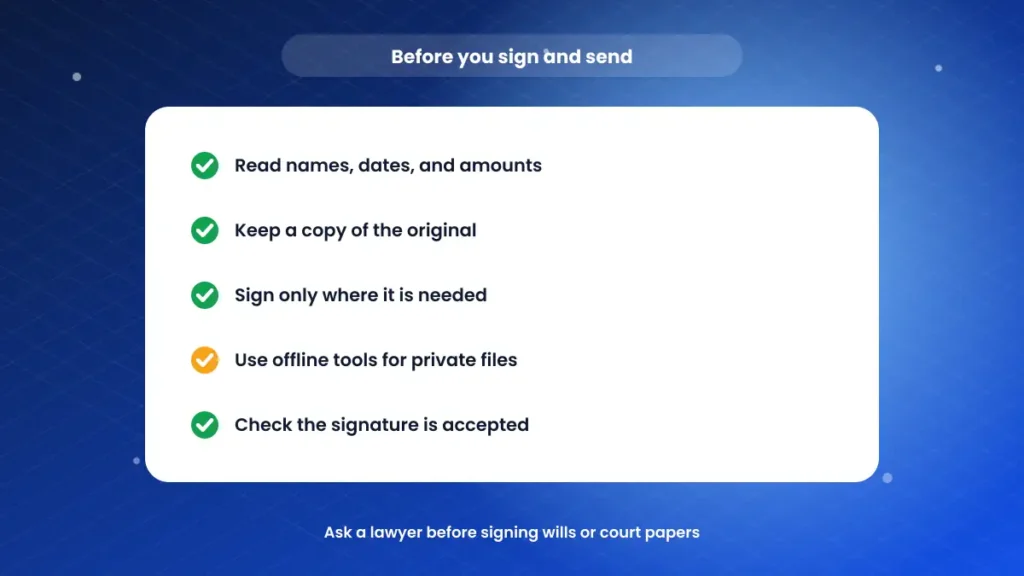
Remember that online tools upload your document to a third-party server. So avoid them for highly confidential files, and use an offline option such as Markup or Preview instead.
Is an electronic signature valid in Nigeria?
For most everyday documents, yes. Section 17 of the Cybercrimes Act 2015 says electronic signatures “shall be binding” for transactions unless the law specifically excludes them, according to a summary by Zoho Sign. The Evidence Act also allows electronic signatures to be proved in court.
However, the same law lists exclusions. These include wills, marriage, divorce, and adoption documents, birth and death certificates, and court documents such as affidavits and pleadings. So for these documents, and for land or high-value contracts, ask a lawyer before you sign electronically.
In addition, the other party may have its own rules. For example, a bank or government office may still require a wet signature or its own signing platform. So check before you send.
Tips to sign a PDF safely
- Read the whole document first. Check names, dates, and amounts before you sign.
- Keep the original. Save a copy of the unsigned file, then save the signed version with a new name, such as “Contract signed”.
- Sign only where needed. Do not leave your signature image in a shared folder or send it to strangers.
- Watch for scams. Be careful with unexpected “please sign” emails, especially if they ask you to log in. Our guide on how to recognise a phishing message explains the warning signs.
- Keep files small. If the signed file is too large to email, see how to make a PDF smaller.
You can also merge or split pages with our free PDF tools before you sign.
Frequently asked questions
Can I sign a PDF without printing it?
Yes. Every option in this guide lets you sign a PDF on screen, without a printer or scanner.
Is a typed name a valid signature?
Often, yes, for everyday documents. However, some organisations prefer a drawn signature or their own signing platform, so check what they accept.
Is it free to sign a PDF?
Yes. Markup on iPhone, Preview on Mac, Google Drive on Android, Microsoft Edge on Windows, and Adobe’s online tool can all add a simple signature for free.
How do I send a signed PDF back?
Save the signed file, then attach it to an email or WhatsApp message. Alternatively, share a link from Google Drive or iCloud Drive.
What is the difference between an electronic and a digital signature?
An electronic signature is any mark that shows you agree. A digital signature also uses a certificate to prove who signed and that the file was not changed.
Key takeaways on how to sign a PDF
- You can sign a PDF for free on iPhone, Android, Mac, Windows, or online.
- Use Markup on iPhone and Preview on Mac for quick, offline signing.
- Adobe’s free online tool works on any device, but avoid uploading confidential files.
- Electronic signatures are generally valid in Nigeria, except for documents such as wills and court papers.
- Read the document first, keep the original, and watch for fake “please sign” emails.
Want more document tips? Read how to transfer files from phone to computer and how to summarise documents with AI, or browse all our tech tutorials.