You need to send a certificate, a signed letter, or a receipt, but there is no scanner nearby. Your phone can do the job just as well. This guide shows how to scan documents with your phone for free on an iPhone or Android, how to get a clean result, and how to turn the scan into a PDF that is small enough to upload.
Quick answer: To scan documents with your phone, use the free scanner that is already there. On an iPhone, open Notes, tap the paperclip, and choose Scan Documents. On Android, open the Google Drive app, tap the Camera button, and save the scan as a PDF. Scan in good light on a dark background, then check every page before you send it.
In this guide
- Why scan instead of taking a photo?
- How to scan documents with your phone on an iPhone
- How to scan documents with your phone on Android
- Other free scanner apps
- Already took photos? Turn them into a PDF
- Tips for a clean, readable scan
- Make your scan small enough to upload
- Need to edit the text?
- Keep your scanned documents safe
- Frequently asked questions
- Key takeaways on how to scan documents with your phone
Why scan instead of taking a photo?
A normal photo of a document often looks skewed, dark, or full of shadows. A scanner app fixes that. It finds the edges of the page, straightens it, improves the contrast, and saves it as a PDF. As a result, the file looks like it came from an office scanner, and it is easier to read and print.
Scanner apps also let you put several pages into one file. That matters for job portals, school applications, and bank forms that accept only one upload per document.
How to scan documents with your phone on an iPhone
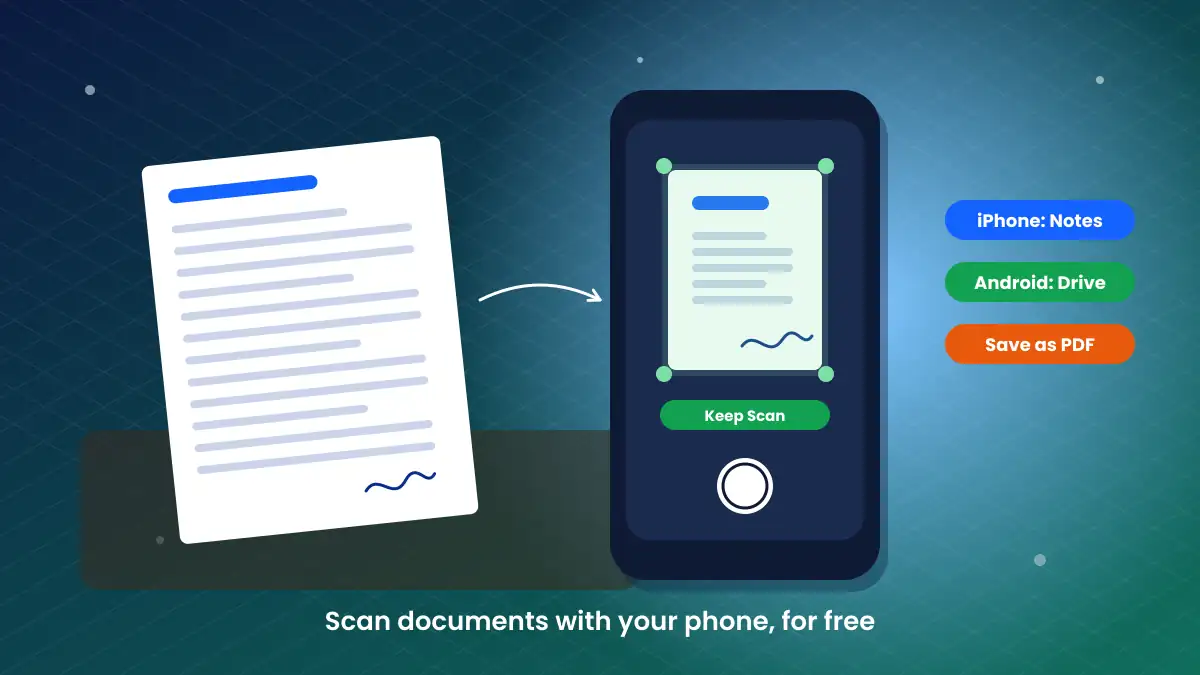
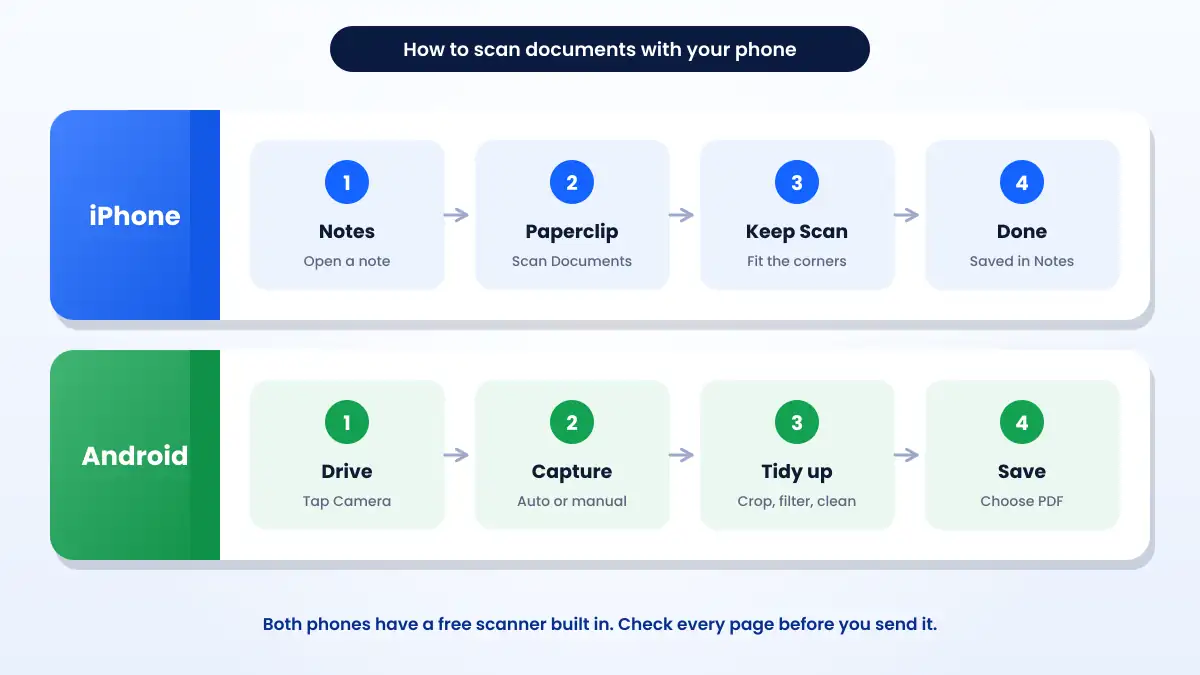
Every iPhone has a scanner built into the Notes app. According to Apple’s scanning guide, you can scan like this:
- Open Notes and create a new note.
- Tap the paperclip button, then choose Scan Documents.
- Hold the phone over the page. In Auto mode, it captures the page by itself. Otherwise, tap the shutter button.
- Drag the corners to fit the page if needed, then tap Keep Scan.
- Scan the next page, or tap Done.
You can also scan from the Files app. Tap the More button (three dots), choose Scan Documents, then pick a folder and tap Save. This is handy when you want the scan saved straight to a folder rather than inside a note.
How to scan documents with your phone on Android
On most Android phones, the easiest free scanner is in the Google Drive app. Google’s help page describes these steps:
- Open the Google Drive app and tap Camera at the bottom right.
- Point the phone at the page. A blue line shows the area it will keep.
- Take the photo. Then use Crop & Rotate, Filter, or Clean to tidy it up.
- Tap Add to scan more pages, or tap Done.
- Give the file a name, choose PDF, pick a folder and tap Save.
Google says these scans are saved as searchable PDFs. In addition, a June 2026 update lets some phones capture several pages in one go, but only on Android devices with 8 GB of RAM or more.
Other free scanner apps
You do not need another app for most jobs. However, a few are worth knowing:
- Adobe Scan. A popular free scanner with automatic clean-up. According to its App Store listing, free text recognition covers up to 5 pages, while some features, such as combining scans, need a paid plan. Premium costs $9.99 a month.
- OneDrive. Microsoft retired its Lens scanner app in early 2026. BleepingComputer reports that scanning in Lens stopped on 9 March 2026, and Microsoft now points people to the scan button in the OneDrive app instead.
If you used Lens before, move to Notes, Google Drive, or OneDrive now.
Already took photos? Turn them into a PDF
If you already have photos of your documents, you do not need to scan again. Instead, use our free JPG to PDF tool to turn them into one PDF. It works in your browser, so your photos are not uploaded.
Then fix sideways pages with Rotate PDF, or join separate files with Merge PDF.
Tips for a clean, readable scan
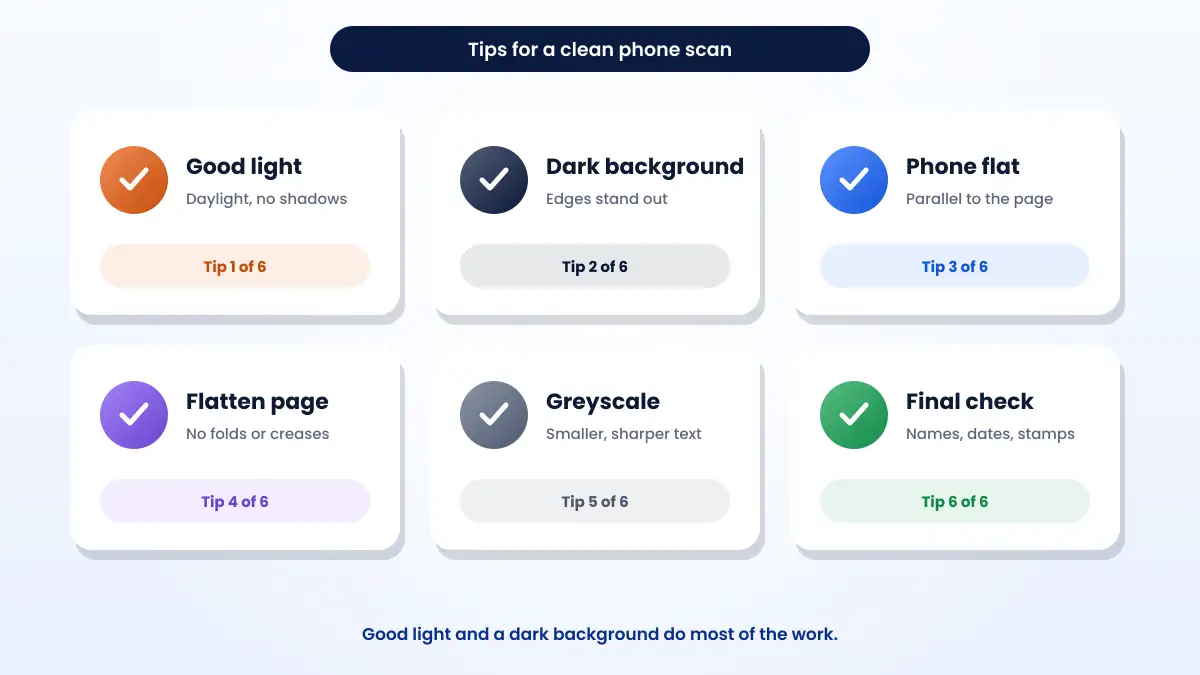
A few small habits make a big difference when you scan documents with your phone:
- Use good, even light. Daylight near a window works well. Avoid shadows from your hand or phone.
- Use a dark background. A white page on a dark table helps the app find the edges.
- Hold the phone flat. Keep it parallel to the page, so the text does not slant.
- Flatten the page. Press out folds and creases before you scan.
- Choose greyscale for text. It keeps the file smaller and the text sharper than colour.
- Check every page. Zoom in on names, dates, stamps and signatures before you send the file. If a form needs your signature, see how to sign a PDF for free.
Make your scan small enough to upload
Many job portals, school applications, and government forms set strict upload limits. So check the limit before you start. If the PDF is too big, our Compress PDF tool can shrink it, and our guide on how to make a PDF smaller explains more options.
Also, give each file a clear name, such as “Ada-Okafor-BSc-Certificate.pdf”. That way, the person who receives it knows what it is.
Need to edit the text?
A scan is a picture of text, so you cannot edit it straight away. To change the words, run it through a tool with text recognition (OCR). Our guide on how to convert PDF to Word shows free ways to do this, including Google Docs.
Keep your scanned documents safe
Scans of ID cards, certificates, and bank statements are valuable to fraudsters. So follow these rules:
- Send them only to trusted places. Check the website address before you upload anything.
- Protect your cloud account. Your scans in Google Drive or iCloud are only as safe as your password. To see where those scans are kept, read what cloud computing is. Our guide to securing your Gmail account also protects your Google Drive.
- Clean up shared phones. If you scan on someone else’s phone, delete the scans from the app and its recently deleted folder. To copy scans to your own laptop instead, see how to transfer files from phone to computer.
Frequently asked questions
Is it free to scan documents with your phone?
Yes. The scanners in the iPhone Notes app and the Google Drive app on Android are free, and neither adds a watermark.
Do I need a special app to scan on Android?
Usually not. The Google Drive app has a scanner built in. Some phone makers also include a scan mode in the camera app.
Is a phone scan good enough for official documents?
Often, yes. A clear, flat, well-lit scan is fine for most online applications. However, some offices still ask for certified copies or originals, so check their rules.
How do I scan several pages into one PDF?
Keep scanning before you tap Done. Both Notes and Google Drive add each new page to the same file. Alternatively, join separate files later with a merge tool.
Why is my scanned PDF so large?
Colour scans and very high resolution make big files. Scan text documents in greyscale, then compress the PDF if it is still too big.
Key takeaways on how to scan documents with your phone
- Use the free scanner in Notes on iPhone or Google Drive on Android.
- Scan in good light, on a dark background, with the phone held flat.
- Save multi-page documents as one PDF, then compress it if needed.
- Share scans of IDs and certificates only with trusted websites and people.
Want more help with documents? Try our free PDF tools, or browse all our tech tutorials.