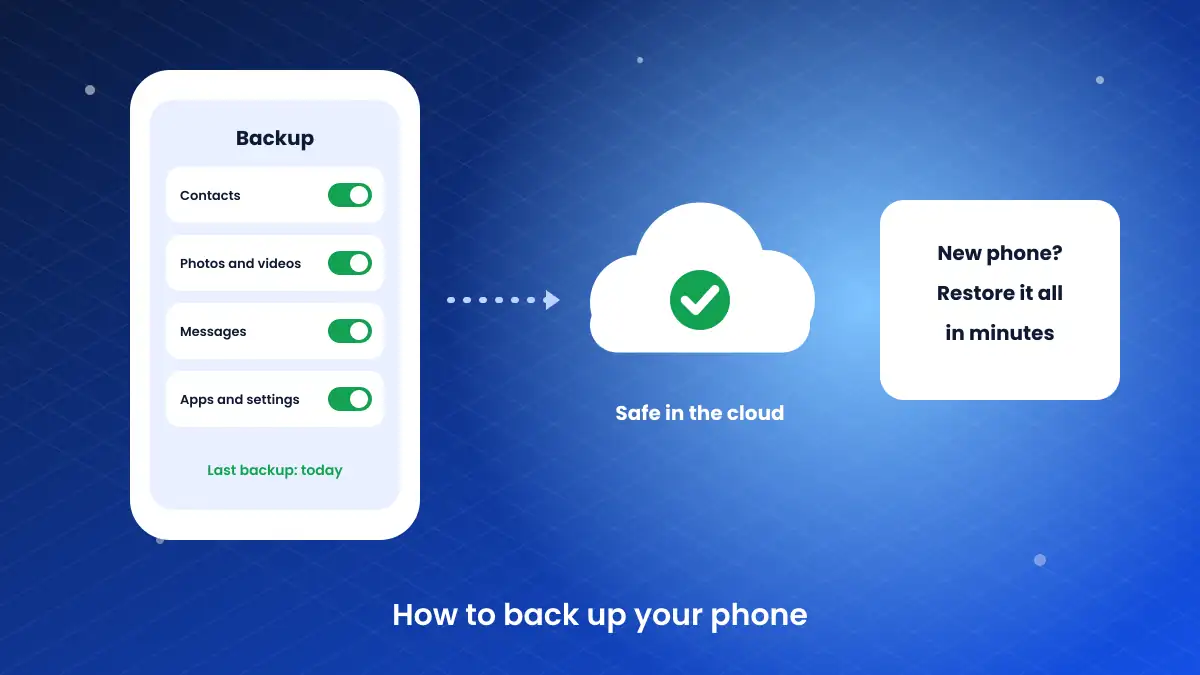
Phones get stolen, dropped in water, or simply stop working. When that happens, the phone is replaceable, but your photos, contacts, and chats may not be. A backup is a copy of that data stored somewhere else, so you can put it on a new phone in minutes. This guide shows you how to back up your phone for free, whether you use Android or iPhone, and how to check that the backup really works.
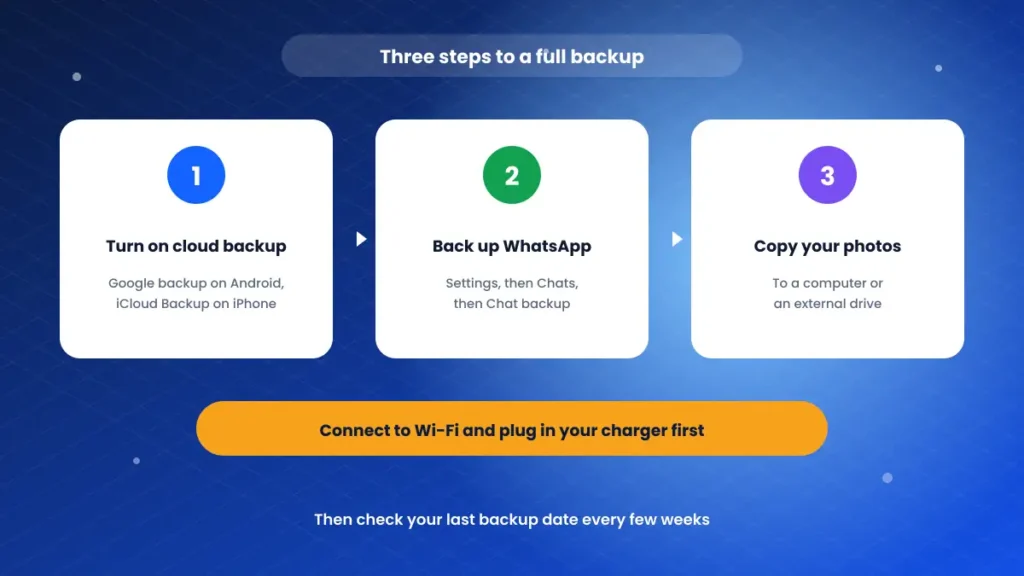
Quick answer: To back up your phone, connect to Wi-Fi and turn on the built-in cloud backup. On Android, go to Settings, then Google services, then All services, then Backup. On iPhone, go to Settings, tap your name, then iCloud, then iCloud Backup. Back up WhatsApp separately in its own settings, and copy photos to a computer if your free cloud space runs out.
In this guide
- What a phone backup includes
- Before you start
- How to back up your Android phone
- How to back up an iPhone to iCloud
- How to back up an iPhone to a computer
- Back up your photos separately
- Back up your WhatsApp chats
- Free ways to back up your phone compared
- How to check that your backup works
- How to restore a backup on a new phone
- Keep your backups safe
- Frequently asked questions
- Key takeaways on phone backups
What a phone backup includes
A full backup usually covers more than photos. Depending on your phone and settings, it can include:
- Contacts and call history
- Photos and videos
- Text messages
- Apps and app data, such as some settings and saved progress
- Device settings, such as Wi-Fi networks and wallpaper
However, some apps keep their own backups. WhatsApp is the main example, so you need to back it up separately. Banking apps usually do not back up your login at all. Instead, you log in again on the new phone, which our guide to device binding explains.
Before you start
A few minutes of preparation saves problems later:
- Connect to Wi-Fi. A first backup can be large, so mobile data may be expensive.
- Charge your phone. Plug it in, because a backup can take an hour or more.
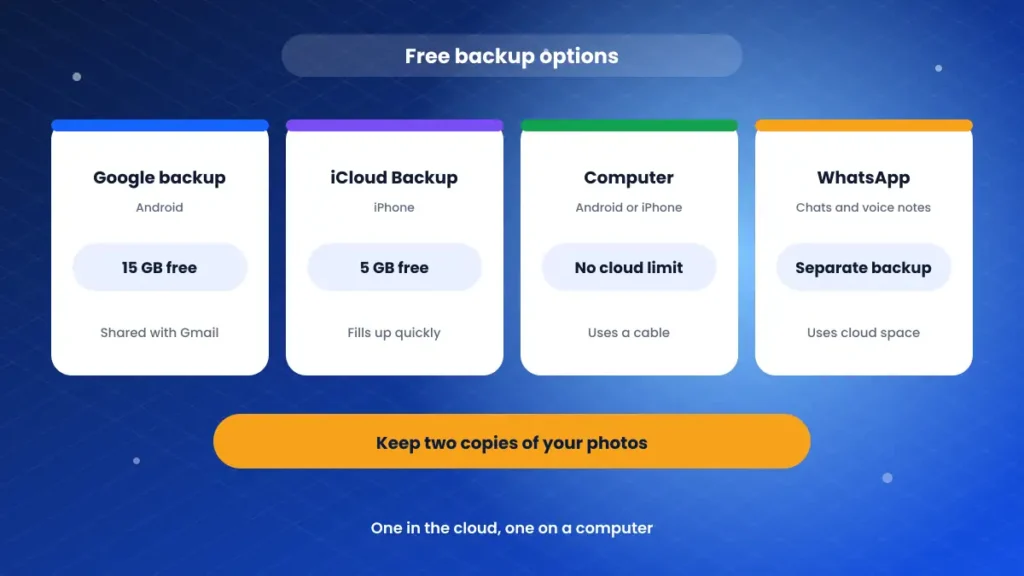
- Check your free cloud space. Google gives every account 15 GB of free storage, shared with Gmail and Google Drive. Apple gives 5 GB of free iCloud storage.
If you need more space, paid plans are available. For example, Google One plans have started at about $2 a month for 100 GB, according to TechRadar. Prices change over time, so check the current price in your account before you pay.
How to back up your Android phone
Google’s backup is built into Android. According to Google’s Android help page, the steps are:
- Open Settings. First, open the Settings app on your phone.
- Find the backup option. Next, tap Google services, then All services, then Backup.
- Choose what to save. Then, choose Photos & videos, Device data, or both.
- Turn on Backup. After that, switch it on. Google says the first backup can take up to 24 hours.
- Check the status. Finally, look for “On” under each type of data once the backup is done.
Menu names can differ between phone brands and Android versions. If you cannot find these options, search for “backup” in the Settings app.
How to back up an iPhone to iCloud
iCloud Backup runs automatically when your iPhone is locked, charging, and on Wi-Fi. To set it up:
- Open Settings. First, tap your name at the top.
- Go to iCloud Backup. Next, tap iCloud, then iCloud Backup.
- Turn it on. Then, switch on Back Up This iPhone.
- Start a backup now. After that, tap Back Up Now, and stay on Wi-Fi until it finishes.
- Check the date. Finally, look under Back Up Now for the date and time of your last backup.
The free 5 GB fills up quickly. So, if your backup is too large, turn off backup for big apps you do not need, or back up to a computer instead.
How to back up an iPhone to a computer
A computer backup is free and does not use your iCloud space:
- On a Mac, connect your iPhone with a cable, open Finder, and select your iPhone in the sidebar. Then, choose to back up all data to the Mac, and click Back Up Now.
- On Windows, install the Apple Devices app, connect your iPhone, and tap Trust This Computer on the phone. Then, open Backups and click Back Up Now, as HP’s guide explains.
In both cases, turn on Encrypt local backup and set a password you will remember. Encrypted backups also save sensitive items, such as saved passwords and health data. Without that password, however, you cannot restore the backup.
Back up your photos separately
Photos usually take up the most space. If your phone is nearly full, see how to free up phone storage without losing them. Therefore, give them extra protection:
- Use a photo app with cloud backup. Google Photos and iCloud Photos can upload new pictures automatically.
- Copy them to a computer. Every few months, move photos and videos to a laptop or an external drive. Our guide on how to transfer files from phone to computer shows five free ways.
- Keep two copies. For example, keep one copy in the cloud and one on a computer. Then a single failure cannot wipe out everything.
Back up your WhatsApp chats
WhatsApp keeps its own backup, separate from your phone’s. To set it up, open WhatsApp, go to Settings, then Chats, then Chat backup:
- On Android, WhatsApp backs up to Google Drive. Since 2024, these backups count toward your Google storage, according to TechRadar.
- On iPhone, WhatsApp backs up to iCloud.
Choose a daily or weekly automatic backup, and turn on the end-to-end encrypted backup if you want extra privacy. Also, protect the account itself with our guide on how to secure your WhatsApp account.
Free ways to back up your phone compared
Here is how the main free options compare:
| Option | Free space | Best for | What you need |
|---|---|---|---|
| Google backup (Android) | 15 GB, shared with Gmail and Drive | Contacts, apps, settings, and messages | A Google account and Wi-Fi |
| iCloud Backup (iPhone) | 5 GB | A full iPhone backup | An Apple Account and Wi-Fi |
| Computer backup | Limited only by your computer | Large backups and photos | A computer and a cable |
| WhatsApp chat backup | Uses your Google or iCloud space | Chats and voice notes | WhatsApp settings |
In practice, many people combine two of these. For instance, use the cloud backup for everyday data, and copy photos to a computer.
How to check that your backup works
A backup you have never checked may let you down. So, every few weeks:
- Check the last backup date. First, look in your backup settings for a recent date.
- Check what is included. Next, make sure contacts, photos, and messages are all switched on.
- Open a photo online. Then, sign in to Google Photos or iCloud on a computer and open a recent picture.
- Look at your contacts. Finally, check that they appear at contacts.google.com or in iCloud on the web.
How to restore a backup on a new phone
When you set up a new phone, it offers to restore your data:
- On Android, sign in with the same Google account during setup, and choose your backup. Google notes that the new phone should run the same or a newer Android version.
- On iPhone, choose Restore from iCloud Backup or connect to the computer that holds your backup.
- For WhatsApp, install it, verify your number, and tap Restore when it finds your backup.
Keep the new phone on Wi-Fi and charging while it restores.
Keep your backups safe
Your backup holds almost your whole digital life. So, protect it like your phone:
- Secure the account behind it. Turn on two-step verification for your Google or Apple account. Our guide to two-factor authentication explains why.
- Use a strong, unique password. Our guide on how to secure your Gmail account walks through the steps.
- Encrypt computer backups. Then, a stolen laptop does not expose your data.
- Avoid unknown backup apps. Use the built-in tools or well-known apps from the official app store.
Frequently asked questions
How often should I back up my phone?
Turn on automatic backup, so it happens daily without you thinking about it. Then, check it every few weeks.
Does a backup use mobile data?
It can. Most phones back up only on Wi-Fi by default, so check the setting if your data is expensive.
Can I back up my phone without the cloud?
Yes. Copy photos and files to a computer, and on iPhone, make a full backup with Finder or the Apple Devices app.
Will my backup move from iPhone to Android?
Not directly. However, contacts and photos can move through Google, and WhatsApp offers its own chat transfer between phones.
What happens to my backup if I lose my phone?
It stays in your account. Sign in on a new phone with the same Google or Apple account to restore it.
Key takeaways on phone backups
- Turn on the built-in backup: Google backup on Android, or iCloud Backup on iPhone.
- Back up WhatsApp separately in its own settings.
- Keep a second copy of your photos on a computer or external drive.
- Check your last backup date every few weeks.
- Protect your Google or Apple account with two-step verification.
Want more help with your phone? Read our guides on how to scan documents with your phone and what cloud computing is, or browse all our tech tutorials.