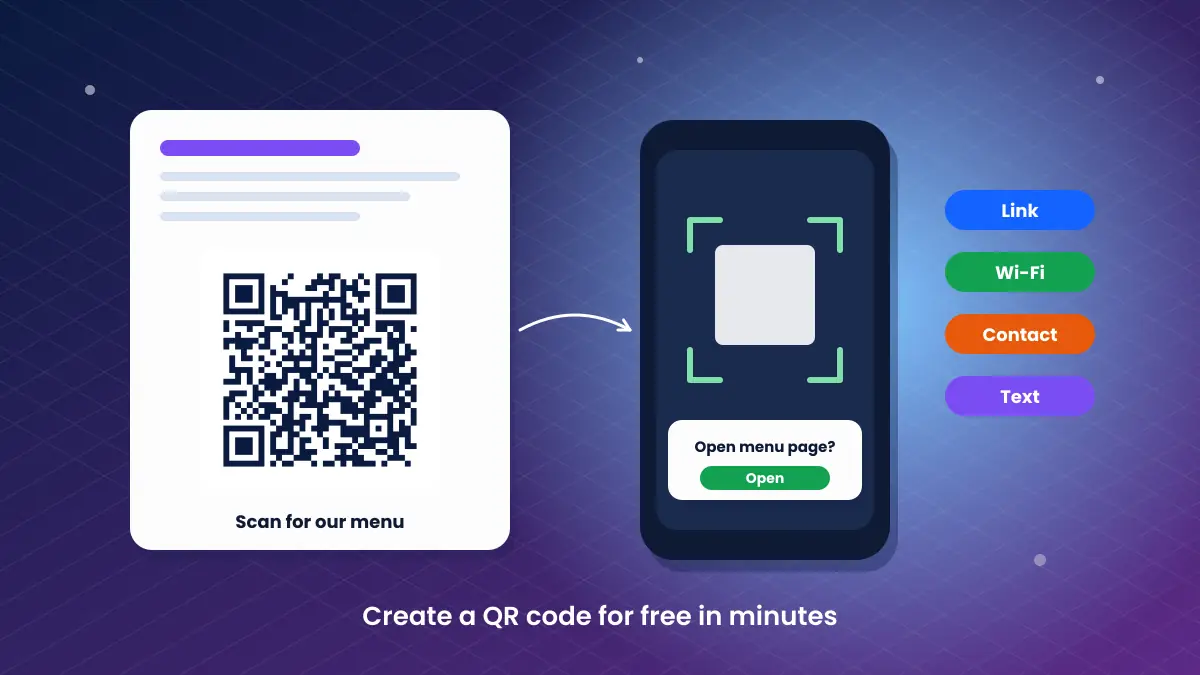
A QR code lets someone open your menu, join your Wi-Fi, or save your number with one scan. You do not need an app or a designer to make one. This guide shows how to create a QR code for free in a few minutes, which type to choose, and how to print it so it scans the first time.
Quick answer: To create a QR code for free, open our QR code generator, choose what the code should do (a website link, Wi-Fi, a contact card, or plain text), type the details, then download it as a PNG or SVG. Test it with two phones before you print it. For payments, ask your bank for an official payment QR code instead.
In this guide
- What is a QR code?
- Static vs dynamic QR codes
- How to create a QR code with our free generator
- Other ways to create a QR code
- Ideas for using QR codes in your business
- What about payment QR codes?
- Tips to print a QR code that scans the first time
- Keep your QR codes safe
- Frequently asked questions
- Key takeaways on how to create a QR code
What is a QR code?
A QR code is a square barcode that a phone camera can read. Inside the pattern is a small piece of information, such as a web address, a Wi-Fi password, or a contact card. When someone scans it, the phone offers to open the link, join the network, or save the contact.
Most phones made in the last few years can scan QR codes with the normal camera app. So people rarely need to install anything.
Static vs dynamic QR codes
Before you create a QR code, decide which kind you need. There are two:
| Static QR code | Dynamic QR code | |
|---|---|---|
| What is inside | Your link or details, fixed in the pattern | A short link owned by the QR service |
| Can you change it later? | No, you make a new code | Yes, in the service’s dashboard |
| Scan tracking | No | Yes |
| Cost | Usually free | Often a monthly subscription |
| Risk | Breaks only if your own page is removed | May stop working if the subscription ends |
According to a July 2026 BGR explainer, dynamic codes typically cost about $1 to $3 a month, and some plans cost far more. They also stop working if a free trial ends and nobody pays.
For most people, a static code is the better choice. If you need to change what people see, link the code to a page you control, such as your menu page, and update that page instead.
How to create a QR code with our free generator
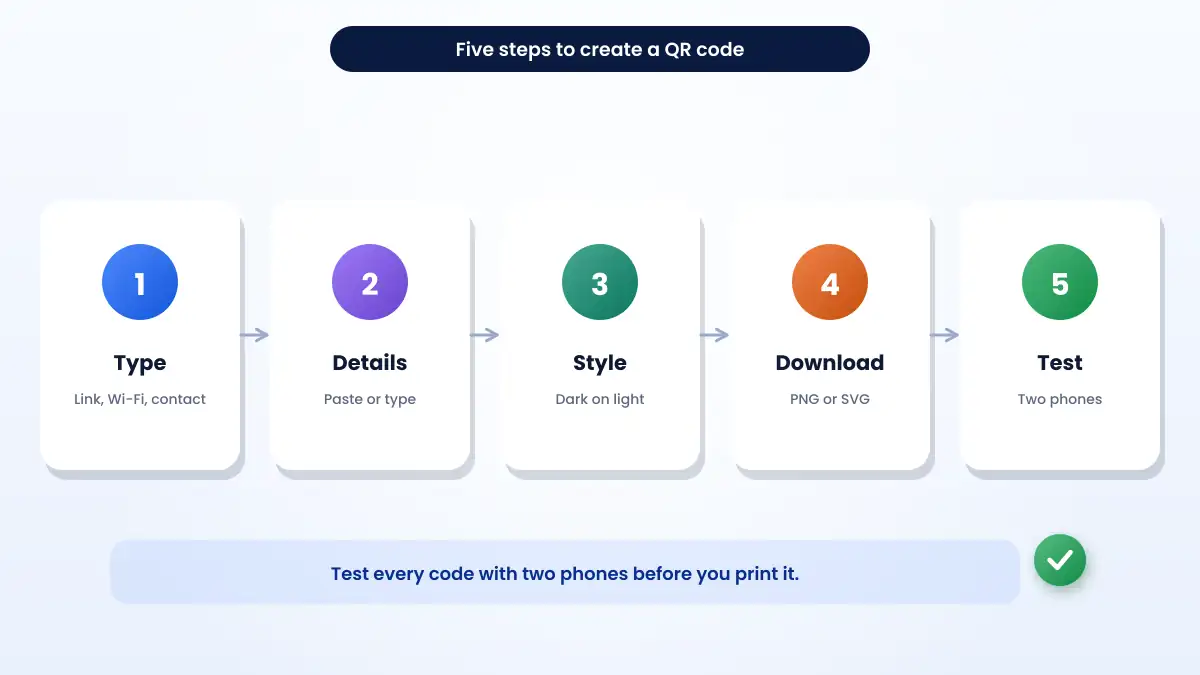
Our free QR code generator makes static codes in your browser, with no sign-up and no watermark. Here is how to create a QR code with it:
- Choose the type. Pick Website link, Wi-Fi access, Contact card, or Plain text.
- Add the details. For example, paste your menu link, or type your guest Wi-Fi name and password. The preview updates as you type.
- Style it. Pick a colour preset or your own colours. The contrast meter warns you if phones may struggle to read it.
- Pick a size. Use a 1024-pixel PNG for screens and documents, or download the SVG for printing.
- Test it. Scan the downloaded file with two different phones, including an older one, before you print anything.
Which type should you choose?
Each type does something different when a phone scans it:
- Website link: opens a page, such as a menu, price list, order form, or review page.
- Wi-Fi access: lets guests join your network without typing the password.
- Contact card: saves your name, number, and email to the phone’s contacts.
- Plain text: shows a short note on the screen, such as a reference number.
A useful trick for small businesses is a WhatsApp link. Use the address wa.me/ followed by your number in international format, without the plus sign or the first zero (for a Nigerian number, start with 234). Then create a QR code for that link, and customers can start a chat with one scan. Similarly, once you create a Google Business Profile, you can print its review QR code for your counter.
Other ways to create a QR code
You can also create a QR code without a separate tool. In Google Chrome on a computer, right-click an empty part of a web page and choose Create QR code for this page. Then download the image. This only works for web pages, and the menu name may change between Chrome versions.
Design apps and many online generators also make QR codes. However, check whether a “free” generator creates dynamic codes that stop working after a trial. If it asks you to sign up before you can download, that is often a sign.
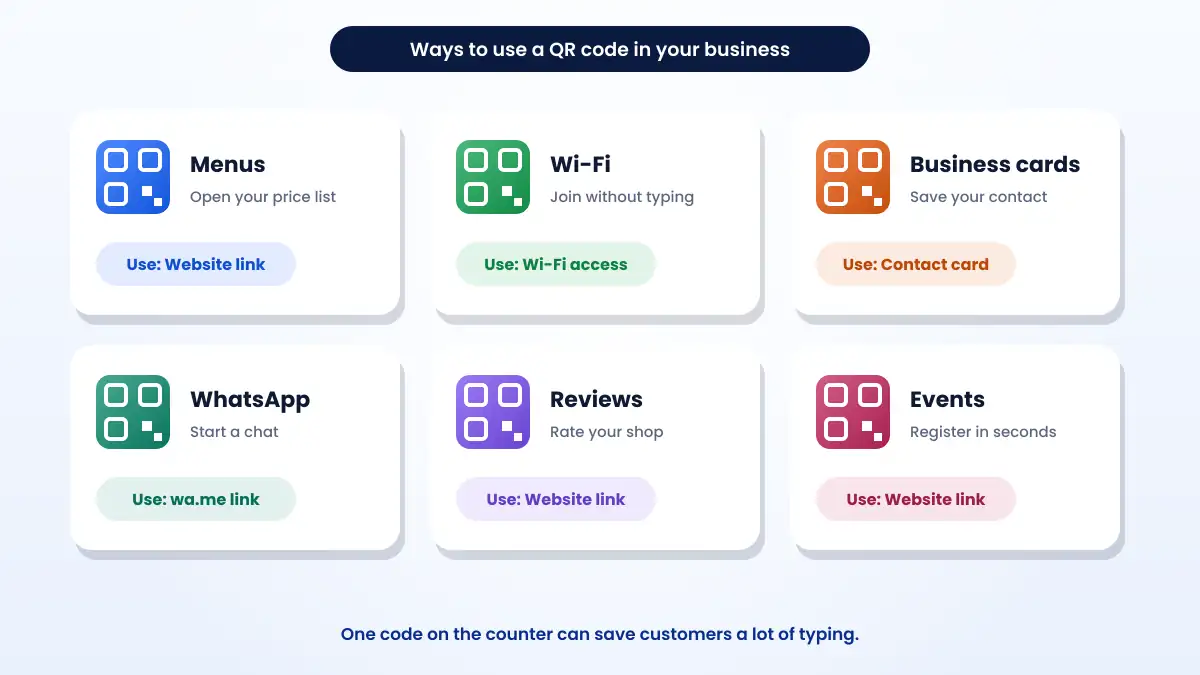
Ideas for using QR codes in your business
QR codes save your customers from typing long addresses. Here are some practical uses:
- Menus and price lists. Put a code on each table that opens your current menu page.
- Shop or office Wi-Fi. Let guests join without asking for the password.
- Business cards and flyers. Add a contact card code, or a WhatsApp chat link.
- Reviews. Link to your Google review page at the till or on receipts.
- Events. Link to a registration form or an event programme.
For more ideas on running a small business online, see our guide to the best free AI tools for small businesses.
What about payment QR codes?
A payment QR code is different. It contains structured payment data from a bank or payment provider, so you cannot make a working one with a general QR generator. In Nigeria, merchants get an NQR code through their bank. The NIBSS NQR FAQ explains that the bank registers the merchant on the NQR portal and then generates the codes. Our guide on how to pay with NQR shows how customers scan and pay at the counter.
To learn how tap and scan payments work behind the scenes, read our guide to contactless payment.
Tips to print a QR code that scans the first time
A code that does not scan is worse than no code at all. So follow these rules:
- Make it big enough. A rough rule is that people can scan from about ten times the code’s width. A 3 cm code works at about 30 cm.
- Keep the quiet zone. Leave a clear border around the code, because scanners use it to find the edges.
- Use dark on light. A dark code on a light background is easiest for cameras. Avoid light colours on dark backgrounds.
- Use SVG for print. An SVG stays sharp at any size, while a PNG is best for screens.
- Choose higher error correction for rough places. Level Q or H helps a printed code survive scratches and dirt.
Keep your QR codes safe
Anyone who scans your code can read what is inside it. A Wi-Fi code contains your password, and a contact card contains your phone number. So place those codes only where you would share that information anyway.
Also, watch out for fake codes. Scammers sometimes stick their own QR codes over real ones on posters and parking signs. Before you open a link from a code, check the web address your phone shows. Our guides on how to identify a fake website and how to recognise a phishing message explain what to look for.
Frequently asked questions
Can I create a QR code for free?
Yes. Our QR code generator is free, with no sign-up and no watermark. Static codes made this way do not expire.
Do QR codes expire?
Static codes do not expire. They stop working only if the page they link to is removed. Dynamic codes from paid services may stop working if the subscription ends.
Can I change a QR code after printing it?
Not a static one. Instead, link the code to a page you control and update that page whenever you need to.
Can I track how many people scan my code?
Not with a static code. However, you can add a tag to your link, such as ?source=flyer, and then count the visits in your website analytics.
Can I make a QR code for bank payments?
No. Ask your bank or payment provider for an official payment QR code, such as an NQR code in Nigeria.
Key takeaways on how to create a QR code
- Choose a static code for most uses, because it is free and does not expire.
- Create a QR code in minutes with a free browser tool, then test it with two phones.
- Print it large enough, with a clear border and dark-on-light colours.
- Get payment QR codes from your bank, and check links before you open them.
Want more practical guides? Browse our tech tutorials, or try all our free tools.