When people need a tailor, a pharmacy, or a phone repairer, many of them search on Google or open Google Maps first. If your business is not there, they find your competitor instead. The good news is that you can create a Google Business Profile for free in about 20 minutes. This guide shows you how to set it up, verify it, make it look trustworthy, and collect your first reviews.
Quick answer: To create a Google Business Profile, go to business.google.com/add, sign in with a Google account, and click Add your business to Google. Enter your business name, category, address or service area, phone number, and website. Then choose a verification method, such as a short video, and finish your profile with photos, opening hours, and services. It is free, and Google never charges for a Business Profile.
In this guide
- What is a Google Business Profile?
- Can your business get a profile?
- Before you start
- How to create a Google Business Profile, step by step
- Already listed? Claim your profile on Google Maps
- How to verify your Google Business Profile
- Complete your profile so customers choose you
- Get more Google reviews
- Avoid Google Business Profile scams
- Features that no longer exist
- Frequently asked questions
- Key takeaways on how to create a Google Business Profile
What is a Google Business Profile?
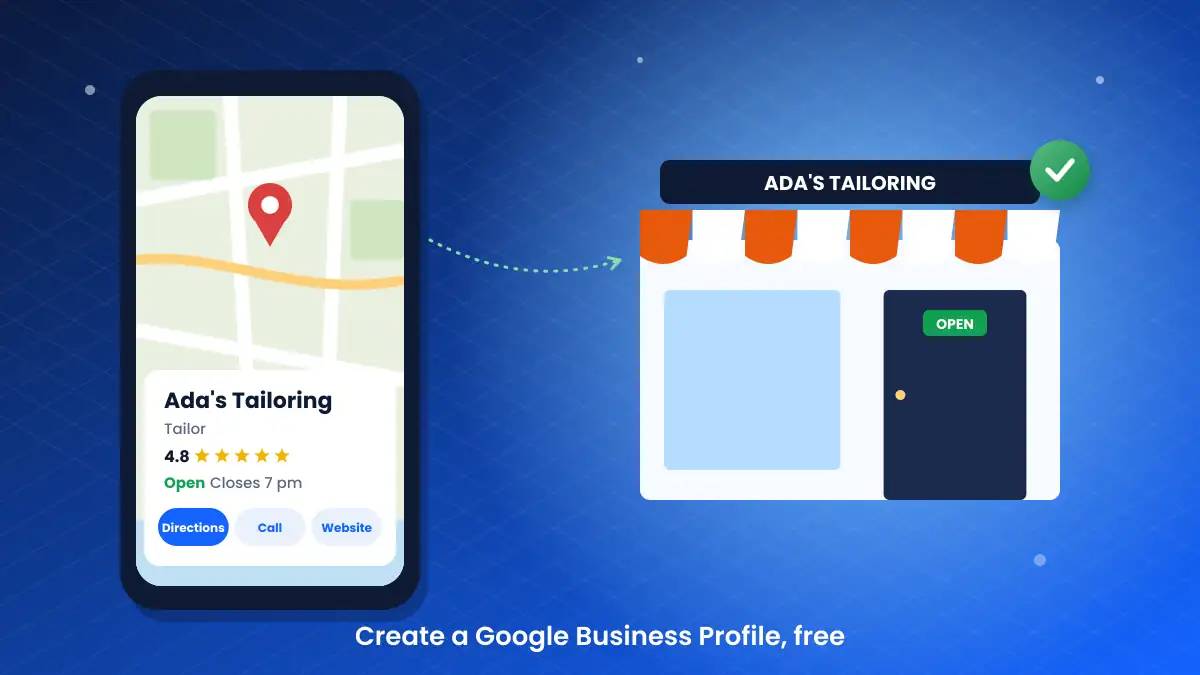
A Google Business Profile is the free business listing that appears on Google Search and Google Maps. When someone searches for your business, or for something like “printing shop near me”, your profile can show:
- Your business name, category, and opening hours.
- Your address on the map, or the areas you serve.
- Your phone number, website and a button for directions.
- Photos of your shop, products or work.
- Reviews and star ratings from customers.
Google’s own help page says you can add or claim your business “at no charge”. So a profile is one of the cheapest ways for a small business to be found online.
Can your business get a profile?
Not every business qualifies. According to Google’s Business Profile guidelines, your business must either have a place that customers can visit or travel to customers where they are. Here are the three types:
| Business type | Example | What customers see |
|---|---|---|
| Storefront | Shop, salon, restaurant, pharmacy | Your address and a pin on the map |
| Service-area business | Plumber, caterer, mobile mechanic, home tutor | The areas you serve, with your address hidden |
| Hybrid | Bakery that also delivers | Your address and your service areas |
There are some important limits. Online-only businesses are not eligible. A rented mailing address or virtual office does not count, and P.O. boxes are not accepted. If you work from home and visit clients, choose a service-area business, so your home address stays private.
Before you start
Gather these details first, so the setup goes smoothly:
- A Google account. Ideally, use a business email rather than a personal one. Our guide on how to create a professional business email shows how to set one up. Turn on 2-Step Verification, because whoever controls the account controls your profile. Our guide on how to secure your Gmail account shows you how.
- Your real business name. Use exactly the name on your signboard, receipts, and social media pages. If you have not registered it yet, see how to register a business name with CAC.
- Your main category, such as “Hair salon”, “Pharmacy” or “Electrician”.
- Your address or service areas, a phone number that someone answers, and your opening hours.
- At least five good photos, such as your shopfront, inside the shop, products, and your team at work.
How to create a Google Business Profile, step by step
Google’s guide to adding a business starts on a computer, but the same steps also work in a phone browser:
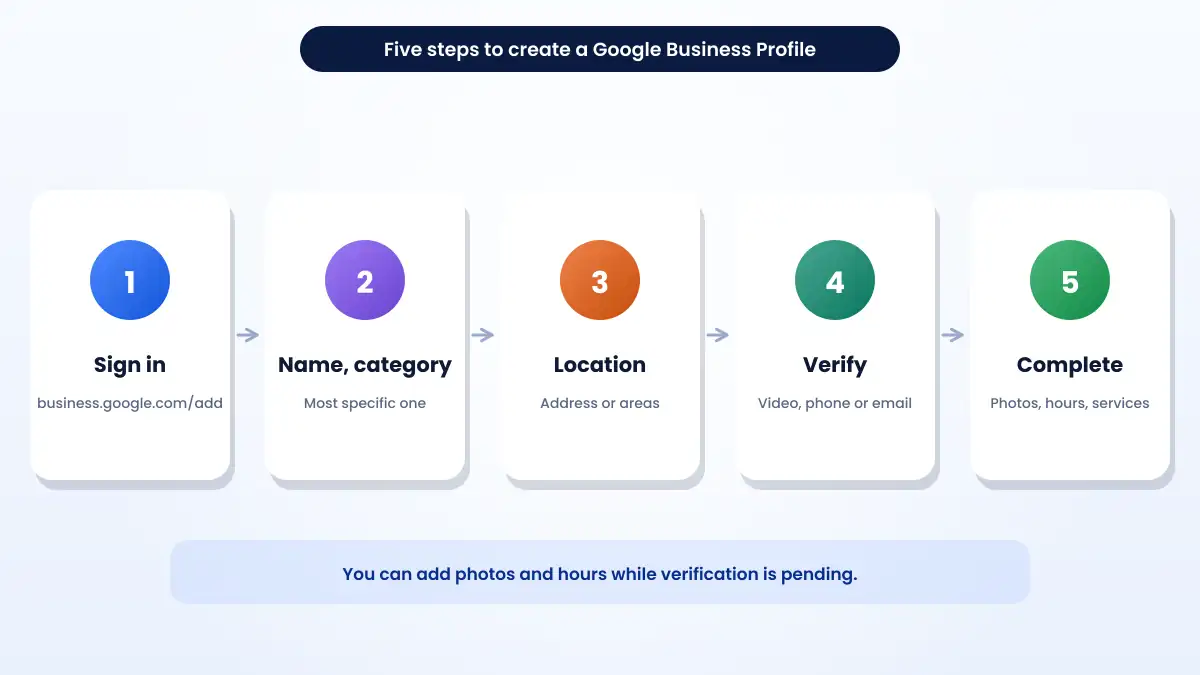
- Go to business.google.com/add and sign in with your Google account.
- Click Add your business to Google, then type your business name. If Google suggests a listing that is already yours, select it and claim it instead (see the next section).
- Choose your main business category. Start typing and pick the most specific option on the list.
- Choose whether customers can visit you. If yes, enter your full address and check the pin on the map. If you only travel to customers, add your service areas instead, such as “Ikeja” or “Lekki”.
- Add your phone number and website. If you do not have a website yet, you can leave it blank or add your WhatsApp Business link later. When you are ready, here is how to create a business website.
- Choose a verification method and follow the steps on screen.
- Add your hours, a short description, services, and photos. You can do this while verification is pending.
Already listed? Claim your profile on Google Maps
Sometimes Google, or a customer, has already added your business to Maps. In that case, do not create a second profile. Instead, claim the existing one in the Google Maps app:
- Search for your business name and select it.
- Tap About, then Claim this business, then Manage now.
- Choose a verification method and follow the steps.
If someone else has already verified the profile, Google lets you request ownership from the current owner instead.
How to verify your Google Business Profile
Verification proves that you really own or run the business. Until it is complete, your profile may not appear publicly, and you cannot manage it fully. Google only shows the methods available for your business type and location. Depending on your business, these can include:
- A phone call or text message.
- An email.
- A video recording.
- A live video call with a Google support agent.
- A postcard sent by post.
If Google offers you video verification, follow its rules closely. According to Google’s video verification guide, you record a single, unedited video of at least 30 seconds on your phone, inside the Business Profile. Pre-recorded clips are not allowed. In the video, show:
- Where you are, such as the street name, building number, or nearby landmarks.
- Your business, such as your signboard with the same name as your profile, or your tools, branded items, or work equipment.
- Proof that you manage it, such as opening the shop, using your POS terminal, or showing an invoice with your business name.
Do not show bank details, ID numbers, or other people’s faces. Google says the review can take up to five business days. If it fails, Google tells you why, and you can record a new video.
Complete your profile so customers choose you
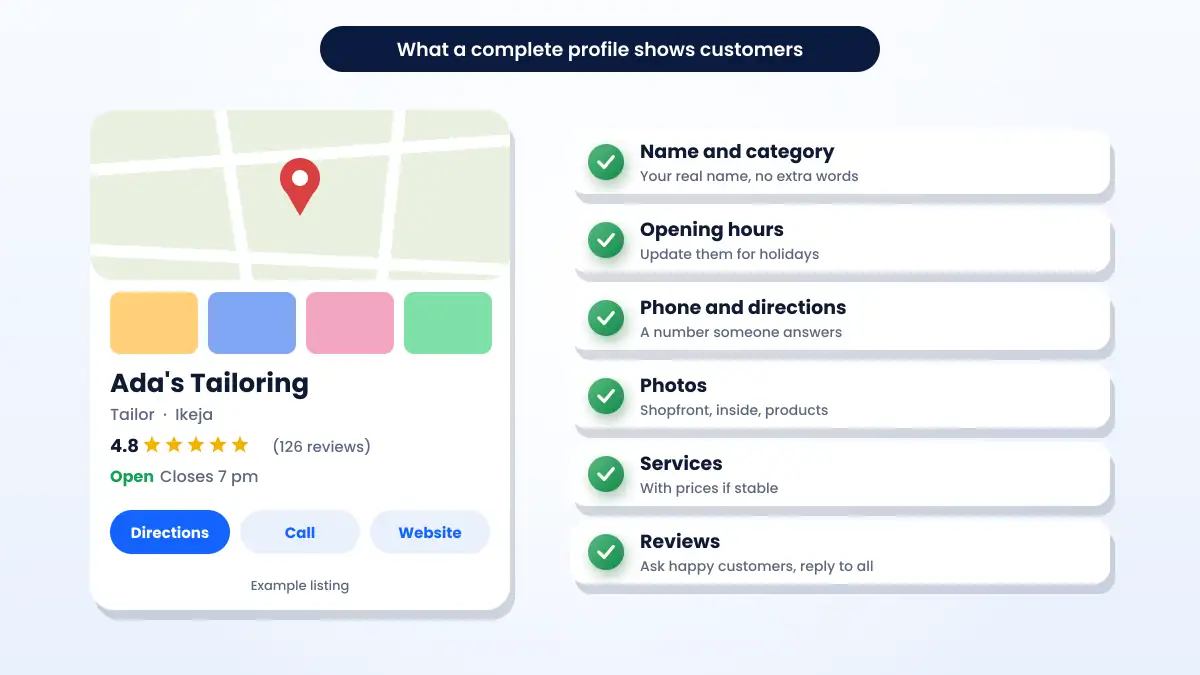
A complete profile looks more trustworthy, and it answers customers’ questions before they call. So fill in every section:
- Description. You have up to 750 characters. Say what you do, where you serve, and what makes you different, in plain words.
- Photos. Add your shopfront, interior, products, and team. Clear, recent photos help customers recognise your shop when they arrive.
- Opening hours. Keep them accurate, and update them for public holidays.
- Products and services. List your main services, with prices if they are stable.
- Contact links. Add your website or your WhatsApp Business link, so customers can reach you quickly.
Also, keep your business name clean. Google does not allow extra words, such as “Best Cheap Phones Lagos”, in the name, and it can suspend profiles that add them.
Get more Google reviews
Reviews are often the first thing customers check. Fortunately, Google makes it easy to ask for them. In your Business Profile on a computer, click Read reviews, then Get more reviews. You can then copy a review link, or save a QR code.
Next, share the link on WhatsApp after a sale, or print the QR code and place it at your counter. Our guide on how to create a QR code has tips for printing one that scans well.
However, follow the rules. Google’s review tips say that offering free or discounted goods in exchange for reviews is “strictly prohibited”. Instead, simply ask happy customers, and reply politely to every review, including negative ones.
Avoid Google Business Profile scams
Scammers often target new business owners. They call or send messages claiming your listing “will be suspended” or “is not showing”, and then ask for a fee to fix it. Remember these facts:
- Google does not charge for a Business Profile. Anyone asking you to pay to create, verify, or “rank” it is not Google.
- Google never asks for payment over the phone. Its guidance on fraudulent calls also says it will never ask for private or sensitive information.
- Check WhatsApp messages carefully. Google says real WhatsApp messages come from an account named “Google Maps” with a blue verification tick. If you are not sure, do not click the link. Open your profile yourself instead.
To spot other tricks, read our guide on how to recognise a phishing message.
Features that no longer exist
Older guides may mention features that Google has since removed. In 2024, Google turned off the free websites made with Business Profiles, as TechRadar reported. It also ended the chat feature on Business Profiles in July 2024. So link to your own website or WhatsApp Business account instead. Not sure which app to use? Our guide to WhatsApp Business vs WhatsApp compares them.
Frequently asked questions
Is it free to create a Google Business Profile?
Yes. Google does not charge to create, claim, or verify a Business Profile. Be careful of anyone who asks you to pay.
How long does verification take?
It depends on the method. Phone, text, and email can be quick, while Google says video reviews can take up to five business days.
Can I create a profile if I work from home?
Yes, if you travel to customers. Choose a service-area business, add the areas you serve, and keep your home address hidden.
Can an online-only business get a profile?
No. Google only accepts businesses that customers can visit or that travel to customers. An online-only shop should focus on its website and social media instead.
Can I change my profile later?
Yes. You can update your hours, photos, services, and contact details at any time. However, big changes, such as a new name or address, may need to be verified again.
Key takeaways on how to create a Google Business Profile
- You can create a Google Business Profile for free at business.google.com/add.
- Choose the right type: storefront, service-area, or hybrid.
- Verify the profile, often with a short video of your location and signboard.
- Add photos, hours, services, and a clear description.
- Ask for genuine reviews, and never pay anyone who calls “from Google”.
Running a small business? See our list of the best free AI tools for small businesses, or learn how to use AI for business research.