Your Gmail address is probably the key to your whole digital life. Password reset links for your banking app, social media, wallet apps, and work tools all land in that one inbox. So if a criminal gets in, they can take over far more than your email. This guide shows you how to secure your Gmail account in about 15 minutes, step by step, and what to do if someone has already broken in.
Quick answer: To secure your Gmail account, run Google’s Security Checkup, use a strong password that you use nowhere else, and turn on 2-Step Verification with Google prompts, a passkey, or a security key rather than text messages alone. Then add a recovery phone and email, remove apps you no longer use, and check Gmail’s settings for forwarding rules or filters you did not create. Finally, sign out of devices you do not recognise and save your backup codes somewhere safe.
In this guide
- Why you should secure your Gmail account first
- 10 steps to secure your Gmail account
- Check these Gmail settings for hidden rules
- Beware of fake Google security alerts
- What to do if your Gmail account is hacked
- Extra protection: secure your Gmail account with Advanced Protection
- Frequently asked questions
- Key takeaways
Why you should secure your Gmail account first
Your Gmail inbox is more than a mailbox. It is often the recovery address for every other account you own. Whoever controls it can usually reset the passwords on the rest.
| What a hacker can do with your Gmail | Why it hurts |
|---|---|
| Reset passwords on other accounts | They can take over your social media, shopping, and some financial apps |
| Read old emails | Statements, ID scans, and receipts reveal personal details for more fraud |
| Message your contacts as you | Friends trust the “help me, send money” email because it comes from you |
| Hide their tracks | A forwarding rule or filter can copy or delete new emails without you noticing |
| Open your Google Drive and Photos | Your documents and pictures are part of the same Google account |
For this reason, it pays to secure your Gmail account before something goes wrong, not after.
10 steps to secure your Gmail account
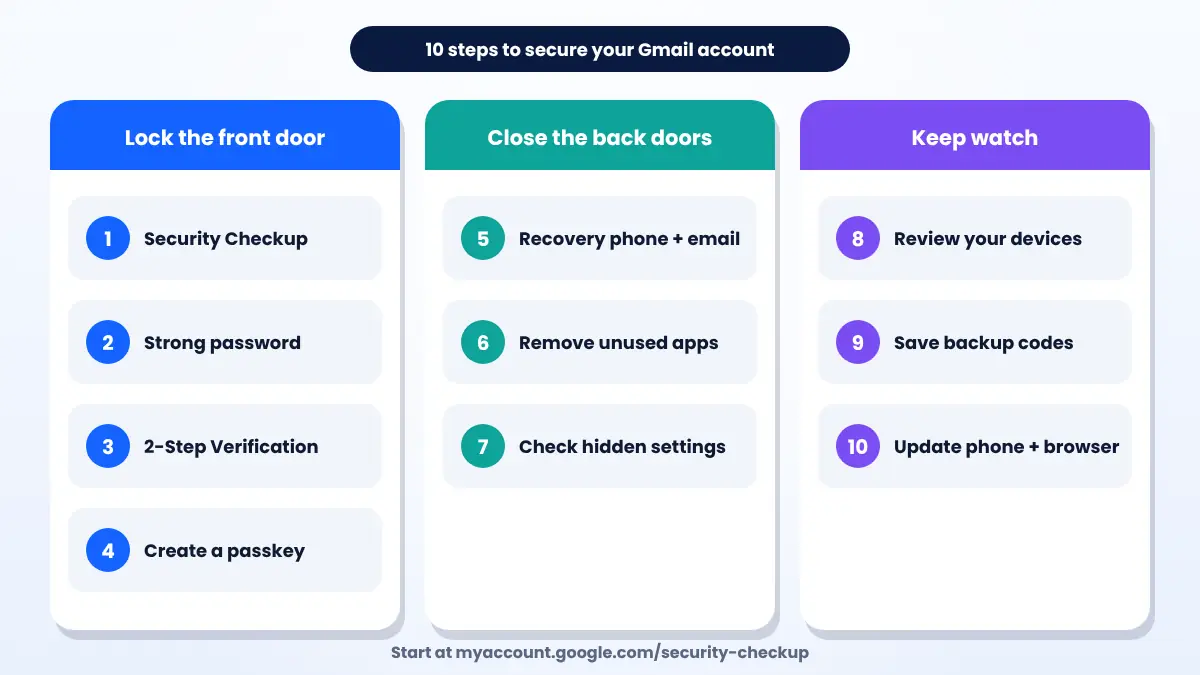
You can do all ten steps on a phone or a laptop. Most of them live on one page: Google’s Security Checkup.
Lock the front door
- Run the Security Checkup. Open the Security Checkup page while signed in. Google lists anything that needs attention, such as missing recovery details or risky apps, and tells you how to fix it.
- Use a strong, unique password. Use a long passphrase of four or more random words, and never reuse it on another site. If one shop leaks your password, criminals will try it on Gmail next. A password manager makes unique passwords easy.
- Turn on 2-Step Verification. With it on, a stolen password alone is not enough to get in. In its account security guide, Google says Google prompts and security keys are stronger than text message codes. That matters in Nigeria, because SIM swap fraud lets criminals receive your text messages.
- Create a passkey. A passkey lets you sign in with your fingerprint, face, or screen lock instead of a password. Google made passkeys the default sign-in option for personal accounts in October 2023, as Infosecurity Magazine reported. Because a passkey only works on the real Google site, a fake login page cannot steal it.
Close the back doors
- Add a recovery phone and email. These help Google warn you about strange sign-ins and help you get back in. In fact, a Google study found that adding a recovery phone blocked 100% of automated bots, 99% of bulk phishing attacks, and 66% of targeted attacks.
- Remove apps you no longer use. Over the years, you may have let games, quizzes, and tools “Sign in with Google”. Under “Your connections to third-party apps and services”, remove anything you do not recognise or no longer use.
- Check Gmail’s hidden settings. Hackers often add a quiet rule so they keep getting your emails after you change your password. The next section shows you exactly where to look.
Keep your Gmail account secure over time
- Review your devices. In your Google Account, open Security, then “Your devices”. Sign out of any phone or computer you do not recognise, and check “Recent security activity” for sign-ins you did not make.
- Save your backup codes. Google gives you a set of one-time backup codes for 2-Step Verification. Print them or store them offline, so you can still get in if you lose your phone. To see how these codes fit in, read what two-factor authentication is.
- Keep your phone and browser updated. Updates fix security holes. Also, use a screen lock, so nobody who picks up your phone can open your inbox.
Check these Gmail settings for hidden rules
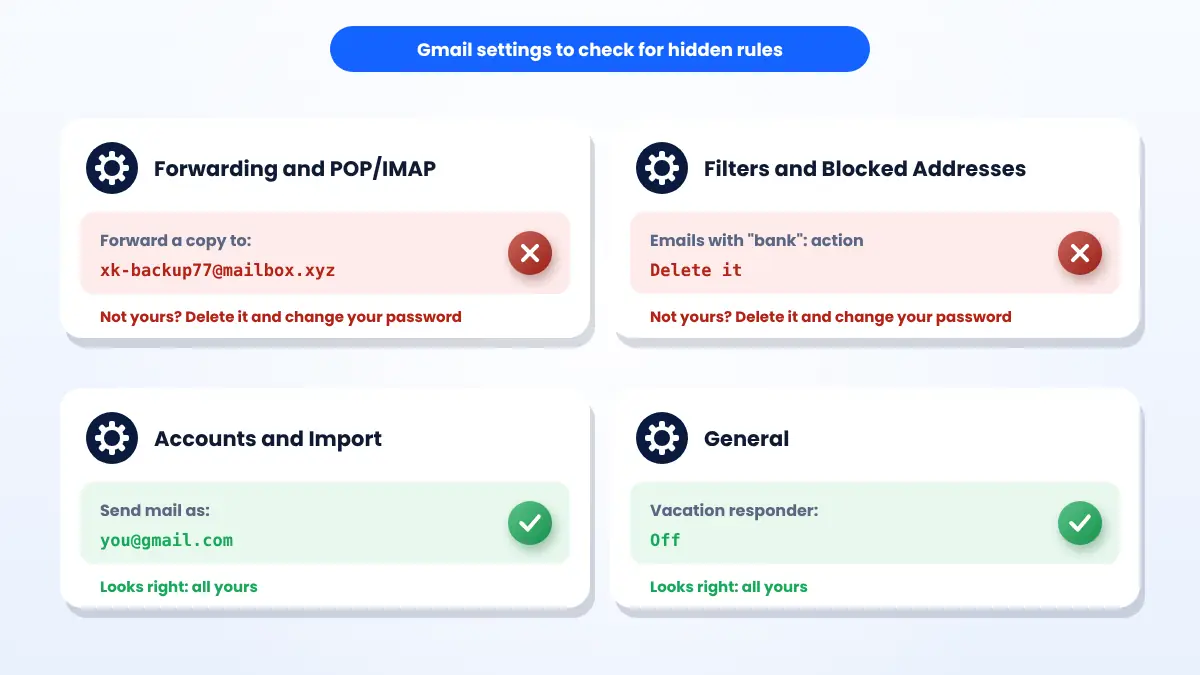
Google’s own Gmail security tips tell you to check these places. On a computer, open Gmail, click the gear icon, then “See all settings”:
| Settings tab | What to check |
|---|---|
| Forwarding and POP/IMAP | Emails are not being forwarded to an address you do not know |
| Filters and Blocked Addresses | No filter forwards or deletes emails without your knowledge |
| Accounts and Import | Every “Send mail as” address is yours, and nobody unknown has access to your account |
| General | Your signature and vacation responder are what you set |
If you find anything strange, delete it, then change your password at once. A rule you did not create is a strong sign that someone has been inside your account.
Beware of fake Google security alerts
Most Gmail accounts are lost to tricks, not to clever hacking. A criminal sends an email that looks like a Google warning and links to a copy of the Google sign-in page. You type your password, and they have it.
In 2025, criminals sent emails that appeared to come from Google itself. The messages warned of a “subpoena” against the reader’s account and linked to a fake login page hosted on sites.google.com, according to the Identity Theft Resource Center. Because the email passed Google’s own checks, it looked genuine.
So use one simple rule. Never sign in from a link in an email. Instead, open Gmail or your Google Account yourself, and look for the alert there. To learn the other warning signs, read our guide on how to recognise a phishing message. If you are not sure a sign-in page is real, here is how to identify a fake website.
What to do if your Gmail account is hacked
Act quickly, because every hour gives the criminal more time:
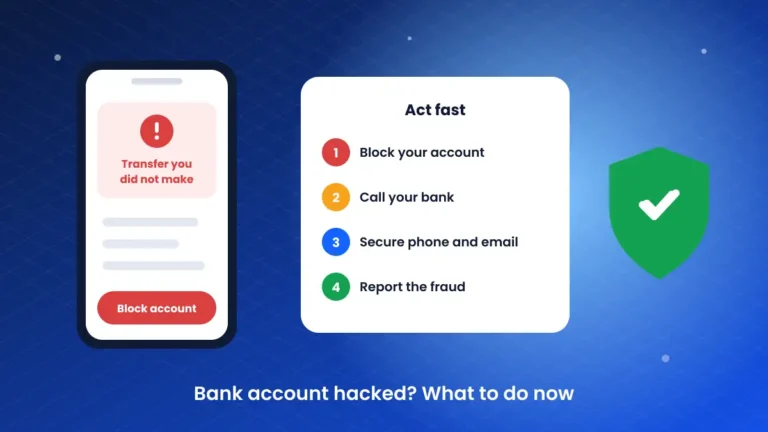
- Try to sign in and change your password. If the password no longer works, use Google’s account recovery page at g.co/recover and answer the questions from a device you have used before.
- Sign out of every other session. Then turn on 2-Step Verification if it was off.
- Clean up Gmail’s settings. Remove any forwarding address, filter, or “Send mail as” address you did not create.
- Change passwords elsewhere. Start with your banking app, other email accounts, and social media, especially any that use this Gmail address.
- Warn your contacts. Tell them to ignore any request for money that came from your address.
- Call your bank if the inbox holds bank details or the hacker reset any financial app.
For more ways to keep money safe after a breach, read how to protect your bank account online.
Extra protection: secure your Gmail account with Advanced Protection
If you are a journalist, an activist, a public figure, or you handle large company payments, consider Google’s Advanced Protection Program. It requires passkeys or security keys to sign in, and it blocks many risky apps and downloads. It is free, although it makes sign-in a little stricter for you as well. Running a business? Our guide on how to create a professional business email also covers keeping a company mailbox safe.
Frequently asked questions
Is a text message code enough to secure your Gmail account?
It is much better than a password alone. However, text messages can be stolen through SIM swap fraud, so Google prompts, a passkey, or a security key are safer.
How do I know if someone else is using my Gmail?
Check “Your devices” and “Recent security activity” in your Google Account. Also look for sent emails you did not write and forwarding rules you did not create.
Do I need to change my Gmail password often?
No. Use a strong, unique password and change it only if it may have leaked or you see a strange sign-in.
Can you secure your Gmail account without a smartphone?
Yes. You can use a physical security key, a passkey on a computer, or printed backup codes, together with a strong password.
What happens if I lose my phone with 2-Step Verification on?
Sign in with a backup code or your other second step, then remove the lost phone from your account and set up the new one.
Key takeaways
- Your Gmail inbox often controls your other accounts, so it deserves the strongest protection.
- Turn on 2-Step Verification, and use Google prompts, a passkey, or a security key instead of text messages alone.
- Add a recovery phone and email, and save your backup codes offline.
- Check Gmail for forwarding rules, filters, and “Send mail as” addresses you did not create.
- Never sign in from a link in an email; open Gmail yourself instead.