A password on its own is no longer enough to keep your accounts safe. Passwords leak in data breaches, get guessed, or end up on fake login pages. So, what is two-factor authentication? This guide breaks down 2FA, shows how it works, compares the main methods, and explains how to turn it on.
Quick answer: Two-factor authentication (2FA) is a login check that asks for two different kinds of proof before it lets you in. Usually, that means your password plus a one-time code, an app prompt, a fingerprint, or a security key. Even if someone steals your password, they still cannot get in without the second factor. Authenticator apps and security keys are safer than SMS codes, but any 2FA is far better than none.
In this guide
- What is two-factor authentication?
- How two-factor authentication works
- Types of two-factor authentication
- Why SMS codes are the weakest option
- How well does 2FA work?
- How to turn on two-factor authentication
- Two-factor authentication safety tips
- Frequently asked questions
- Key takeaways on what is two-factor authentication
What is two-factor authentication?
Two-factor authentication, or 2FA, adds a second lock to your account. Instead of checking only what you type, the service also checks something else that belongs to you.
These checks come from three groups, known as factors:
- Something you know, such as a password or PIN.
- Something you have, such as your phone or a security key.
- Something you are, such as your fingerprint or face.
Real 2FA uses two different groups. For example, a password plus a code sent to your phone counts, because the code proves you have the phone. In contrast, a password plus a security question does not, since both are things you know.
You may also see the term multi-factor authentication, or MFA. It means the same idea, but with two or more factors.
How two-factor authentication works
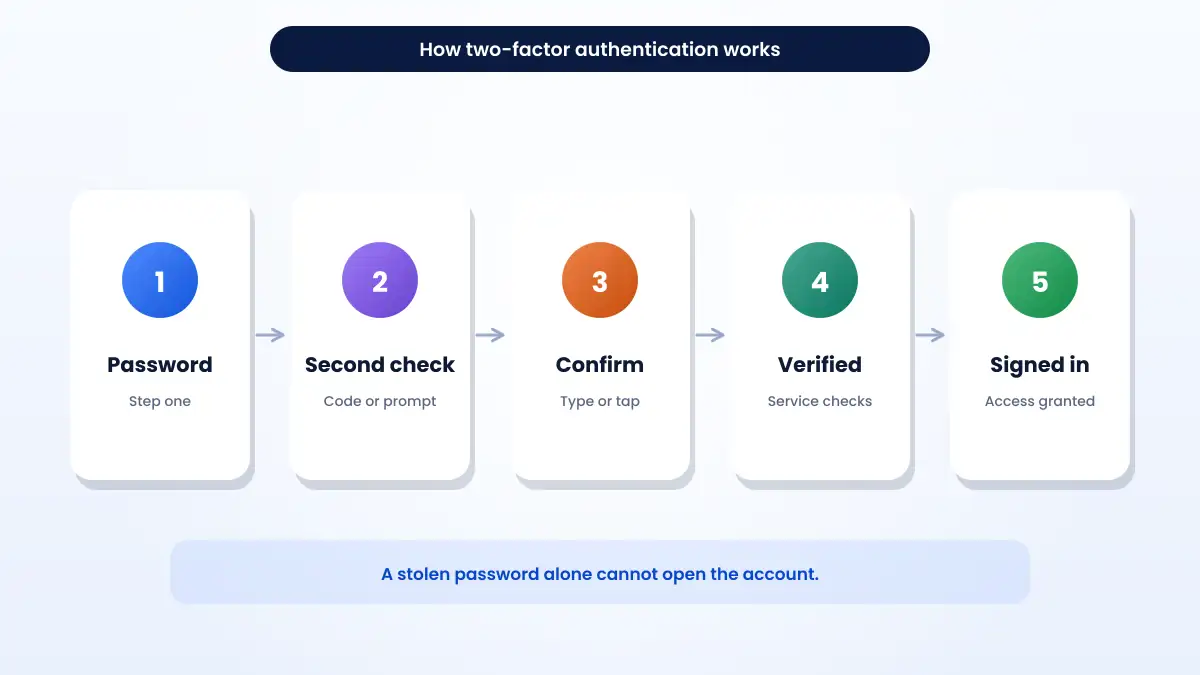
Here is what usually happens when you log in:
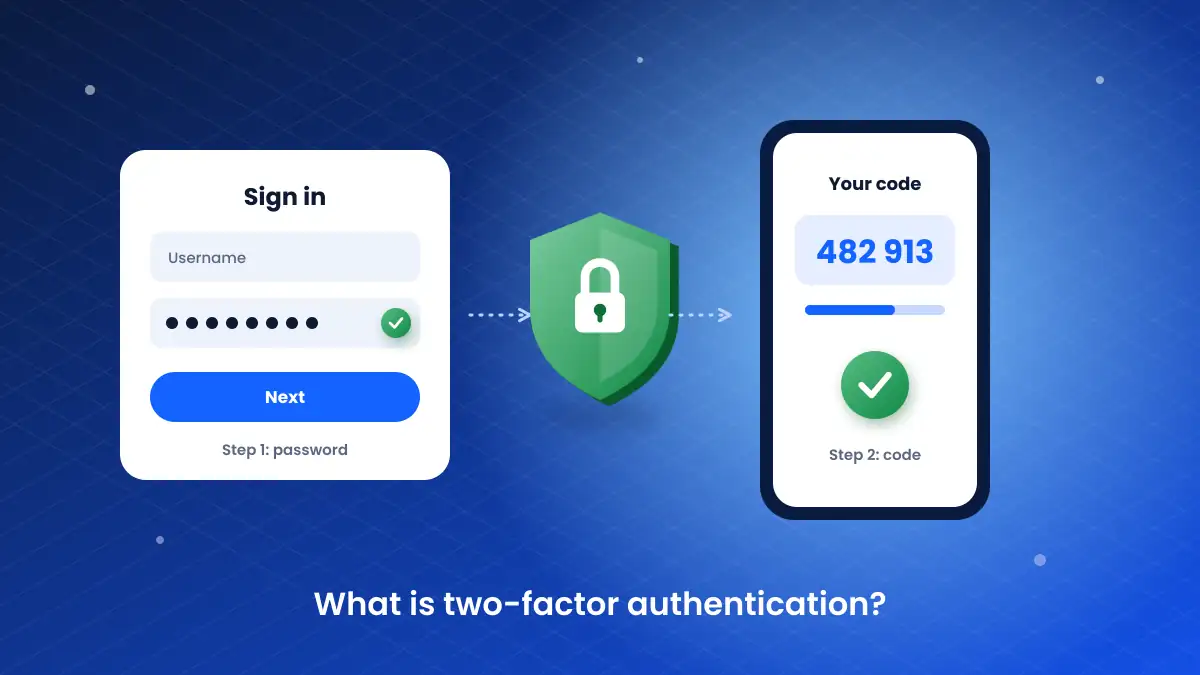
- You enter your username and password. This is the first factor.
- The service asks for a second proof. It sends a code, shows a prompt, or asks for your key.
- You prove you have your device. For instance, you type the code, tap “Yes, it’s me”, or touch your security key.
- The service checks it. If the code or prompt matches, the login continues.
- You get in. If anything fails, the login stops, even with the right password.
Many services then remember a trusted device, so you will not need the second step every time on your own phone or laptop. The same protection matters for smart home apps, which our guide to what the internet of things is covers.
Types of two-factor authentication
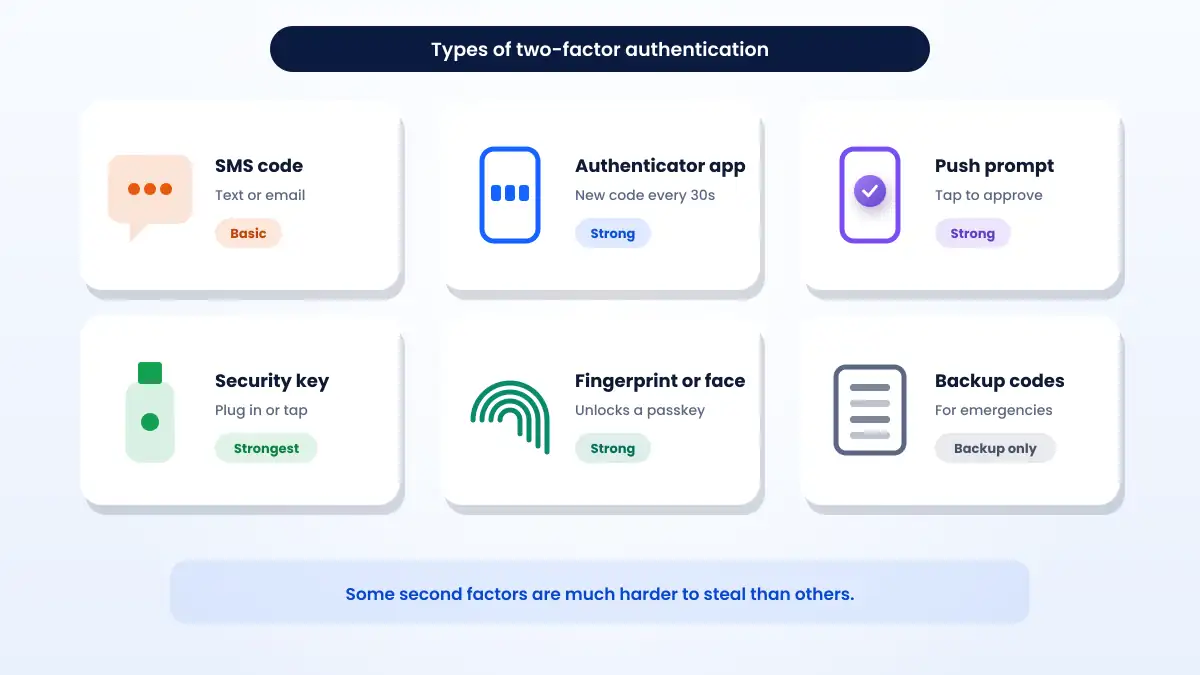
There are several ways to provide the second proof:
| Method | How it works | Safety level |
|---|---|---|
| SMS or email code | A one-time code arrives by text or email | Basic |
| Authenticator app | An app makes a new code every 30 seconds | Strong |
| Push prompt | You tap to approve the login in an app | Strong |
| Security key | You plug in or tap a small physical key | Strongest |
| Biometrics | Your fingerprint or face unlocks a device or passkey | Strong |
| Backup codes | One-time codes you save for emergencies | Backup only |
Popular authenticator apps include Google Authenticator, Microsoft Authenticator, and Authy. Meanwhile, many banks send one-time passwords (OTPs) by SMS or use their own app.
Why SMS codes are the weakest option
Text-message codes are better than nothing, but they have weak spots. Criminals can take over your phone number through SIM swap fraud and receive your codes themselves. Our guide on how SIM swap fraud works explains the trick.
Fraudsters also call or message people and persuade them to read out the code. Likewise, fake login pages can ask for your code and pass it on straight away. For that reason, an authenticator app or security key is the better choice whenever a service offers one.
How well does 2FA work?
The evidence is strong. A 2023 Microsoft study found that MFA reduced the risk of account compromise by more than 99.2%. It also found that authenticator apps did better than SMS, although both beat having no extra check at all.
Earlier research by Google found something similar. A code sent to a phone blocked all automated bot attacks, 96% of bulk phishing attacks, and 76% of targeted attacks. On-device prompts did even better, blocking 99% of bulk phishing and 90% of targeted attacks.
How to turn on two-factor authentication
The steps differ by service, but the pattern is similar:
- Open the account’s security settings. Look for “2-Step Verification”, “Two-factor authentication”, or “Login security”.
- Choose a method. Pick an authenticator app or security key if you can, and SMS only if nothing else is offered.
- Link your device. Usually, you scan a QR code with the authenticator app or register your key.
- Enter a test code to confirm that it works.
- Save your backup codes somewhere safe and offline, such as a notebook in a locked drawer.
Start with your most important accounts: email, banking apps, social media, and WhatsApp. Your email matters most, because it can reset almost every other password. Our guide on how to secure your Gmail account walks through the steps. For WhatsApp, see how to secure your WhatsApp account.
Two-factor authentication safety tips
- Never share a code. No real bank, provider, or support agent will ask for your OTP.
- Do not approve prompts you did not start. A surprise login prompt means someone may have your password, so change it. A password manager can create a strong new one.
- Lock your phone with a PIN, fingerprint, or face, since it now holds your second factor.
- Keep backup codes safe in case you lose your phone.
- Watch for fake pages. Check the website address before entering any code. Our guide on how to recognise a phishing message shows the warning signs.
For more ways to stay safe, see how to protect your bank account online.
Frequently asked questions
Is 2FA the same as two-step verification?
Mostly, yes. Many services, including Google and WhatsApp, call it two-step verification. Strictly speaking, 2FA must use two different kinds of factors, while two-step verification just means two steps.
What happens if I lose my phone?
Use one of your saved backup codes, or a second registered device, to log in. Then remove the lost phone from your account and set up 2FA again on the new one. For banking apps, our guide to device binding explains the extra checks on a new phone.
Can 2FA be hacked?
It can be bypassed, usually by tricking you into sharing a code or approving a prompt. However, it stops most attacks, and security keys resist phishing far better than codes.
Does 2FA work without the internet?
Yes, in many cases. Authenticator apps create codes offline, and SMS codes only need a mobile signal.
Is a passkey the same as 2FA?
Not exactly. A passkey replaces your password with a key stored on your device and unlocked by your fingerprint, face, or PIN. Our guide to passkeys for payments explains how they work at checkout. Because it combines something you have with something you are or know, it gives similar protection in one step.
Key takeaways on what two-factor authentication is
- Two-factor authentication asks for two different kinds of proof, usually your password plus your phone or a key.
- A stolen password alone is not enough to get into an account with 2FA turned on.
- Authenticator apps, push prompts, and security keys are safer than SMS codes.
- Microsoft found that MFA cut the risk of account compromise by more than 99.2%.
- Never share a code, save your backup codes, and start with your email and banking accounts.
Want more simpler explanations? Browse all our Digital Explained guides, or read what a digital wallet is.