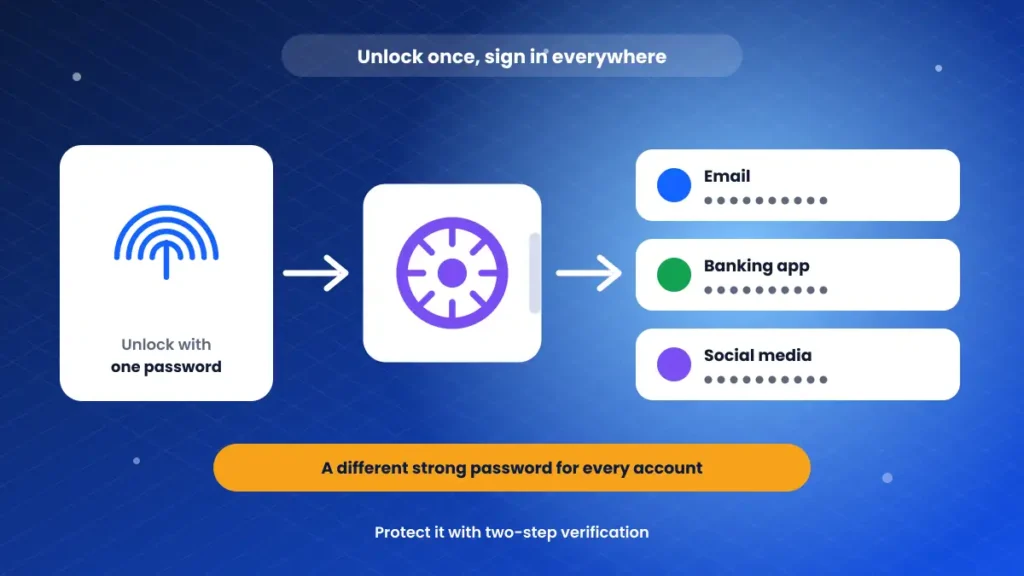
Most people have dozens of online accounts, from banking apps and email to social media and shopping sites. Remembering a strong, different password for each one is close to impossible, so many people reuse the same few. A password manager solves this problem. It creates strong passwords for you, stores them safely, and fills them in when you log in. This guide explains how a password manager works, why you need one, which free options to choose, and how to set one up step by step.
Quick answer: A password manager is an app that creates, stores, and fills in strong, unique passwords for all your accounts. You only remember one main password, or unlock it with your fingerprint or face. Free options include Google Password Manager on Android and Chrome, and the Passwords app on iPhone. Protect it with two-step verification and a strong main password you use nowhere else.
In this guide
- What is a password manager?
- Why you need a password manager
- Free password managers you can use
- How to set up a password manager
- How to replace weak passwords
- Is a password manager safe?
- Password managers and passkeys
- Frequently asked questions
- Key takeaways on using a password manager
What is a password manager?
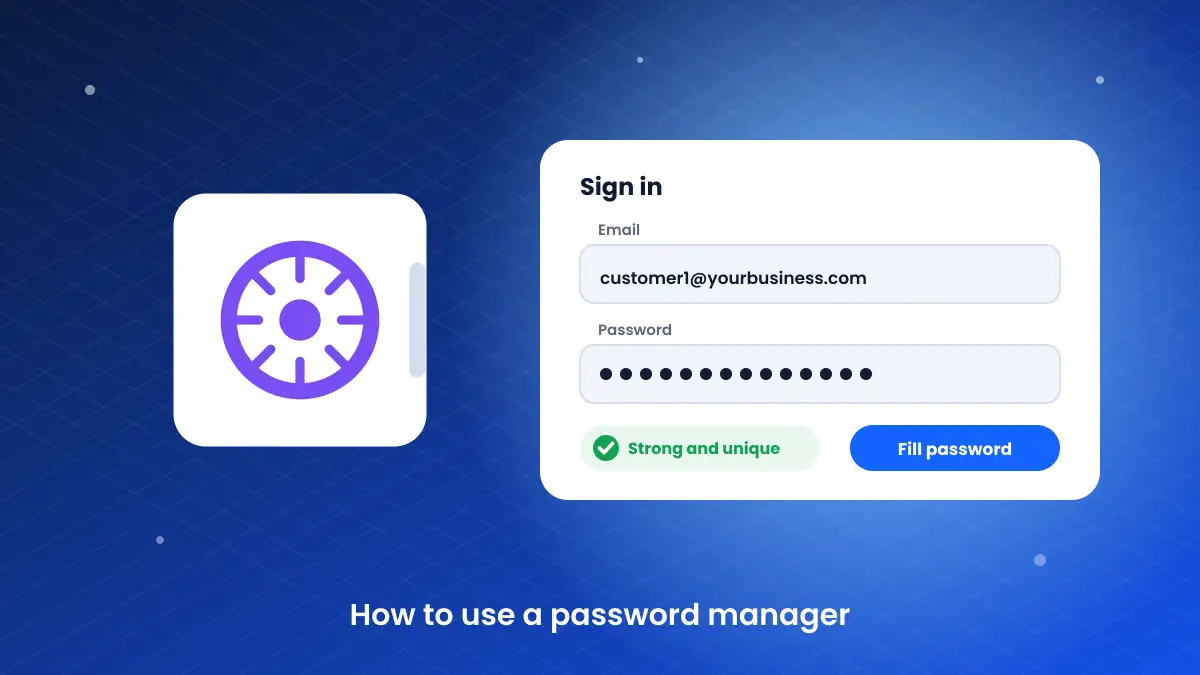
A password manager is a secure digital vault for your login details. It saves the username and password for each account, then fills them in automatically on websites and apps.
Most password managers also create new passwords for you. For example, instead of “Tunde2026”, it might suggest a long random password such as “v8#Qm!r2Lp@x9Wz”. You never need to remember it, because the app remembers it for you.
The vault is encrypted, so the saved passwords are scrambled and unreadable without your main password, fingerprint, or face. As a result, even the company that runs the service should not be able to read them.
Why you need a password manager
The biggest risk is password reuse. If you use the same password on several sites and one of them is breached, criminals can try that password on your email, banking app, and social media.
Password reuse is common. In an April 2025 Bitwarden survey of more than 2,300 working adults in six countries, 72% of Gen Z respondents admitted reusing passwords, compared with 42% of Boomers, Business Wire reported.
The UK’s National Cyber Security Centre (NCSC) recommends password managers for this reason. In a June 2025 blog post, it explained that a password manager lets you remember just one strong password while it creates unique ones for every site.
A password manager also helps you spot fake websites. Because it fills in your details only on the real web address, it may not offer to fill them on a look-alike page. Our guide on how to identify a fake website explains other warning signs.
Free password managers you can use
You may already have one on your phone. Here are the main free options:
| Option | Works on | Good to know |
|---|---|---|
| Google Password Manager | Android, Chrome on any device | Built into your Google Account, with alerts for compromised passwords |
| Apple Passwords app | iPhone, iPad, Mac, and Windows through iCloud | Built in from iOS 18, with alerts for weak, reused, and leaked passwords |
| Microsoft Edge password manager | Edge on Windows, Android, and iPhone | Built into the Edge browser |
| Third-party managers | Most phones, computers, and browsers | Some have free plans, plus extras such as secure notes and sharing |
According to Google, its manager can create and store strong passwords and passkeys and notify you about compromised passwords. You can see your saved logins at passwords.google.com.
Similarly, Apple’s Passwords app stores passwords, passkeys, Wi-Fi passwords, and verification codes. It also flags weak, reused, and leaked passwords, and it lets you share passwords with trusted family members.
The NCSC says that if convenience matters most, use the password manager provided by your browser or device. If you want more features or use different brands of devices, choose a reputable third-party manager instead.
How to set up a password manager
The steps are similar for most apps. Here is how to get started:
- Choose your password manager. First, pick the built-in option on your phone, or install a reputable app from the official app store.
- Create a strong main password. Next, use a long passphrase of three or four random words, such as “mango river lamp seven”. Never use it anywhere else.
- Turn on two-step verification. Then protect the account behind your manager, such as your Google Account or Apple Account. Our guide to two-factor authentication explains the options.
- Turn on autofill. On Android, open Settings, search for “autofill”, and choose your password manager. On iPhone, open Settings, then General, then AutoFill and Passwords.
- Save your existing passwords. As you log in to each site, let the manager save the details.
- Set up recovery. Finally, add a recovery phone number or email, and store any recovery codes somewhere safe and offline.
How to replace weak passwords
Once your accounts are saved, start fixing the weak ones. In particular, begin with your most important accounts:
- Email. Your email can reset almost every other password, so change it first. Our guide on how to secure your Gmail account walks you through it.
- Banking and payment apps. Use a unique password for each one.
- Social media and WhatsApp. For example, criminals often take over these accounts to scam your contacts.
- Shopping and other accounts. Finally, work through the rest over a few weeks.
For each account, open the site’s “change password” page and let the manager generate a new password. Then check the manager’s security alerts, and update any password it marks as weak, reused, or leaked.
Is a password manager safe?
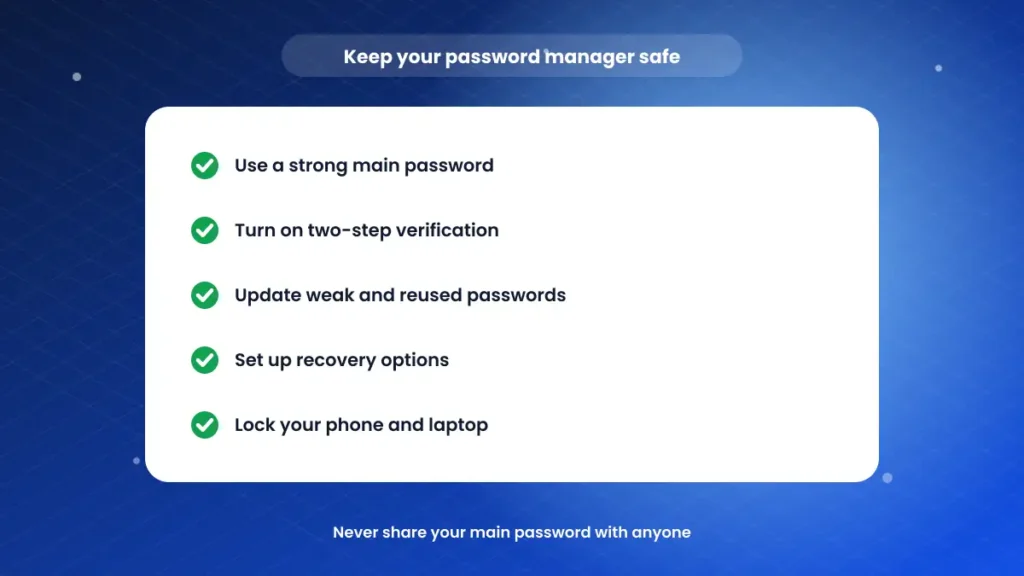
A common worry is putting all your passwords in one place. However, for most people, a reputable password manager is far safer than reusing passwords or writing them on paper.
That said, protect it properly:
- Use a strong main password that you do not use anywhere else.
- Turn on two-step verification for the account behind your manager.
- Lock your devices. The NCSC notes that someone with access to your unlocked laptop may be able to see passwords saved in your browser, so set a screen lock.
- Watch for phishing. No real password manager will ask for your main password by email, text, or phone call. Our guide on how to recognise a phishing message shows the warning signs.
Password managers and passkeys
Passkeys are a newer way to sign in without a password. Instead, you unlock a login with your fingerprint, face, or phone PIN. The NCSC says passkeys resist phishing because a fake website cannot receive a login meant for the real one.
Most password managers now store passkeys too. So, when a site offers a passkey, it is usually worth setting one up. Our guide to passkeys for payments explains how they work.
Frequently asked questions
Is a password manager safe to use?
Yes, if you choose a reputable one and protect it with a strong main password and two-step verification. It is much safer than reusing the same password on many sites.
Is the password manager in my browser good enough?
For most people, yes. The NCSC says built-in managers are a good choice if convenience matters most. However, third-party apps add features such as secure notes and sharing across different brands of devices.
What happens if I forget my main password?
It depends on the service. Built-in managers usually let you recover access through your Google or Apple account. So set up recovery options as soon as you start.
Can I use a password manager on my phone and laptop?
Yes. Most managers sync your passwords across your devices when you sign in with the same account.
Should I save my banking passwords in a password manager?
Yes, a unique, strong banking password stored in a manager is safer than a reused one. However, never save your card PIN or OTPs, and keep your phone locked.
Key takeaways on using a password manager
- A password manager creates, stores, and fills in a strong, unique password for every account.
- Free options are built into Android, Chrome, iPhone, and Microsoft Edge.
- Protect it with a strong main password and two-step verification.
- Start by changing the passwords for your email, banking, and social media accounts.
- Use passkeys where you can, and never share your main password with anyone.
Want to stay safer online? Read how to protect your bank account online and how to secure your WhatsApp account, or browse all our cybersecurity guides.