The job portal says “maximum 2 MB”, but your PDF is 9 MB. Or Gmail refuses to send your attachment. The fix is to make a PDF smaller without making it unreadable. This guide shows six free ways to make a PDF smaller on a phone or computer, how small you need it to be, and how to keep your text and photos clear.
Quick answer: To make a PDF smaller for free, open our Compress PDF tool, choose your file, and pick the Recommended level. It works in your browser, so nothing is uploaded. Alternatively, save the file again from Word with the “Minimum size” option, use Preview on a Mac, or try Adobe Acrobat online. If the file is still too big, split it into parts.
In this guide
- Why is your PDF so big?
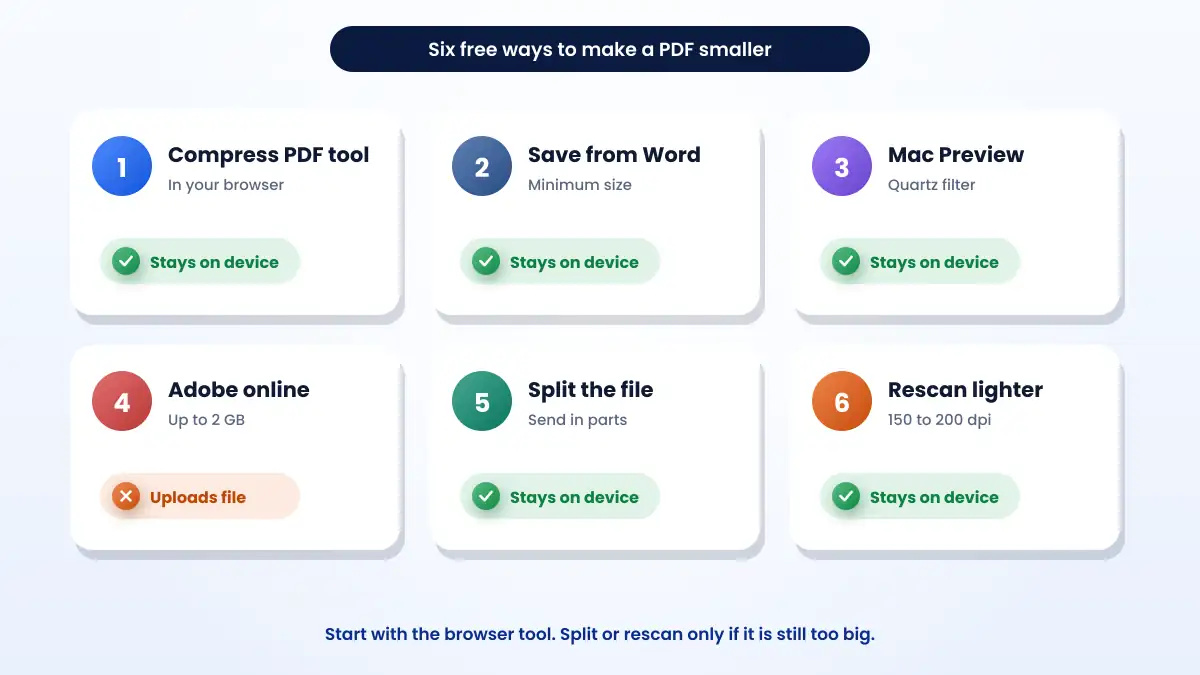
- Six free ways to make a PDF smaller
- Method 1: Use our free Compress PDF tool
- Method 2: Save a smaller PDF from Microsoft Word
- Method 3: Use Preview on a Mac
- Method 4: Use Adobe Acrobat online
- Method 5: Split the file into parts
- Method 6: Rescan at a lower setting
- How small does the file need to be?
- Keep your file clear and readable
- Frequently asked questions
- Key takeaways on how to make a PDF smaller
Why is your PDF so big?
Text takes up very little space. A 50-page report with only text is often under 1 MB. So when a file is large, the cause is usually one of these:
- Photos and scans. A scanned page is a picture, and a phone camera photo can be several megabytes on its own.
- High resolution. Scans made at 600 dpi or more are much bigger than you need for a screen or an email.
- Many pages. A long scanned document adds up quickly.
- Embedded fonts and design files. Brochures exported for printing often carry print-quality images.
Knowing the cause helps you choose the right method. In short, to make a PDF smaller, you usually need to shrink its images, not its text.
Six free ways to make a PDF smaller
This table compares the six methods in this guide:
| Method | Best for | Works on a phone? | Uploads your file? |
|---|---|---|---|
| DigiLifeGuide Compress PDF | Scans and photos, private files | Yes | No |
| Save again from Word | Files you created in Word | No | No |
| Preview on a Mac | Quick fixes on a Mac | No | No |
| Adobe Acrobat online | Large files, up to 2 GB | Yes | Yes |
| Split the PDF | Very long files, strict limits | Yes | No |
| Rescan at a lower setting | Paper documents you scan yourself | Yes | No |
Method 1: Use our free Compress PDF tool
Our Compress PDF tool is the quickest way to make a PDF smaller, and it works on phones and computers. Your file stays on your device because the work happens in your browser.
- Open the tool and choose your PDF.
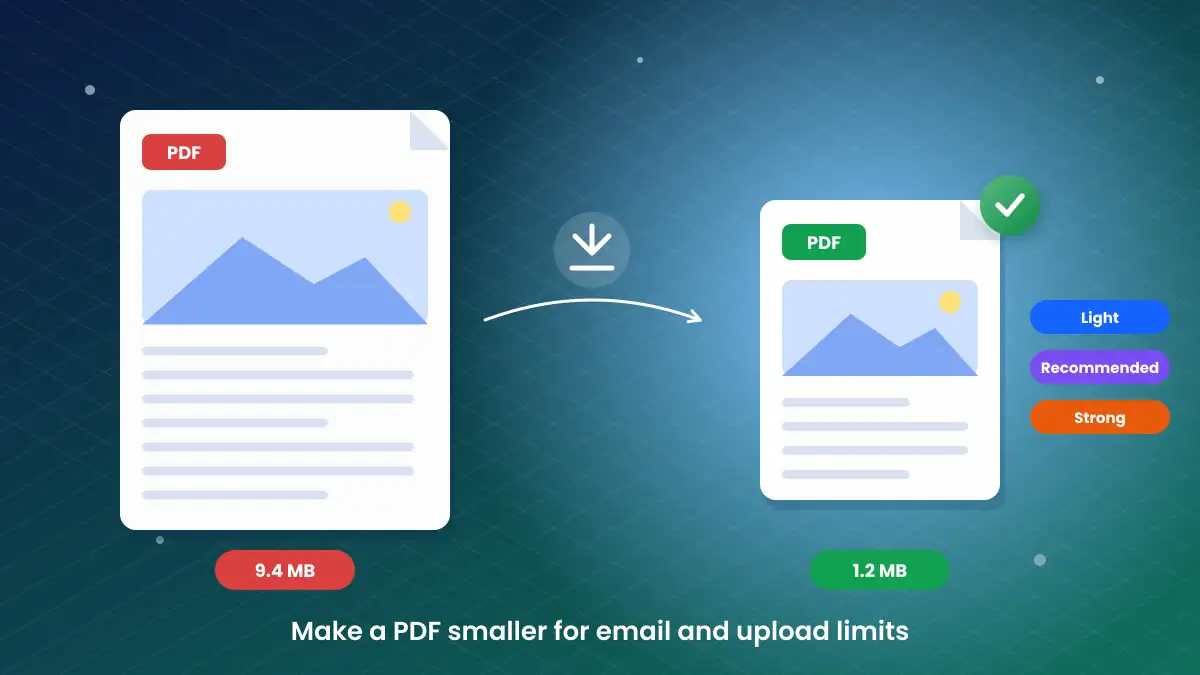
- Pick a level. Light keeps the best quality, Recommended suits email and online forms, and Strong gives the smallest file.
- Press Compress PDF, then check the new size.
- Download the file and open it to check that photos and scans are still clear.
The tool re-saves photos and scans at a lower quality, while text, fonts, and links stay exactly as they are. Each file can be up to 25 MB and 100 pages. If your document is mostly text, the tool tells you so, rather than giving you an identical file.
Method 2: Save a smaller PDF from Microsoft Word
If you made the file in Word, the easiest fix is to save it again with lighter settings. On Windows, go to File > Save As, choose PDF, and next to Optimize for, select Minimum size (publishing online).
On a Mac, the steps differ. First, go to File > Reduce File Size and choose Best for viewing in e-mail. Then save the document as a PDF. A University of Wisconsin-Milwaukee guide shows both versions step by step.
To save even more space, compress the pictures inside Word before you save. Select a picture, open Picture Format > Compress Pictures, and choose the email resolution.
Method 3: Use Preview on a Mac
Every Mac has a free option built in. Open the file in Preview, go to File > Export, and choose the Reduce File Size option in the Quartz Filter menu. Then save it with a new name.
Apple’s Preview guide warns that the result may be lower quality than the original. So always open the new file and check it before you send it.
Method 4: Use Adobe Acrobat online
Adobe’s free online PDF compressor offers high, medium, and low compression and handles files up to 2 GB. Basic compression needs no sign-up, but free use is limited, and sharing the file needs an Adobe account.
However, Adobe uploads your file to its servers. Avoid it for bank statements, ID cards, and other private documents, and use a tool that works on your device instead.
Method 5: Split the file into parts
Sometimes compression is not enough, especially for long scanned documents. In that case, split the document. With our free Split PDF tool, you can remove pages you do not need, or cut one large file into two or three parts.
For example, if a portal asks only for your degree certificate and transcript, upload those pages instead of the whole 40-page file.
Method 6: Rescan at a lower setting
If you scan documents yourself, you can make a PDF smaller before it even exists. Our guide on how to scan documents with your phone covers the best free apps. A few simple settings make a big difference:
- Use 150 to 200 dpi for documents you will email or upload. 300 dpi is only needed for printing.
- Choose greyscale or black and white for text documents, instead of colour.
- Crop the edges so the scan shows only the paper, not the table around it.
If you already have photos of your documents, reduce their size first, then turn them into one file with our JPG to PDF tool.
How small does the file need to be?
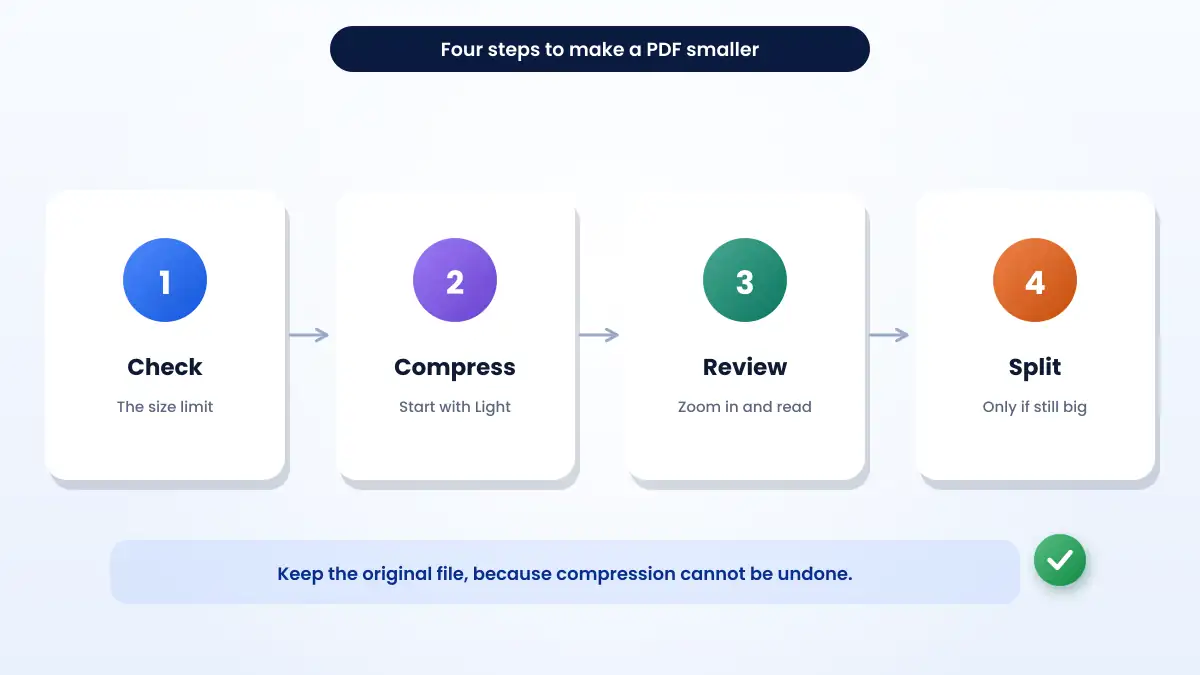
Check the limit before you start, because it tells you how hard to compress. For email, Gmail lets you attach up to 25 MB, according to an Android Authority report from February 2026. Above that, Gmail offers to share the file as a Google Drive link instead.
Job portals, school applications, and government forms often set much lower limits, sometimes 1 or 2 MB per file. The exact number varies, so read the upload instructions on the form. Then compress until it fits, with a little room to spare.
Keep your file clear and readable
A tiny file is useless if nobody can read it. So follow these tips:
- Start with the lightest setting. Only move to a stronger level if the file is still too big.
- Zoom in and check. Look at small print, signatures, stamps, and photos before you send the file. Still need to add your signature? Here is how to sign a PDF for free.
- Keep the original. Compression cannot be undone, so save the smaller file under a new name.
- Do not compress twice. Compressing an already compressed file usually saves little and lowers quality further.
If you need to edit the text as well, our guide on how to convert PDF to Word shows how. Sending a slide deck? Our guide on how to create presentations with AI covers free tools that export slides to PDF.
Frequently asked questions
How can I make a PDF smaller for free?
Use a free browser tool such as our Compress PDF tool, save the file again from Word with the “Minimum size” option, or use Preview on a Mac. All three are free and keep your file on your device.
Does compression lower the quality?
It can. Compression lowers the quality of photos and scans, while text usually stays sharp. Start with a light setting and check the result before you send it.
How do I make a PDF smaller on my phone?
Open our Compress PDF tool in your phone’s browser, choose the file from your phone, and pick a level. Nothing is uploaded, so it is also safe for private documents.
Why won’t my file shrink any further?
Most likely it is mostly text, or its images are already compressed. In that case, split the file or remove pages you do not need.
Is it safe to compress files online?
Tools that work in your browser, like ours, never upload your file. Upload-based tools are generally fine for ordinary files, but avoid them for bank statements, ID cards, and confidential work documents.
Key takeaways on how to make a PDF smaller
- Large PDFs are usually caused by photos and scans, not text.
- Use a browser tool first, because it keeps private files on your device.
- Check the upload limit, start with a light setting, and check the quality.
- If the file is still too big, split it or rescan at 150 to 200 dpi.
Need more help with documents? Try all our free PDF tools, or browse our tech tutorials.