You have a PDF, but you need to change a date, fix a name, or reuse a paragraph. The easiest answer is to convert the PDF to Word, edit the text, and save it again. This guide shows four free ways to convert PDF to Word on a computer or phone, how to handle scanned files, and how to keep your private documents safe.
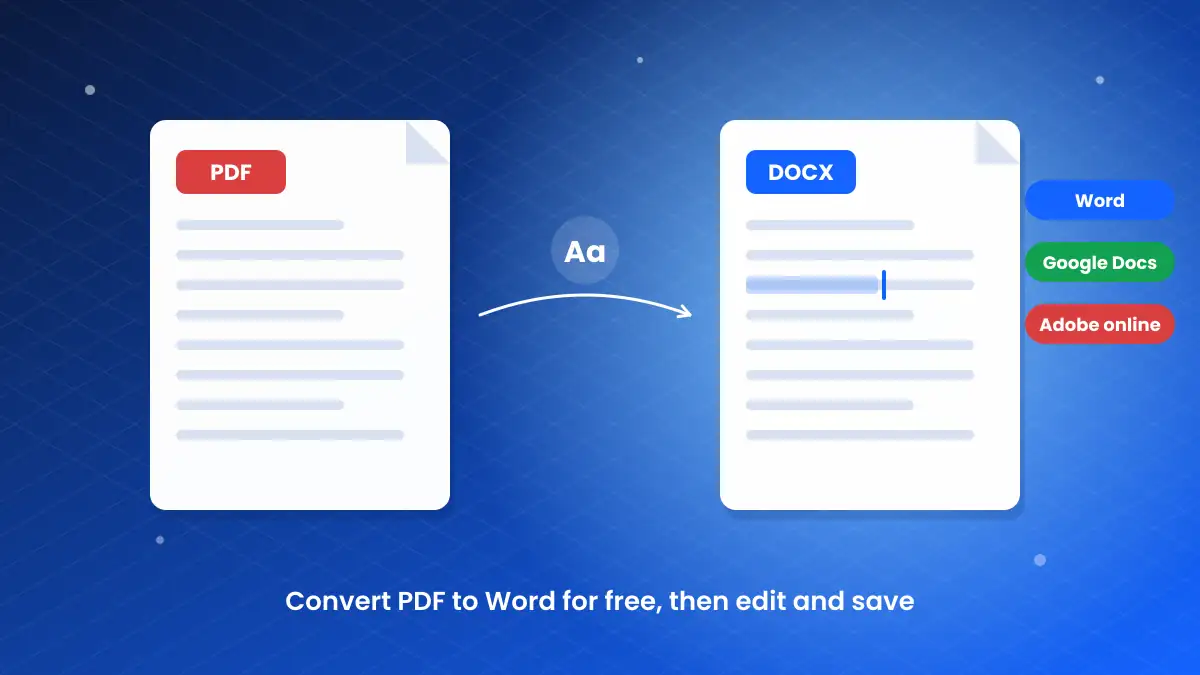
Quick answer: To convert PDF to Word for free, open the PDF in Microsoft Word (File > Open) and save it as a .docx file. If you do not have Word, upload the PDF to Google Drive, open it with Google Docs, then choose File > Download > Microsoft Word. Online converters such as Adobe Acrobat online also work, but they upload your file, so avoid them for private documents.
In this guide
- Before you convert PDF to Word
- Method 1: Convert PDF to Word in Microsoft Word
- Method 2: Convert PDF to Word with Google Docs
- Method 3: Use Adobe Acrobat online
- Method 4: Other free online converters
- Which method should you use?
- How to convert a scanned PDF to Word
- Fix the formatting after you convert
- Keep private documents safe
- Turn the Word file back into a PDF
- Frequently asked questions
- Key takeaways on how to convert PDF to Word
Before you convert PDF to Word
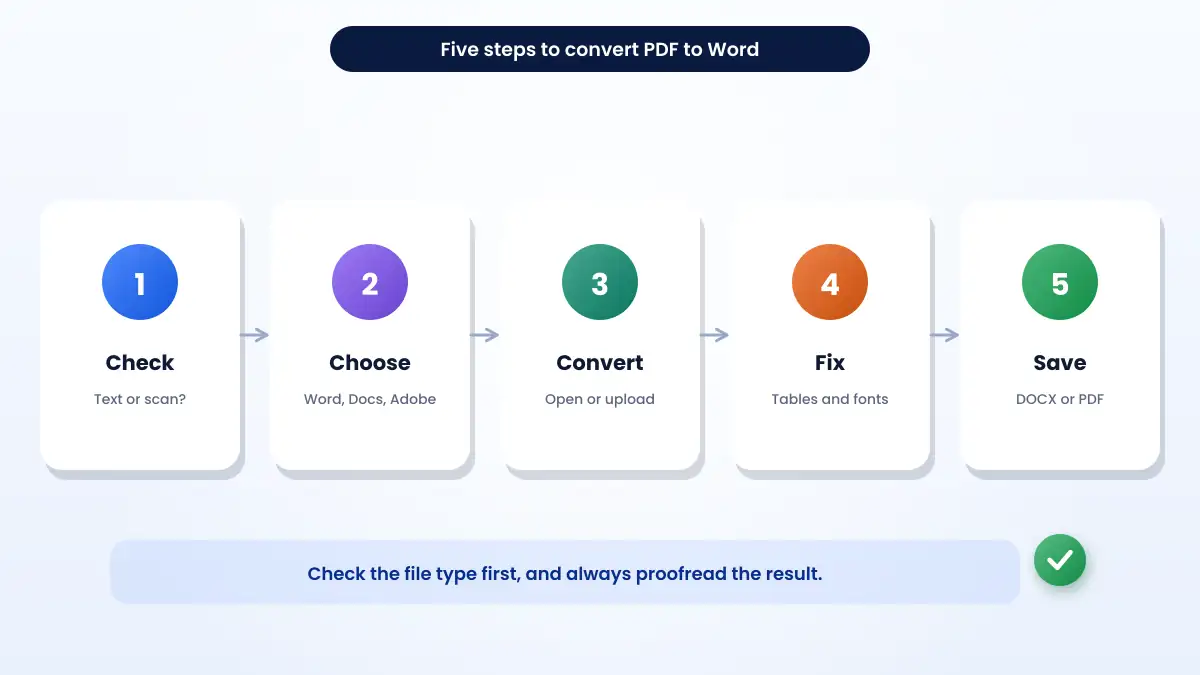
Not every PDF converts the same way. So first, check which kind you have:
- A text PDF. It was made from Word, Google Docs, or a website. You can select and copy the text. These convert well.
- A scanned PDF. It is a photo of paper, for example, a signed letter or an old certificate. You cannot select the text. These need OCR (optical character recognition), which reads the letters from the image.
- A complex PDF. It has many columns, tables, forms, or design elements, like a magazine or a bank form. These convert, but the layout often needs fixing.
To test your file, open it and try to highlight one sentence. If the text highlights, it is a text PDF. If the whole page highlights like a picture, it is a scan.
Method 1: Convert PDF to Word in Microsoft Word
If you have Microsoft Word 2016 or later, or Microsoft 365, you already have a converter. This is also the most private option, because the file stays on your computer.
- Open Word and go to File > Open.
- Choose your PDF. Word warns that it will make a copy and convert it into an editable document. The original PDF does not change.
- Edit the text, then go to File > Save As and choose Word Document (.docx).
Microsoft’s guide to editing a PDF in Word says this works best with PDFs that are mostly text. Book chapters and copier scans do not format well, and line or page breaks may move.
Method 2: Convert PDF to Word with Google Docs
Google Docs is free with any Google account, and it can also read scanned pages.
- Open Google Drive and upload your PDF.
- Right-click the file and choose Open with > Google Docs.
- Check the text, then go to File > Download > Microsoft Word (.docx).
However, there are limits. Google’s help page on converting PDF files says the file should be 2 MB or smaller. Bold, italics, and font sizes usually survive, but tables, columns, lists, and footnotes often do not.
If your PDF is too big, shrink it first with our free Compress PDF tool, or cut it into smaller parts with Split PDF. Both work in your browser without uploading the file. Our guide on how to make a PDF smaller covers more options.
Method 3: Use Adobe Acrobat online
Adobe, the company that created the PDF format, offers a free online PDF to Word converter. You drag in your file, wait a few seconds, and download a .docx file. It usually keeps the layout better than Google Docs.
The free version needs no sign-up for the first file. After that, Adobe may ask you to sign in, and it applies daily limits. Unlimited use needs a paid plan or a free trial.
Method 4: Other free online converters
Several other websites convert PDF to Word for free, with limits. For example, a March 2026 comparison lists Smallpdf at 2 free tasks a day, iLovePDF at files up to 25 MB, and PDF24 with no daily limit and free OCR. Free limits change often, so check each site before you rely on it.
Only use well-known converters. Fake “free converter” sites can push malware or steal files, so learn how to identify a fake website before you upload anything.
Which method should you use?
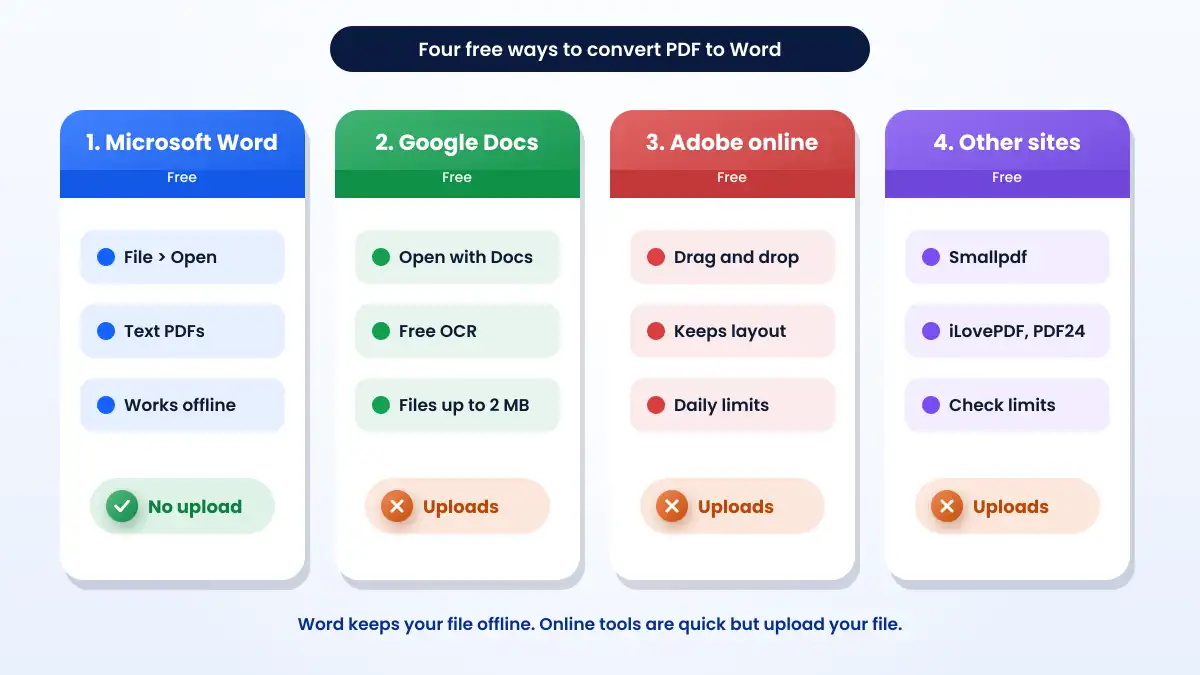
This table sums up the four ways to convert PDF to Word:
| Method | Best for | Free limit | Uploads your file? |
|---|---|---|---|
| Microsoft Word | Text PDFs, private files | Needs Word 2016 or later | No |
| Google Docs | Scanned pages, no Word installed | Files up to 2 MB | Yes, to your Google Drive |
| Adobe Acrobat online | Keeping the layout | Daily limits; sign in after the first file | Yes |
| Smallpdf, iLovePDF, PDF24 | Quick one-off jobs | Varies by site | Yes |
In short, use Word when you have it. Otherwise, use Google Docs for simple files and Adobe for files with a complex layout.
How to convert a scanned PDF to Word
A scanned PDF has no real text, so a normal converter gives you a picture inside a Word file. Instead, you need a tool with OCR. Google Docs does this for free, and PDF24 and paid versions of Adobe Acrobat also offer it.
For the best result:
- Use a clear scan. Sharp, evenly lit pages with dark text read best. Google recommends text at least 10 pixels high.
- Turn pages upright. OCR struggles with sideways pages, so fix them first with our Rotate PDF tool.
- Proofread everything. OCR often confuses letters and numbers, such as “0” and “O”, or “1” and “l”. Check names, amounts, and dates carefully. For a cleaner scan to start with, see how to scan documents with your phone.
Fix the formatting after you convert
Even a good conversion needs a quick check. Go through the Word file and look for:
- Tables. Rows can split, or columns can shift. Rebuild small tables if needed.
- Fonts. Word may swap a font it does not have. Select all the text and set one font.
- Spacing and breaks. Remove extra line breaks and blank pages.
- Headers, footers, and page numbers. These sometimes appear as normal text in the middle of a page.
- Images and logos. Check that they are still in the right place.
If you need a document only for its main points, you may not need to convert it at all. Our guide on how to summarise documents with AI shows how to pull out the key points instead.
Keep private documents safe
Think before you upload a PDF to any website. Bank statements, payslips, ID cards, contracts and customer records contain personal data. For these, convert PDF to Word in Microsoft Word on your own computer, because the file never leaves your device.
If you must use an online converter, choose a well-known one, delete the file from your account afterwards, and never upload someone else’s personal data without permission. In Nigeria, the Data Protection Act 2023 applies whenever you handle other people’s personal information.
Turn the Word file back into a PDF
After editing, you will often need a PDF again, for example to email a CV or submit a form. In Word, go to File > Save As and choose PDF. In Google Docs, go to File > Download > PDF Document. If the form needs your signature, learn how to sign a PDF without printing it.
If the new PDF is too large to email, our Compress PDF tool can make it smaller. To join it with other files, such as certificates, use Merge PDF. Updating a CV? See our guide on how to create a CV with AI.
Frequently asked questions
Can I convert PDF to Word for free?
Yes. Microsoft Word can open PDFs if you already have it, and Google Docs is free with a Google account. Adobe Acrobat online and other converters also offer free conversions with daily limits.
How do I convert PDF to Word on my phone?
The simplest way is to open a well-known online converter, such as Adobe Acrobat online, in your phone’s browser. However, avoid this for private documents, and wait until you can use Word on a computer instead. Our guide on how to transfer files from phone to computer shows how to move the PDF across.
Why does my converted document look different?
PDFs fix every item to a position on the page, while Word lets text flow. So tables, columns, and page breaks often move. Use Adobe for complex layouts, and expect to fix a few things by hand.
Can I convert a scanned PDF to Word?
Yes, but you need OCR. Google Docs does this for free on files up to 2 MB. Always proofread the result, because OCR makes mistakes.
Is it safe to use online PDF converters?
Well-known converters are generally safe for ordinary files. However, they upload your document, so do not use them for bank statements, ID cards or confidential work files.
Key takeaways on how to convert PDF to Word
- Check whether your PDF is a text file or a scan before you start.
- Use Microsoft Word for private files, because the file stays on your computer.
- Use Google Docs for free OCR on small files, or Adobe online for complex layouts.
- Always check tables, fonts, and numbers after you convert.
Want more help with documents? Try our free PDF tools, or browse all our tech tutorials.