Many small businesses run on WhatsApp. Customers send enquiries, orders, and payment screenshots there every day. However, the regular WhatsApp app was built for friends and family, not for business. So should you switch? This guide compares WhatsApp Business vs WhatsApp, explains what the business app adds, and shows how to move without losing your chats.
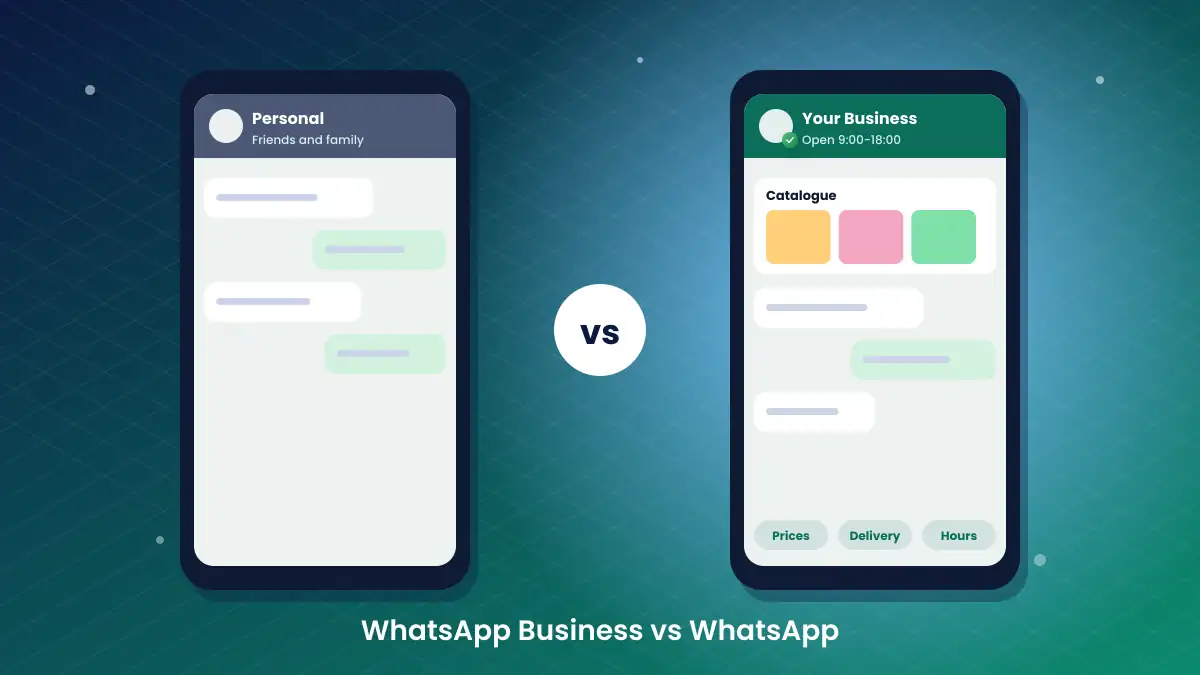
Quick answer: In the WhatsApp Business vs WhatsApp comparison, both apps are free, but WhatsApp Business adds tools that help you sell: a business profile with your hours and address, a product catalogue of up to 500 items, quick replies, greeting and away messages, and labels to sort chats. Use regular WhatsApp for personal chats and WhatsApp Business for customers. One number can only be active on one app at a time, but you can run both apps on one phone with two numbers.
In this guide
- WhatsApp Business vs WhatsApp at a glance
- Best uses for the personal app
- Extra tools in the business app
- When to switch to WhatsApp Business
- How to move from WhatsApp to WhatsApp Business
- Tips for using WhatsApp Business well
- What about the Business Platform?
- Frequently asked questions
- Key takeaways on WhatsApp Business vs WhatsApp
WhatsApp Business vs WhatsApp at a glance
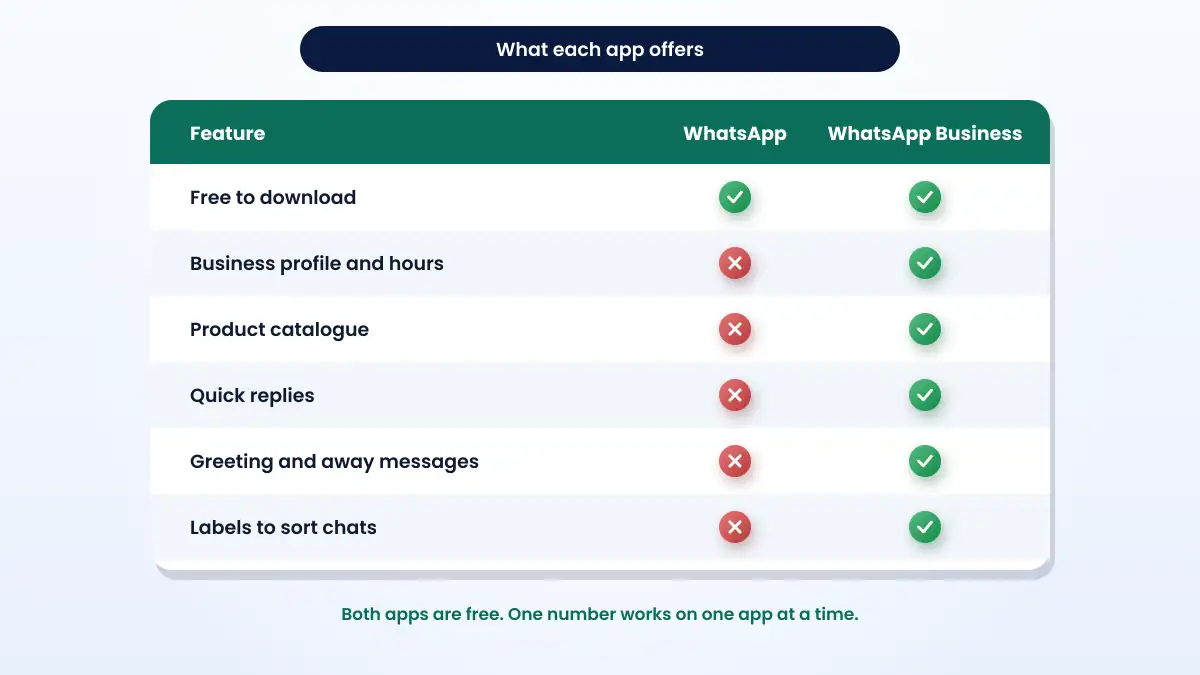
Here are the main differences between the two apps:
| Feature | WhatsApp Business | |
|---|---|---|
| Cost to download | Free | Free |
| Business profile (hours, address, website) | No | Yes |
| Product catalogue | No | Yes, up to 500 items |
| Quick replies | No | Yes, up to 50 saved replies |
| Greeting and away messages | No | Yes |
| Labels to sort chats | No | Yes, up to 20 |
| Best for | Friends and family | Customers and orders |
The business tools in this table come from the WhatsApp Business App Store listing. The limits for the catalogue, quick replies, and labels come from an April 2026 guide to WhatsApp Business features written by a WhatsApp software company.
Best uses for the personal app
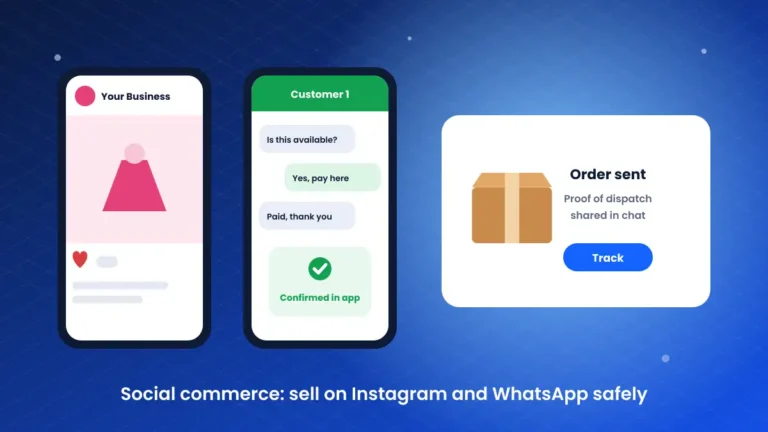
Regular WhatsApp is perfect for personal use. It handles chats, groups, voice notes, calls, and status updates. Many traders also start selling on it, because their customers are already in their contacts. Our social commerce guide shows how to sell on Instagram and WhatsApp safely.
However, it has no tools to help a business. For example, you cannot set opening hours, send an automatic reply after hours, or show your products in one place. As orders grow, that means more typing, slower replies, and missed messages.
Extra tools in the business app
WhatsApp Business looks and works almost the same, so there is little to learn. On top of that, it adds:
- A business profile. Show your business name, description, address, opening hours, email, and website.
- A product catalogue. Add products with photos, prices, and descriptions, and share a link to one item or the whole catalogue.
- Quick replies. Save answers to common questions, such as prices or delivery areas, and send them with a shortcut. Our guide on how to use AI in a small business shows how to draft them quickly.
- Greeting and away messages. Automatically welcome new customers and reply when you are closed.
- Labels. Tag chats as “New order”, “Paid,” or “Delivered”, so nothing gets lost.
Also, according to the App Store listing, customers can place orders and pay inside the app in some markets, although this is not available everywhere.
When to switch to WhatsApp Business
Switch if any of these sound familiar:
- Customers message you every day about prices, stock, or delivery.
- You answer the same questions again and again.
- Orders get lost among personal chats.
- You want customers to see your hours, address, and products without asking.
On the other hand, if you only sell to a few friends now and then, regular WhatsApp may be enough for now.
How to move from WhatsApp to WhatsApp Business
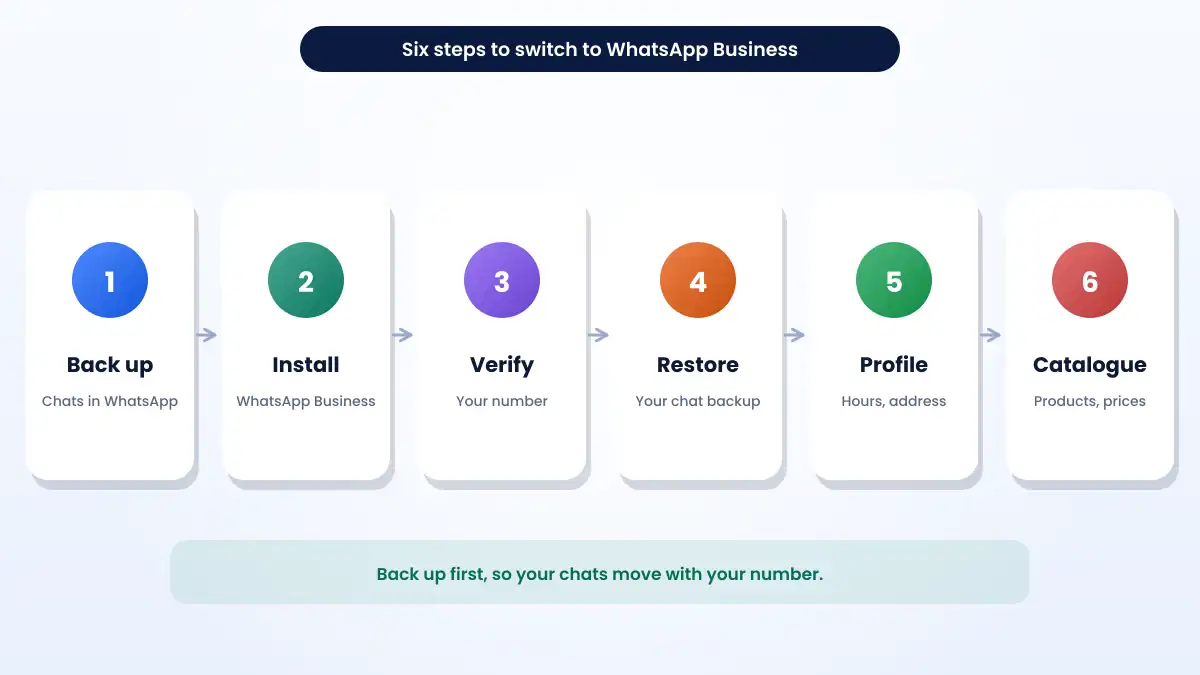
You can move your existing number to WhatsApp Business and keep your chat history. Before you start, though, note that one number can only be active on one app at a time. So if you want to keep personal WhatsApp too, use a second number for one of them. Whichever app you choose, our guide on how to secure your WhatsApp account shows the settings that stop hijackers.
- Back up your chats. In WhatsApp, open Settings, then Chats, then Chat backup, and back up now.
- Install WhatsApp Business from the Google Play Store or Apple App Store.
- Verify your number. Enter the number you want to use for the business and confirm the code.
- Restore your chats. When the app offers to restore your backup, accept it. A SleekFlow guide to switching confirms that you can back up chats in regular WhatsApp and restore them in WhatsApp Business.
- Set up your profile. Add your business name, category, description, hours, and address.
- Add your catalogue. Upload your main products with clear photos and prices.
- Turn on messaging tools. Set a greeting message, an away message, and quick replies for common questions.
Tips for using WhatsApp Business well
Once you have switched, these habits help you get more from the app:
- Keep your hours accurate. Then your away message tells customers when to expect a reply.
- Put prices in the catalogue. As a result, fewer people need to ask “How much?”
- Use a payment link. Our guide on how to accept online payments explains how to share one in chat. To set one up, see what a payment link is.
- Link everything together. Add your WhatsApp link to your Google listing and website. Our guides on how to create a Google Business Profile and create a business website show how.
- Turn on two-step verification. It adds a PIN to your account, which helps protect it if someone tries to take over your number. Our guide to SIM swap fraud explains the risk.
- Do not spam. Only message people who expect to hear from you, or they may block or report you.
What about the Business Platform?
You may also hear about the WhatsApp Business Platform, sometimes called the WhatsApp API. It is a separate service for larger businesses that need many staff, chatbots, or links to other software, and it usually comes through a paid provider. For most small businesses, the free WhatsApp Business app is enough.
Frequently asked questions
Is WhatsApp Business free?
Yes. The app is free to download and use, although normal data charges may apply. The larger WhatsApp Business Platform for big companies is a separate, paid service.
Can I run both apps on one phone?
Yes, if you use a different phone number for each app. According to the App Store listing, your business and personal accounts can live together on a single device.
Will I lose my chats if I switch?
Not if you back them up first. Back up your chats in regular WhatsApp, then restore the backup when you set up WhatsApp Business with the same number.
Can I use it on a computer?
Yes. You can link other devices, such as WhatsApp on your computer. The April 2026 features guide puts the limit at your main phone plus three more devices.
Do customers need the business app?
No. Customers keep using regular WhatsApp. They simply see your business profile and catalogue when they chat with you.
Key takeaways on WhatsApp Business vs WhatsApp
- Both apps are free, but only WhatsApp Business has tools for selling.
- The business app adds a profile, a catalogue, quick replies, greeting and away messages, and labels.
- Back up your chats before you move your number, then restore them in WhatsApp Business.
- One number works on one app at a time, so use two numbers to keep both apps.
- Turn on two-step verification and avoid spamming customers.
Ready to sell more? Next, learn how to start an online store, or browse all our digital business guides.